

Learn how to diagnose and speed up a slow Windows 11 PC using built-in tools, safe performance fixes, and evidence-based hardware decisions without risky registry cleaners or miracle optimizer apps.
A Windows PC that feels slow rarely has one magical cause. A long boot can come from too many startup apps. A browser that stutters can be short on memory. File Explorer can crawl because the system drive is nearly full. A laptop may throttle because it is hot, while an older machine can simply be limited by a mechanical hard drive or too little RAM for today’s workload. The fastest way to improve a slow Windows 11 computer is therefore not to install a “PC booster.” It is to identify the bottleneck first, make one controlled change at a time, and verify whether that change actually helped.
 Windows 11 includes enough built-in diagnostic and maintenance tools to solve many performance problems without third-party optimizer software. Image: Paowee/Wikimedia Commons; see source page for licensing details.
This guide uses a practical troubleshooting workflow for Windows 11 and, where noted, Windows 10. It focuses on fixes that are reversible, measurable, and unlikely to create new problems. Microsoft’s current performance guidance identifies limited storage, excessive startup and background activity, outdated software, and aging hardware among the common reasons a Windows PC becomes slow. The same guidance recommends Windows Update, storage cleanup, startup-app management, background-app control, and selective removal of unused software before assuming the computer is defective.
Quick answer: Start by restarting the PC and reproducing the slowdown with only the apps you actually need. Open Task Manager and watch CPU, Memory, Disk, and GPU usage. Then free meaningful space on the system drive, disable unnecessary startup apps, update Windows and important drivers, remove unused software, scan for malware, and check whether overheating is causing throttling. If the machine still struggles during your normal workload, use the evidence you collected to decide whether more RAM, an SSD, or a newer PC will make the biggest difference.
1. Define What “Slow” Actually Means Before Changing Anything
The first mistake in PC troubleshooting is treating every kind of slowness as the same problem. “My computer is slow” can mean Windows takes five minutes to boot, apps take a long time to open, the mouse freezes while copying files, web pages load slowly, video calls stutter, games have low frame rates, or the machine becomes unusable only after an hour of work. Those symptoms point to different bottlenecks.
Spend five minutes describing the symptom precisely. Ask yourself when the slowdown begins, whether it happens immediately after startup, whether one application triggers it, whether it appears only when the battery is low or the laptop is unplugged, and whether the problem started after a Windows update, app installation, driver change, or storage expansion. Record the approximate time required for repeatable tasks. For example, measure the time from pressing the power button to reaching a usable desktop, or note how long a large application takes to launch. You do not need laboratory-grade benchmarking; you need a baseline you can compare after each change.
Also separate internet problems from PC performance problems. If a web page loads slowly but local apps, File Explorer, and offline documents feel responsive, the network may be the real problem. If everything pauses when the browser has 40 tabs open, memory pressure is a better hypothesis. If opening a folder causes 100 percent disk activity, storage deserves attention. A correct description of the symptom prevents you from spending an afternoon changing unrelated settings.
How to verify success: Pick two or three tasks that consistently feel slow and repeat them after each major change. If boot time drops from four minutes to one minute, you have evidence that startup changes worked. If video editing remains slow but boot time improves, you solved one bottleneck but not the workload that matters most.
Common mistake: Applying ten tweaks at once. If performance improves, you will not know which change helped. If the PC becomes unstable, you will not know which change caused the new problem. Make one category of changes at a time and keep notes.
2. Restart Properly and Test a Clean Workload
Restarting sounds obvious, but it is a valuable diagnostic step because it clears temporary processes, ends memory leaks, reloads drivers, and creates a known starting point. A PC that has been sleeping and waking for days can behave very differently from the same PC after a full restart. Choose Start > Power > Restart rather than simply closing the lid.
After restart, wait a few minutes before judging performance. Windows may be finishing updates, indexing recently changed files, synchronizing cloud storage, scanning with Microsoft Defender, or allowing startup applications to initialize. Open only the applications you need for your normal task. If the computer feels fast immediately after restart but becomes progressively slower during the day, the problem may be an application that leaks memory, a browser session that grows too large, or a background task that accumulates work.
If the machine is slow from the first minute after every restart, startup apps, services, storage performance, driver problems, or hardware limitations become more likely. If it is only slow when one specific application runs, troubleshoot that application first rather than “optimizing” the entire operating system.
Alternative if restart does not help: Continue to Task Manager and observe which resource is saturated during the exact moment the slowdown occurs. A restart is not a cure-all; its value is that it helps you establish whether the problem is persistent or builds over time.
3. Use Task Manager to Find the Bottleneck Instead of Guessing
Press Ctrl + Shift + Esc to open Task Manager. In Windows 11, the Processes and Performance pages show CPU, memory, disk, network, and GPU activity. Keep Task Manager open while reproducing the slowdown. Sort the process list by CPU, Memory, or Disk to identify which application is consuming the resource that is under pressure.
Do not panic because one number briefly reaches 100 percent. Short bursts are normal. The useful clue is sustained high utilization that lines up with the moment the PC becomes unresponsive. For example, 100 percent CPU for two seconds while launching a program is not necessarily a problem. CPU usage pinned near 100 percent for several minutes while an unexpected background app dominates the list deserves investigation.
CPU pressure: If CPU remains very high, identify the process at the top. A video encoder, game, compile job, or large spreadsheet may legitimately use most available CPU capacity. If an unfamiliar updater or utility dominates the processor while you are idle, close or remove it if it is not needed. If Windows components are busy immediately after an update, give them time to finish before making more changes.
Memory pressure: High memory use becomes important when the system has little available memory and starts relying heavily on the page file. Symptoms include switching between apps becoming slow, browser tabs reloading, and disk activity rising even though you are not copying files. Closing unused high-memory applications is a quick test. If performance improves instantly, RAM capacity or workload management may be the issue.
Disk pressure: If Disk stays near 100 percent while transfer speeds are low, a slow or failing drive, aggressive background activity, indexing, antivirus scanning, or memory paging may be involved. Mechanical hard drives are especially vulnerable to becoming a bottleneck when many small operations happen simultaneously. An SSD normally handles random access far better.
GPU pressure: Games, video editing, 3D applications, browser acceleration, and AI workloads can push the GPU. If the GPU is saturated only during graphics-heavy work, lowering quality settings or using a stronger GPU may be more relevant than changing Windows services.
Never end a process merely because you do not recognize its name. Search for the process first, check its file location and publisher where appropriate, and avoid force-closing core Windows services. Ending the wrong process can crash an app, lose unsaved work, or make the desktop temporarily unstable.
4. Check Free Space on the System Drive
Low disk space can make Windows feel sluggish and can interfere with updates, temporary files, caches, and virtual memory. Microsoft’s Storage Sense documentation specifically notes that constrained storage can degrade performance and prevent critical updates from installing. Open Settings > System > Storage and look at the system drive, usually C:.
There is no single percentage that guarantees good performance on every PC, because Windows editions, update sizes, application workloads, and drive capacities differ. The practical goal is to maintain enough free space that Windows can update and your applications can create temporary files without constantly fighting for the last few gigabytes. On a nearly full 128 GB drive, freeing 20 GB can matter far more than deleting a few hundred megabytes of browser cache.
Start with the Storage page and inspect categories such as Installed apps, Temporary files, Documents, and Other. Remove files you genuinely do not need. Empty the Recycle Bin only after confirming nothing important is there. Review Downloads manually rather than blindly deleting everything. Large video files, old installers, duplicated archives, virtual machines, and abandoned game installations often produce larger gains than micro-cleaning tiny caches.
Use Storage Sense carefully
Storage Sense can automatically remove certain temporary files and manage Recycle Bin or cloud-backed content according to configured rules. Open Settings > System > Storage > Storage Sense and read each option before enabling aggressive cleanup. If OneDrive Files On-Demand is in use, understand the difference between removing a local copy and deleting the cloud file itself.
How to verify success: Note free space before cleanup, restart the PC, and repeat your slow task. If disk activity is less erratic or Windows Update can finally complete, storage pressure was part of the problem.
Common mistake: Installing third-party “junk cleaners” that delete obscure caches or registry keys. The measurable value usually comes from freeing real storage and reducing unnecessary background work, not from removing thousands of tiny entries that Windows does not need to “clean.”
5. Disable Startup Apps That Do Not Need to Launch With Windows
Every application that starts automatically consumes some combination of CPU time, storage I/O, memory, and network activity. One startup utility may be harmless; twenty can make a modern PC feel much slower than its hardware suggests. Microsoft’s own performance guidance recommends disabling startup apps you do not need.
Open Task Manager and select Startup apps, or go to Settings > Apps > Startup. Review the list item by item. Good candidates for disabling include launchers you use only occasionally, chat clients you do not need immediately, vendor update notifiers that can be opened manually, and helper programs whose only purpose is to preload a larger application.
Do not disable everything. Security software, accessibility tools, backup clients, cloud synchronization tools, password managers, hardware utilities, or work applications may need to start automatically depending on how you use the PC. The correct question is not “Can I disable this?” but “Do I need this running from the moment I sign in?”
Disable a few clearly unnecessary items, restart, and compare boot-to-usable time. If the desktop becomes responsive faster, the result is measurable. If a needed feature disappears, simply re-enable the corresponding startup item.
Alternative: Some applications include their own “Start with Windows” toggle in Settings. Turning the feature off inside the app can be cleaner than changing multiple Windows locations.
6. Remove Software You No Longer Use
Unused applications waste more than storage. Some install background services, automatic updaters, browser extensions, scheduled tasks, tray icons, or telemetry components that continue running even when the main program is never opened. Go to Settings > Apps > Installed apps and sort by size or review the list alphabetically.
Uninstall software you recognize and genuinely no longer need. Be cautious with hardware drivers, Microsoft Visual C++ runtimes, framework components, device-control software, and applications you cannot identify. If unsure, research the name before removing it. Removing a random package because a cleaner labels it “unused” can break a dependent application.
Pay particular attention to duplicate utilities. Many PCs accumulate multiple PDF tools, game launchers, cloud sync clients, RGB-control packages, printer helpers, old VPN clients, and trial security suites. Reducing overlap often improves startup complexity and lowers the chance that two utilities fight over the same function.
How to verify success: After removing a batch of known-unused software, restart and check Task Manager again. Compare background process count, memory usage while idle, and the speed of your normal workload.
7. Update Windows, Store Apps, and Important Drivers
Performance problems are sometimes software defects rather than resource shortages. Microsoft recommends installing Windows updates because they can include fixes, security improvements, and performance changes. Open Settings > Windows Update, check for updates, install applicable updates, and restart when required.
Also review optional updates carefully when you are troubleshooting a device-specific issue. A graphics, chipset, Wi-Fi, or storage driver can affect performance. However, “newer” is not automatically “better” if the current system is stable. Prefer Windows Update or the official support page for your PC or component manufacturer rather than generic driver-download websites.
For graphics-intensive workloads, the GPU manufacturer’s official driver may be appropriate. For laptops, the computer manufacturer may provide customized drivers designed for that model’s power management, hotkeys, display switching, or thermal behavior. If performance became worse immediately after a driver update, checking the manufacturer’s support notes or rolling back a problematic driver may be more useful than stacking additional updates on top.
Common mistake: Using a one-click “driver updater” that claims dozens of drivers are dangerously out of date. These tools can install mismatched packages, create restore problems, and introduce instability. Use official sources.
8. Check Browser Tabs, Extensions, and Web Apps
For many people, the browser is the heaviest application on the PC. Dozens of tabs, multiple profiles, video streams, web-based office suites, AI tools, extensions, and messaging apps can consume gigabytes of memory and significant CPU time. If the computer is fast before the browser opens and slow afterward, Windows itself may not be the main problem.
Close tabs you do not need, especially tabs running interactive web applications. Remove extensions you no longer use. Keep only one extension for each purpose where practical; multiple ad blockers, download managers, grammar tools, coupon add-ons, VPN extensions, and shopping helpers can overlap. Use the browser’s own task manager or performance tools, if available, to see which tabs or extensions use the most resources.
If one website consistently causes CPU spikes, test it in a private window with extensions disabled. If the problem disappears, an extension conflict is likely. If the site remains heavy, the workload itself may simply demand more resources.
Alternative for low-memory PCs: Use built-in tab sleeping or memory-saving features offered by modern browsers. These features suspend inactive tabs while preserving them for later use. They are often more effective than keeping every tab fully active.
9. Scan for Malware Without Installing Five Security Suites
Malware can consume CPU, network bandwidth, disk I/O, or GPU resources. Cryptominers, adware, unwanted browser extensions, and malicious background processes can make a computer feel dramatically slower. Windows includes Microsoft Defender Antivirus and Windows Security. Open Windows Security > Virus & threat protection, confirm protection is active, update security intelligence if necessary, and run an appropriate scan.
If you suspect a serious infection, a fuller scan can be justified. Avoid running several real-time antivirus products simultaneously; multiple security engines can conflict and create the performance problem you are trying to solve. Use one reputable real-time solution and, when needed, a reputable on-demand second opinion rather than stacking permanent protection suites.
Be especially skeptical of “optimizer” pop-ups that claim thousands of errors, infections, or registry problems immediately after installation. Aggressive scareware often creates more risk than it removes.
10. Check Power Mode Before Assuming the CPU Is Too Slow
Laptops balance performance, battery life, temperature, and fan noise. A system configured for maximum efficiency may reduce performance while unplugged. Open Settings > System > Power & battery and review the available power mode. The exact choices vary by hardware and Windows version.
Do not automatically select the highest-performance option for every situation. More performance can mean more power use, more heat, and shorter battery life. Instead, test whether the slowdown is tied to power state. If the machine is fast on AC power but noticeably slower on battery, the power plan or manufacturer utility may be limiting performance by design.
Also inspect battery saver settings. A laptop in an aggressive battery-saving mode can reduce background activity and, depending on the device, may change performance behavior. If a heavy workload matters more than runtime at that moment, plug in the proper charger and retest.
11. Look for Thermal Throttling and Cooling Problems
Modern CPUs and GPUs protect themselves when temperatures become too high by reducing clock speed or power. A laptop that starts fast and slows dramatically after ten minutes of gaming, rendering, compiling, or video editing may be thermally constrained rather than “dirty” at the software level.
Start with safe external checks. Make sure vents are not blocked by a bed, blanket, couch cushion, or thick dust. Use the laptop on a hard surface. Listen for abnormal fan behavior. If the chassis becomes unusually hot and performance falls under sustained load, cooling deserves attention.
Do not spray liquids into vents or force a household vacuum directly against sensitive internals. If you are comfortable with hardware maintenance and the manufacturer provides a service procedure, dust removal may help. Otherwise, professional cleaning can be safer, especially for thin laptops that require significant disassembly.
How to verify success: Repeat the same sustained workload after improving airflow. If performance remains stable longer or the system stops dropping speed under load, thermal throttling was likely involved.
12. Understand Memory: High RAM Use Is Not Automatically Bad
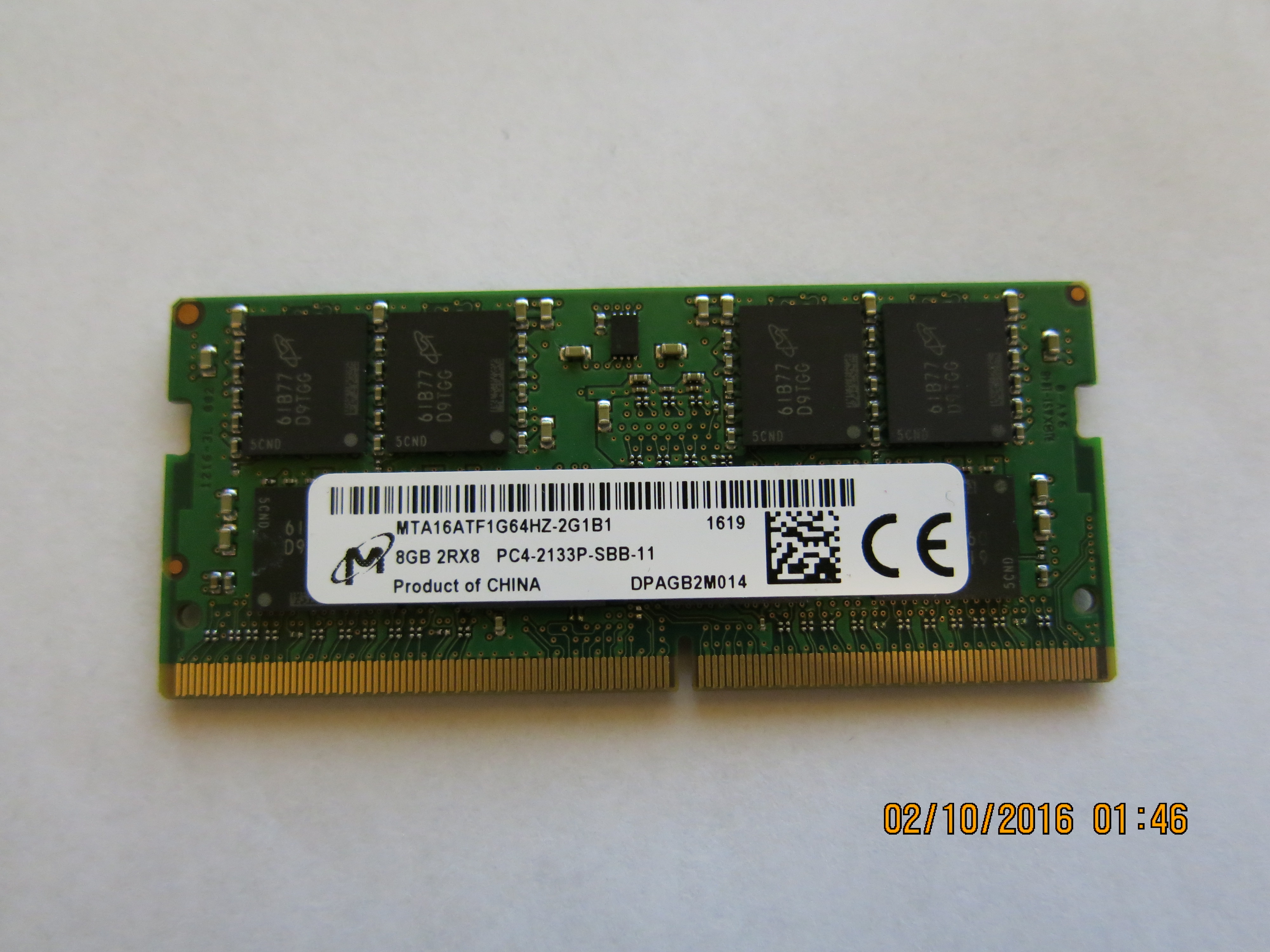 A RAM upgrade can help when real workloads repeatedly exhaust available memory, but it does not fix CPU, GPU, storage, or thermal bottlenecks. Image: WannaBeEditor/Wikimedia Commons, CC BY-SA 4.0.
Windows uses memory aggressively to improve responsiveness. Seeing several gigabytes “in use” does not prove there is a problem. The relevant question is whether your normal workload repeatedly runs short of available memory and starts paging heavily to storage.
Use Task Manager’s Performance > Memory page while running your real workload. If opening the applications you need pushes memory close to capacity, switching between apps becomes slow, and closing a large application immediately restores responsiveness, additional RAM may help.
Before buying memory, confirm whether your PC can be upgraded. Many modern laptops solder RAM to the motherboard. Others have one or two SO-DIMM slots. Check the manufacturer’s service manual, maximum supported capacity, memory generation, speed requirements, and whether opening the chassis affects warranty terms in your region.
More RAM will not make a CPU-intensive render finish twice as fast if memory was never constrained. It will not repair a failing SSD, improve weak Wi-Fi, or fix a buggy driver. Upgrade only when the evidence points to memory pressure.
13. Decide Whether Storage Is the Real Hardware Bottleneck
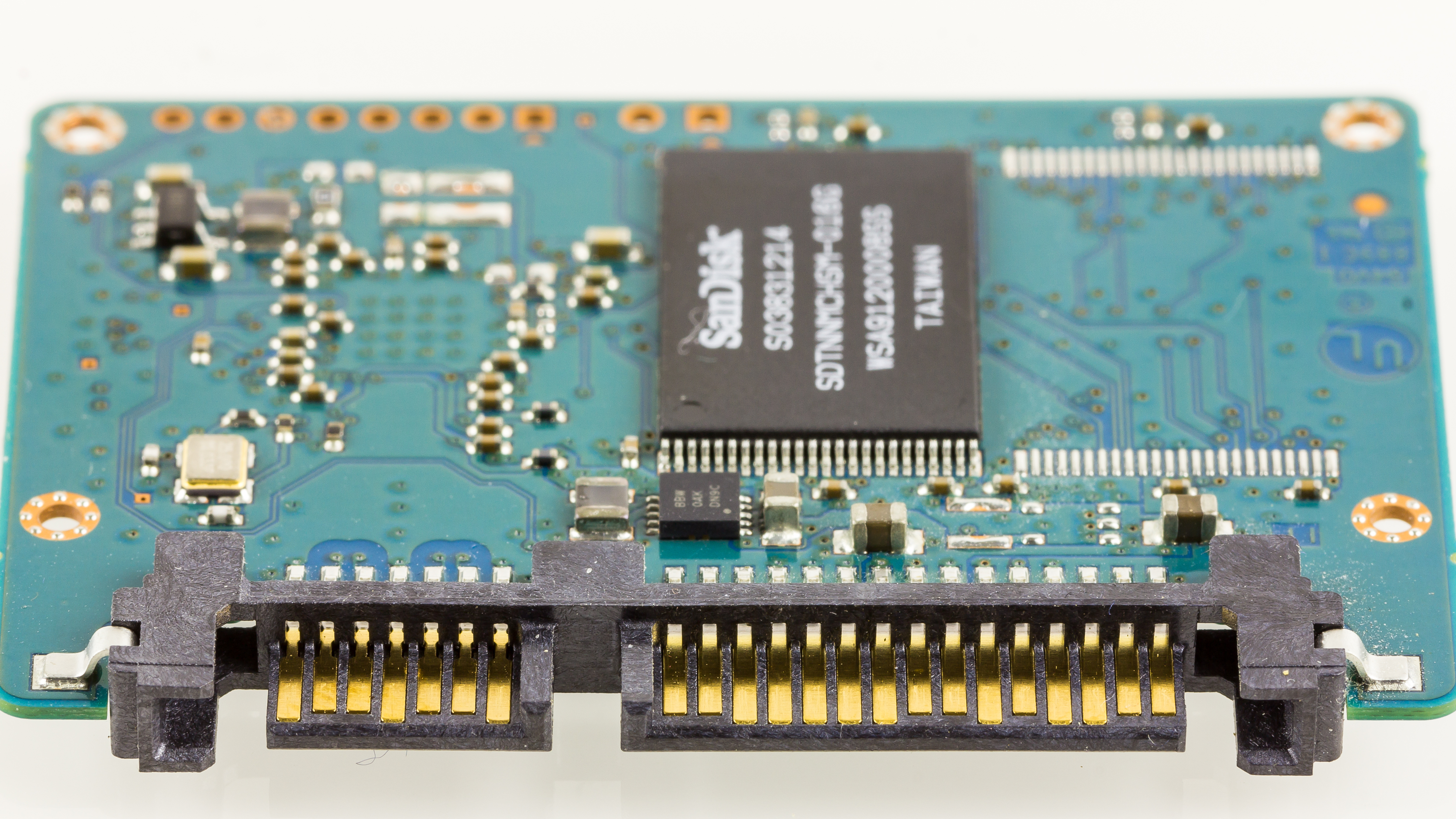 Replacing a mechanical system drive with a compatible SSD is one of the most noticeable upgrades for older PCs when storage latency is the bottleneck. Image: © Raimond Spekking / CC BY-SA 4.0 via Wikimedia Commons.
If an older computer still boots from a mechanical hard disk drive, moving the operating system and applications to a compatible SSD can transform everyday responsiveness. SSDs have much lower access latency for the small random reads and writes that occur during boot, application launches, updates, and multitasking.
Confirm the current drive type in Task Manager’s Performance page or through the manufacturer’s specifications. Then determine which interfaces the PC supports: 2.5-inch SATA, M.2 SATA, NVMe, or another format. Physical compatibility and electrical compatibility are not the same thing, so do not buy an M.2 drive merely because the connector looks similar.
Back up important data before any storage migration. If cloning the old drive, verify the clone boots before erasing the original. If installing Windows clean, confirm you can reinstall required applications and recover activation information where necessary.
If the system already uses a healthy modern SSD and Disk usage is not the bottleneck, replacing it with a faster SSD may produce little visible improvement in ordinary browsing and office work. Measure before spending.
14. Check Drive Health When Performance Suddenly Changes
A drive that is failing can cause long pauses, file errors, crashes, retries, or unusually slow reads. Sudden performance deterioration accompanied by storage-related errors should be treated as a data-protection issue first. Back up important files before stressing the drive with repeated tests.
Windows can report basic drive status and file-system errors, but hardware health varies by drive and manufacturer. Use built-in Windows tools and, where appropriate, the official utility from the SSD or drive manufacturer. If the drive reports serious health warnings, replacing it is more important than “optimizing” Windows.
Common mistake: Running repeated benchmarks on a drive that is clicking, disappearing, generating I/O errors, or already reporting health problems. Protect the data first.
15. Let Windows Finish Indexing, Updates, and Maintenance
A PC can be temporarily slow because it is doing useful work. Windows Search may index a large group of new files. Microsoft Defender may scan recently downloaded data. OneDrive may synchronize thousands of photos. Windows Update may stage or install an update. After restoring from backup or adding a huge folder, background activity can remain elevated for a while.
Use Task Manager to identify the process and decide whether the activity is expected. If a legitimate maintenance task is active, leaving the PC powered on and plugged in for a while can be better than repeatedly killing the process. Interrupting updates or synchronization can make the task restart later, extending the period of poor performance.
If the same process remains abnormally busy for hours or days, research that specific process and error state rather than disabling a core service permanently.
16. Avoid Registry Cleaners, Debloat Scripts, and Random Service Disabling
Performance advice on the internet often recommends deleting registry entries, disabling a long list of Windows services, running undocumented PowerShell scripts, or removing built-in components in bulk. These approaches can create fragile systems that are difficult to update or troubleshoot later.
The Windows registry is not a closet that becomes slow merely because it contains old keys. Removing thousands of harmless entries rarely produces a meaningful performance gain. Disabling services without understanding dependencies can break printing, networking, Bluetooth, search, updates, security, login features, or device support.
A better rule is simple: if you cannot explain what a tweak changes, why that change targets the measured bottleneck, how to reverse it, and what functionality it might remove, do not apply it to a production computer.
Likewise, be cautious with “debloat” tools that remove apps and policies at scale. A clean installation of Windows from an official source may be safer than applying an opaque script to a system you rely on.
17. Use a Clean Boot Only When You Need to Isolate Software Conflicts
If the PC remains slow and Task Manager does not make the cause obvious, a clean boot can help determine whether third-party services or startup software are responsible. Microsoft documents a clean-boot troubleshooting process using System Configuration and Task Manager.
This is a diagnostic procedure, not a permanent performance mode. Follow Microsoft’s official instructions carefully, record what you change, and restore normal startup afterward. If the PC performs normally in a clean boot, re-enable items in groups until the problematic software is identified.
Important: Do not use clean boot casually on a managed work PC. Corporate security, VPN, endpoint management, backup, or authentication tools may depend on services that an administrator expects to run.
18. Create a New User Profile Test When the Problem Seems Account-Specific
Sometimes Windows itself is healthy but one user profile is overloaded with startup entries, shell extensions, broken app data, synchronization problems, or corrupted preferences. If another account on the same machine performs normally, that is valuable evidence.
Create a temporary local or Microsoft account only if you understand the account implications and have permission to do so. Sign into the new profile and test the same applications. If the new profile is fast while the original is consistently slow, focus on user-specific startup items, app settings, sync tools, and profile data rather than replacing hardware.
Do not migrate immediately. First identify whether one application or profile component is responsible. A new profile is a diagnostic comparison, not automatically the final fix.
19. Check for App-Specific Hardware Acceleration Problems
Browsers, video conferencing apps, design tools, and media players often use GPU hardware acceleration. Usually this improves performance, but driver bugs or unusual GPU combinations can produce stutter, high power use, black screens, or UI lag.
If one application is slow while the rest of Windows is normal, test that application’s hardware acceleration setting and update the GPU driver from an official source. Change only one variable at a time. If disabling acceleration fixes the problem, you have a useful workaround and a clue that the GPU path or driver deserves attention.
Do not disable hardware acceleration globally without evidence. For many workloads, doing so moves work back to the CPU and can make performance worse.
20. Review Cloud Sync and Backup Activity
OneDrive, Dropbox, Google Drive, backup clients, photo libraries, and corporate synchronization tools can create heavy disk and network activity when they first index or upload large datasets. If your PC becomes slow whenever thousands of files change, open the sync client and inspect its status.
Pause synchronization briefly as a diagnostic test if the application allows it. If performance immediately improves, do not simply disable backup forever. Instead, schedule heavy synchronization for less disruptive times, reduce unnecessary synchronized folders, or move huge working datasets to a workflow better suited to them.
Remember that backup and sync are not the same thing. Do not delete local files or disable a backup job merely to make the PC faster unless you understand the data-protection consequences.
21. Use Performance Settings Selectively, Not as a Ritual
Windows visual effects such as animation and transparency use some resources, but on a reasonably modern PC they are rarely the main reason the system is painfully slow. Reducing animations can make the interface feel more immediate, especially on older integrated graphics, but it cannot compensate for a failing hard drive or insufficient RAM.
If you prefer a less animated interface, adjust accessibility and visual-effect options through Windows Settings. Treat the change as a usability preference with a potential small performance benefit, not a major repair.
The same applies to desktop wallpaper, widgets, notification effects, and background personalization. Simplifying them can reduce minor overhead, but fix the largest measured bottleneck first.
22. Know When Windows Reset or Reinstallation Is Justified
A clean software environment can help when years of applications, drivers, upgrades, and configuration changes have made the system difficult to troubleshoot. But reinstalling Windows is disruptive and should not be the first step. Before resetting or reinstalling, back up data, verify backup restoration, record application licenses, confirm access to important accounts, and make sure you can reinstall device-specific software.
If Task Manager shows healthy hardware utilization, the drive is healthy, temperatures are normal, and the system remains unstable or unusually slow after software conflicts have been isolated, a clean Windows installation can provide a useful reset point. Use Microsoft’s official recovery options and documentation rather than downloading modified installation images from unknown sites.
A reinstall will not make inadequate hardware powerful. If the PC has very limited RAM, a slow CPU, or unsupported aging hardware, Windows may be clean yet still unable to meet your workload.
23. Build a Decision Tree From the Evidence You Collected
At this point, use your measurements to choose the next action rather than continuing to tweak randomly.
- Boot is slow, but the PC is fine afterward: Focus on startup apps, startup services, drive type, and update activity.
- Everything slows when many apps are open: Check memory pressure and consider a RAM upgrade if the machine supports it.
- Disk stays saturated: Free space, identify the process causing I/O, check drive health, and determine whether an HDD-to-SSD upgrade is appropriate.
- Only games or 3D apps are slow: Look at GPU utilization, thermals, game settings, drivers, and graphics hardware.
- Performance collapses after sustained load: Investigate cooling and thermal throttling.
- Only one application is slow: Troubleshoot that app, its extensions, data files, hardware acceleration, and updates.
- The PC is fast offline but web tasks are slow: Troubleshoot the network instead of Windows performance.
- The system is slow even with low resource usage: Check power mode, temperatures, drivers, storage latency, profile issues, and hardware age.
This decision tree prevents the common mistake of buying random upgrades. A RAM upgrade is excellent when RAM is the bottleneck and useless when the GPU is the bottleneck. A faster SSD is transformative for an old HDD-based system and often barely noticeable for a machine that already has a healthy NVMe SSD doing light office work.
24. A Safe 30-Minute Tune-Up for Most Windows 11 PCs
If you want a practical routine rather than a deep diagnosis, use this sequence:
- Save work and restart the PC.
- Open Task Manager and note CPU, Memory, and Disk while the PC is idle.
- Open your normal apps and reproduce the slowdown.
- Identify the resource that stays under pressure.
- Open Settings > System > Storage and free meaningful space.
- Disable clearly unnecessary startup apps.
- Uninstall software you no longer use.
- Install current Windows updates and restart.
- Run a Windows Security scan if malware or unwanted software is plausible.
- Check ventilation, power mode, and whether the problem changes on AC power.
- Repeat the same workload and compare with your original baseline.
If the PC is noticeably better, stop. Do not continue tweaking a system that now meets your needs. If the problem remains, your Task Manager observations should tell you where to investigate next.
25. Troubleshooting Common Scenarios
The PC is slow for five minutes after login
Check Startup apps first. Also look for cloud sync, security scans, update installers, and vendor utilities. Disable only software you recognize as nonessential at login. Restart and retest.
The PC becomes slow when Chrome, Edge, or another browser is open
Reduce tabs, remove unnecessary extensions, and use the browser’s performance tools. Watch Task Manager memory and CPU. If closing the browser immediately restores performance, troubleshoot the browser workload before changing Windows services.
Disk usage is 100 percent all the time
Sort Task Manager by Disk. Identify the process. Check free space and drive type. On an HDD-based PC, heavy random I/O can produce very high active time even at modest transfer rates. If the drive is old or showing health warnings, back up data before further testing.
Memory is above 80 or 90 percent
Percentage alone is not enough, but sustained near-capacity use plus paging and lag is meaningful. Close the largest nonessential application and see whether responsiveness returns. If your normal workload genuinely requires more memory than the machine has, an upgrade may be justified.
The laptop is fast when cold and slow when hot
Check airflow, surface, vents, fan behavior, and sustained-load temperatures using reputable monitoring tools where appropriate. Cooling maintenance or a lower sustained workload may be necessary.
The PC is slow immediately after a Windows update
Give Windows time to finish post-update tasks, restart, and check for additional updates. If one driver or update clearly caused a regression and the issue persists, use Microsoft or the hardware manufacturer’s documented recovery path rather than deleting system files manually.
The PC freezes but resource usage looks normal
Look beyond headline percentages. Storage errors, driver timeouts, overheating, faulty RAM, external devices, or software conflicts can cause freezes without showing a simple 100 percent graph. Check Event Viewer only if you know how to interpret it; individual warnings do not automatically prove the cause.
26. How to Tell Whether an Upgrade Is Worth the Money
Before purchasing hardware, write down the bottleneck, your workload, and the machine’s upgrade options.
Upgrade RAM when: your real workload repeatedly exhausts available memory, the PC supports more RAM, and the CPU and storage are otherwise adequate.
Upgrade to an SSD when: Windows is still running from a mechanical hard drive, storage activity is a persistent bottleneck, and the PC supports a compatible SSD.
Upgrade the entire PC when: the CPU is too slow for required software, memory is soldered and insufficient, the system lacks support for needed security or OS features, the battery and storage also need replacement, or multiple component upgrades cost too much relative to a newer machine.
Do not upgrade because: a benchmark website says your hardware is “below average.” Upgrade because the measured limitation interferes with work you actually do.
27. Maintenance Habits That Keep Windows Responsive
Performance maintenance should be boring. Keep Windows and important applications updated. Maintain reasonable free storage. Review startup apps every few months. Remove software you stopped using. Restart periodically instead of relying on sleep indefinitely. Keep vents clear. Back up important data. Investigate new slowness soon after it starts rather than installing a dozen “fixers.”
For managed work computers, follow your organization’s IT policies. Enterprise devices may run security, compliance, VPN, encryption, and management agents that are intentionally installed. Disabling them to gain a small performance improvement can create security or employment problems.
Frequently Asked Questions
Why is my Windows 11 PC suddenly slow?
Sudden slowness can come from an update, a new startup app, low storage, background synchronization, malware, a driver problem, overheating, or deteriorating hardware. Restart, reproduce the problem, and use Task Manager to identify which resource or process is involved before making changes.
Does clearing the registry make Windows faster?
Normally, no meaningful improvement should be expected from generic registry cleaning. It can also remove entries applications still need. Focus on storage, startup activity, software, updates, thermals, and measured hardware bottlenecks instead.
Should I disable Windows services to speed up my PC?
Not as a general optimization strategy. Windows services often have dependencies and disabling them can break features. Only change a service when you understand its purpose and have evidence that it is causing the specific problem.
How much free storage should I keep?
There is no universal percentage that fits every PC. Keep enough free space for Windows updates, temporary files, your applications, and normal workload growth. If the system drive is nearly full, freeing tens of gigabytes can be more useful than chasing a specific percentage.
Will more RAM make my PC faster?
Only if insufficient RAM is constraining your workload. If Task Manager shows memory pressure and closing apps immediately restores performance, more RAM can help. If CPU, GPU, or storage is the bottleneck, extra RAM may make little difference.
Will an SSD speed up Windows?
Replacing a mechanical system drive with a compatible SSD usually improves boot, application launch, updates, and general responsiveness substantially. Replacing one already-fast SSD with another may produce much smaller everyday gains.
Is 100 percent CPU usage dangerous?
High CPU utilization during demanding work is not automatically dangerous. Modern processors are designed to operate under load and manage temperature. The problem is unexpected sustained CPU use that causes unacceptable performance or excessive heat. Identify the process before taking action.
Should I use a PC optimizer app?
Windows already includes Task Manager, Storage Sense, Windows Update, Windows Security, startup controls, and recovery tools. Third-party utilities can be useful for specialized diagnostics, but generic one-click optimizers are not necessary for routine maintenance and may apply changes you do not understand.
How often should I restart my PC?
There is no required schedule for everyone. Restart when Windows or an application update requests it, when troubleshooting, or when long uptime is accompanied by unexplained performance problems. A restart is a useful diagnostic reset, not a substitute for solving persistent issues.
When should I replace a slow PC instead of upgrading it?
Replacement becomes more sensible when several major components are limiting, required software demands hardware the system cannot support, RAM is not upgradeable, the battery and storage are also aging, or upgrade costs approach the value of a newer machine.
Conclusion: Diagnose First, Then Spend or Change
The most important performance habit is resisting the urge to optimize blindly. A slow Windows 11 PC is a troubleshooting problem, not a ritual. Measure what feels slow, watch the system while it happens, and identify whether CPU, memory, storage, GPU, heat, power settings, software, or background activity is responsible.
Your first practical move should be simple: restart, open Task Manager, reproduce the slowdown, and write down which resource stays under pressure. From there, use the smallest fix that targets the evidence. Free space when storage is constrained. Disable unnecessary startup apps when login is overloaded. Remove unused software when background activity is excessive. Upgrade RAM only when memory is genuinely exhausted. Move from an HDD to an SSD when storage latency is the bottleneck.
The biggest mistake to avoid is changing dozens of registry keys, services, and scripts before you understand the cause. A Windows PC that is maintained with measured, reversible changes is easier to keep fast, stable, secure, and repairable over time.
Sources and Further Reading
- Microsoft Support: Tips to improve PC performance in Windows
- Microsoft Learn: Configure Storage Sense in Windows
- Microsoft Support: Configure startup applications in Windows
- Microsoft Support: How to perform a clean boot in Windows
- Microsoft Support: Windows Security
- Wikimedia Commons: Windows 11 screenshot
- Wikimedia Commons: Laptop RAM (CC BY-SA 4.0)
- Wikimedia Commons: SanDisk SSD (CC BY-SA 4.0)