

Quick answer: A reliable email system does not require an empty inbox. It requires a clear distinction between messages that need action, messages you are waiting on, reference material, and low-value mail. Start by stopping unnecessary incoming mail, create only a few broad labels or folders, use archive instead of leaving everything visible, build conservative filters for predictable senders, and schedule short processing sessions instead of checking continuously. Most importantly, never let an automatic rule silently hide messages that affect money, deadlines, customers, security, or legal obligations.
 Email systems have changed dramatically, but the basic problem is the same: deciding what deserves attention and what should leave the active inbox. Image: Firma Hagblom-Foto / Lund University Library, Wikimedia Commons, public domain.
Email becomes stressful when one place is forced to perform too many jobs at once. The inbox becomes a task list, filing cabinet, reminder system, newsletter reader, receipt archive, project tracker, customer-support queue, and security alert center. The result is predictable: hundreds or thousands of messages remain visible, important threads become indistinguishable from promotions, and “I will deal with this later” turns into permanent background anxiety.
The solution is not necessarily Inbox Zero. An empty inbox can be useful, but it is only a visual state. You can have zero visible messages and still miss deadlines because the messages were archived without a follow-up system. You can also have 300 messages in the inbox and still operate well if the important ones are clearly identified and reviewed. The real objective is control: every important message should either be acted on, deliberately deferred, delegated, or stored somewhere you can retrieve it.
This guide builds that control step by step. It works whether you use Gmail, Outlook, or another modern email client, although the names of specific features may differ. Gmail relies heavily on labels and search, while Outlook often uses folders, categories, flags, rules, and archive tools. The underlying workflow is the same.
1. Define What “Organized” Means Before You Touch the Inbox
Do not start by making folders. Start by defining success.
An organized inbox should answer five questions quickly:
- What requires my action?
- What am I waiting for from someone else?
- What is time-sensitive?
- What can be safely archived?
- How will I find a message again months later?
If your system cannot answer those questions, adding more labels will only decorate the problem.
Write a one-sentence operating rule. For example: “My inbox contains only messages that are new, require action, or need a decision within the next few days.” Another valid rule is: “My inbox may contain reference mail, but anything requiring action must be starred or placed in an Action category.” The exact rule matters less than consistency.
Common mistake: Treating “organized” as “everything sorted into a perfect taxonomy.” That usually creates dozens of folders that require constant manual maintenance. Search tools are now good enough that many messages do not need a precise filing location. Organize for decisions, not for visual perfection.
2. Audit the Incoming Mail Before You Clean the Backlog
If 150 new messages arrive every day, clearing 2,000 old messages will not solve the underlying problem. First find out what keeps filling the inbox.
Review the last seven to fourteen days of mail and group senders into broad types:
- people you know and need to hear from;
- work or client systems;
- financial and account alerts;
- receipts and order confirmations;
- newsletters and publications;
- social-network notifications;
- automated software notifications;
- marketing and promotions;
- spam or suspicious mail.
You do not need a spreadsheet unless your email volume is unusually high. The point is to see which sources are creating the most noise.
A useful test is to look at 50 recent messages and ask how many deserved to interrupt you. If only 10 were genuinely useful, inbox organization is partly an input-control problem. Stop unnecessary mail before building a complex processing system.
3. Unsubscribe Aggressively, but Do Not Use Unsubscribe Links in Suspicious Mail
Legitimate newsletters and commercial mail should usually include an unsubscribe mechanism. If you no longer read a legitimate publication, unsubscribe instead of repeatedly deleting it.
However, do not click “unsubscribe” inside an obviously suspicious message merely because the option is present. Phishing messages can imitate normal email design. The Federal Trade Commission advises avoiding links and attachments in unexpected suspicious messages and contacting a company through a known legitimate website or channel when verification is needed.
Use this rule:
- Recognized legitimate sender: use the provider’s unsubscribe feature or the sender’s legitimate unsubscribe link.
- Unknown or suspicious sender: mark as spam or junk; do not interact with embedded links.
- Mailing list you may want later: route it to a reading label or folder instead of the primary inbox.
Why this matters: Every subscription you remove permanently reduces future processing work. One minute spent unsubscribing can save dozens of deletions over the next year.
4. Separate “Read Later” From “Needs Action”
Newsletters, reports, industry updates, and long articles are often useful, but they compete badly with deadlines and direct requests.
Create one place for optional reading. In Gmail, that might be a label such as Reading. In Outlook, it might be a folder or category. Then use a filter or rule for high-volume trusted publications so they skip the main inbox and land there automatically.
The crucial word is optional. A report that your manager expects you to review by Thursday is not “read later”; it is an action item. A newsletter that is interesting but nonessential is.
Set a separate review time for reading mail. If you never open the folder for six weeks, that is evidence you can unsubscribe from many of those sources.
5. Use a Small Number of Action-Oriented Labels or Categories
Most people do not need 40 email labels. Start with three to five operational categories.
A practical system is:
- Action: you must do something.
- Waiting: someone else owes you a response or deliverable.
- Reference: information worth keeping but not acting on.
- Reading: optional long-form material.
- Receipts: optional, if purchase records are frequent and useful to separate.
You can add project-specific labels only when a real need emerges. Avoid creating a label because a single message feels special.
Gmail labels differ from traditional folders because a message can have multiple labels. Google’s current Gmail documentation explains that labels can be applied simultaneously, while archived messages remain searchable in All Mail. Outlook categories provide a similar tagging layer, while folders physically group messages in a more traditional structure.
Verification: After creating your first labels, process 20 messages. If you repeatedly hesitate between categories, the system is too complicated. Simplify it.
6. Understand Archive Before You Use It in Bulk
Archive is not delete.
In Gmail, archiving removes the message from the inbox but keeps it in All Mail and searchable. If a new reply arrives in an archived conversation, Google says the conversation returns to the inbox. This makes archive a useful default for completed conversations and reference mail that you may need later.
Outlook’s archive behavior can differ depending on the product and organizational policies, so confirm whether you are using the built-in Archive folder, an online archive mailbox, or a retention policy. The principle is the same: archive moves mail out of your active work surface without necessarily destroying it.
Use archive when:
- the message requires no action;
- the information may be useful later;
- the conversation is finished;
- search is sufficient for future retrieval.
Delete when the mail is genuinely worthless and there is no retention reason to keep it. Do not archive obvious spam; mark it as spam so the provider can treat similar messages appropriately.
7. Create a Processing Decision That Takes Seconds
Each time you deliberately process the inbox, make one of five decisions:
- Delete or report spam if it has no value.
- Archive if no action is needed.
- Do if the action is genuinely quick.
- Defer if it needs focused work later.
- Delegate or wait if someone else must act.
This is more effective than repeatedly opening the same message without deciding what it means.
If a reply takes two minutes and you have the information needed, sending it immediately is often efficient. But do not turn every email session into an unplanned workday. A message asking you to review a contract, analyze a spreadsheet, or write a proposal should become a scheduled task rather than consuming the next hour merely because it arrived first.
8. Do Not Use “Unread” as Your Only Task System
Many people mark messages unread to remind themselves to act. This works briefly, then collapses when unread mail includes both genuinely new messages and old tasks.
Unread should ideally mean “I have not processed this message,” not “I processed it but hope the bold text reminds me later.”
Use a star, flag, action label, task integration, or calendar reminder for work you deliberately defer. Then mark the message read so the inbox has one consistent meaning.
If your current system depends on unread: You do not have to change everything in one day. Start using a separate Action label for new tasks. Over several weeks, migrate the most important old unread messages into that system.
9. Build a Reliable Follow-Up System for Messages You Send
Inbox organization usually focuses on incoming mail, but missed follow-ups often happen after you send a request and assume the other person will remember.
When you send a message that requires a reply by a specific time, create a follow-up marker immediately. Depending on your client, you might:
- add a Waiting label to your sent conversation;
- flag the sent message;
- snooze the thread until the expected response date;
- create a task with a deadline;
- add a calendar reminder for high-stakes follow-up.
The goal is to make the obligation visible even if the recipient never responds.
A simple Waiting review once or twice per week catches unpaid invoices, unanswered client questions, pending approvals, hiring follow-ups, vendor confirmations, and other conversations that disappear from attention after the initial send.
10. Use Snooze for Time-Based Reappearance, Not for Permanent Avoidance
Snooze is useful when a message is irrelevant now but relevant at a known future time.
Examples:
- a hotel confirmation that matters two days before travel;
- a renewal notice you want to review next month;
- a message you cannot answer until after a meeting;
- a reminder to follow up if someone has not responded by Friday.
Snooze is less useful when you do not know when you will act. Repeatedly snoozing the same uncomfortable message simply hides procrastination. If a message keeps returning, convert it into a real task, make a decision, delegate it, or explicitly decide not to do it.
11. Build Filters Slowly and Conservatively
Filters and rules can save hours, but they can also hide critical mail. Automation should begin with predictable, low-risk messages.
Good early filter candidates include:
- trusted newsletters;
- automated receipts from a known store;
- routine monitoring alerts that you review in batches;
- social-media notifications you do not need immediately;
- automated software status reports with a stable sender and subject pattern.
Risky filter candidates include:
- bank or payment alerts;
- legal notices;
- client messages;
- security alerts;
- messages from your manager or key business partners;
- anything where the same sender sometimes sends routine mail and sometimes sends urgent requests.
Google’s Gmail help documentation states that filters can label, archive, delete, star, or forward matching incoming messages. It also notes that replies may only be filtered when they meet the same criteria, which is a useful reminder not to assume a rule applies to every future message in a conversation.
Safe rollout: First create the filter to apply a label without skipping the inbox. Watch it for several days. If the matches are consistently low-risk, then consider automatic archiving.
12. Test Every Filter With Search Before You Activate It
A filter is essentially a saved decision based on search criteria. Test the search first.
In Gmail, you can search by sender, recipient, subject, date, attachment, size, label, and many other attributes. Google’s current search documentation lists operators such as from:, to:, subject:, after:, before:, has:attachment, and combinations of operators.
Suppose you want all invoices from a software vendor to receive a Receipts label. Search:
from:billing subject:(invoice receipt)
Review the results. If the search also catches account-suspension warnings or payment-failure notices, do not auto-archive it. Narrow the rule or label only.
This test-first approach prevents a common mistake: creating a filter from one example message and accidentally matching a broader set of mail than intended.
13. Learn a Small Set of Search Operators Instead of Filing Everything
Powerful search reduces the need for obsessive manual filing.
Useful Gmail examples include:
from:name— messages from a sender;to:name— messages sent to a recipient;subject:invoice— subject contains a term;after:2026/01/01 before:2026/02/01— date range;has:attachment— messages with attachments;larger:10M— large messages;is:unread— unread mail;in:archive— archived mail;label:project-alpha— mail with a label.
You do not need to memorize the full syntax. Save a few searches that match recurring work.
Outlook also provides robust search and filtering, though the syntax and interface vary by version. The important habit is learning how your provider searches sender, subject, date, attachment, category, and folder so you can retrieve information without maintaining a giant folder tree.
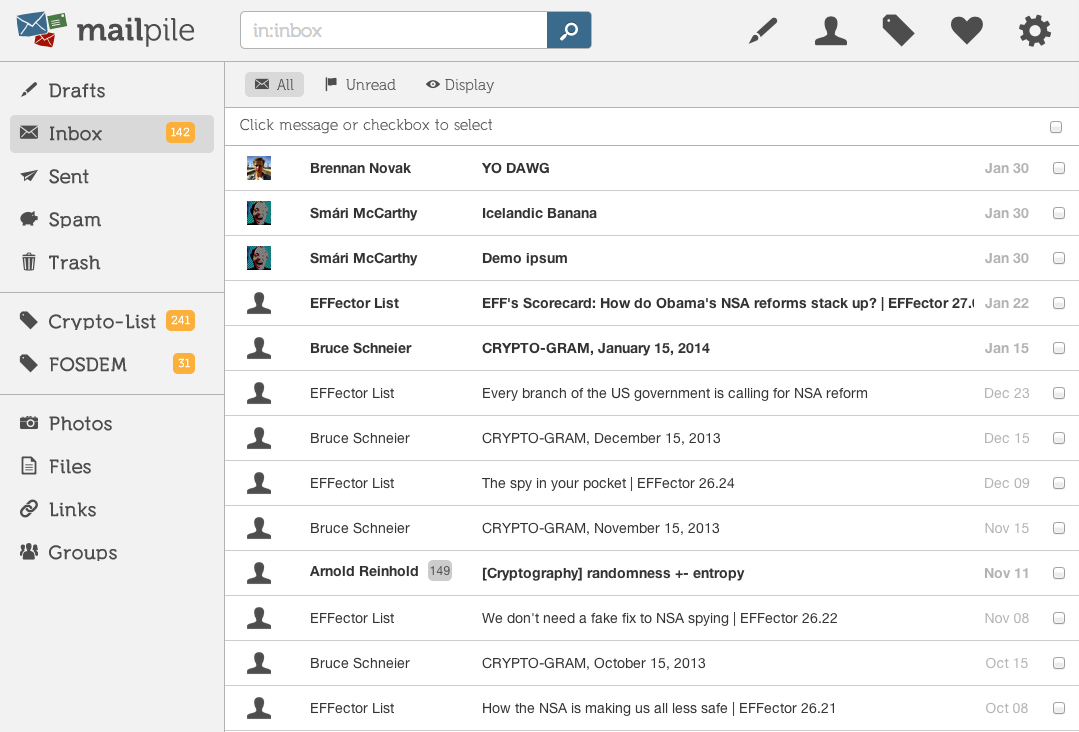 Modern webmail interfaces differ, but most provide search, labels or categories, archive, and message status controls. Image: BrennanNovak, Wikimedia Commons, CC BY-SA 3.0.
14. Keep Project Labels Broad Enough to Survive
Project folders can be useful when a project generates many messages, but over-granularity creates maintenance work.
A weak structure might be:
- Client A / Contracts / 2026 / August / Revisions / Approved
- Client A / Contracts / 2026 / August / Revisions / Rejected
A simpler structure might be one label: Client A, with search handling the rest. If contracts are especially important, one second label such as Contracts may be enough.
Ask whether the label helps you make a decision or retrieve information. If it exists only because the message “should go somewhere,” archive may be enough.
15. Treat the Inbox as a Queue, Not a Filing Cabinet
The inbox works best when it represents the front edge of work. New messages enter, you decide what they mean, and then they leave the active queue.
Keeping years of completed mail visible makes every new message compete with history. That visual crowding increases search time and makes the inbox feel permanently unfinished.
You do not have to clear everything immediately. Start with a boundary. For example, declare that all mail older than 60 days will be archived unless it is actively relevant. Then process the last 60 days carefully. This gives you a manageable operating inbox without spending a weekend categorizing a decade of mail.
16. Use a “Backlog Amnesty” for Thousands of Old Messages
If your inbox contains 20,000 messages, do not process them one by one.
Create a temporary label or folder called something like Archive-Before-August-2026, apply it to old mail if helpful, and archive the backlog. Before doing so, search for obviously high-risk categories that may still require action: unpaid invoices, unread direct messages from important people, account warnings, legal documents, application deadlines, or security notices.
Then start the new system from today.
The backlog remains searchable. You gain a clean operational surface without pretending you can meaningfully review every old message.
Important: If your workplace has retention rules, legal holds, records-management requirements, or regulated data policies, follow those policies rather than inventing a personal deletion strategy.
17. Turn Repeated Requests Into Templates, Not Repeated Typing
Email overload is not only about reading. It is also about writing the same responses repeatedly.
If you frequently send directions, scheduling instructions, support responses, document-request lists, onboarding information, or status updates, create reusable templates or snippets. Customize the personal details before sending.
A template should reduce mechanical typing, not remove judgment. Never use an automated response when the recipient’s situation is materially different or sensitive.
If your current challenge includes writing clearer professional messages, you may also find the existing LordAI guide on writing business emails useful for subject lines, action requests, and professional structure.
18. Batch Email Instead of Living Inside It
Constant checking turns email into an interruption system.
For many roles, two to four deliberate processing windows per day are more effective than keeping the inbox open continuously. Example:
- 9:00 a.m. — urgent overnight messages and planning;
- 12:30 p.m. — short replies and updates;
- 3:30 p.m. — project-related processing;
- 5:00 p.m. — final scan and waiting/follow-up check.
This schedule is not appropriate for every job. Customer support, operations, emergency response, executives, and roles with real-time obligations may require faster monitoring. The point is to match checking frequency to actual business needs rather than anxiety.
Turn off nonessential desktop and phone notifications if they repeatedly pull you away from focused work. Keep alerts for genuinely important channels where appropriate.
19. Use Different Notifications for Different Risk Levels
Not every message deserves the same alert.
You may want immediate notifications for a small set of VIP contacts, security alerts, or operational systems, while silencing promotional and social mail. Some clients let you configure notifications by account, category, folder, or importance.
Be conservative with automated importance systems. They can assist, but they do not understand all of your business consequences. A quiet-looking vendor message can still contain a deadline.
Review your notification rules monthly. If a channel generates many alerts that you routinely ignore, the alert has lost its function.
20. Create a Separate Workflow for Receipts and Transactional Mail
Receipts, shipping notices, subscription renewals, booking confirmations, and invoices are usually useful but rarely need to remain in the primary inbox after verification.
Create one broad label such as Receipts & Orders. Automatically label trusted transactional senders, but consider keeping failed-payment, cancellation, refund, and security-related messages visible.
Search becomes especially valuable here. Instead of creating a folder for every store, use sender and date searches when you need a purchase record.
If a receipt is needed for accounting, reimbursement, warranty, or tax documentation, save it in the records system that actually controls that process. Email is useful as an archive, but it should not be your only accounting or compliance system.
21. Keep Newsletters Out of the Work Queue
A newsletter is a publication, not a request.
Create a Reading label or use Gmail’s category tabs / Outlook’s organizational features if they fit your workflow. Review newsletters at a chosen time rather than letting them visually compete with people waiting for answers.
Once per month, review which newsletters you actually opened. Unsubscribe from the rest. The goal is not to collect interesting information; it is to consume the information that genuinely improves your work or life.
22. Create One Place for Travel and Event Confirmations
Travel confirmations, tickets, reservations, and event details are time-bound reference material. They often need to be easy to retrieve on a phone under time pressure.
Use a Travel label or event-specific folder, then archive completed trips. Include airline, hotel, rental, train, conference, and ticket messages if relevant.
Before traveling, search the label and verify that critical confirmations are available offline if you may lack connectivity. Do not rely exclusively on an inbox search at the airport if the message is essential to boarding, entry, or accommodation.
23. Use Flags and Stars for Priority, Not Decoration
If you star 80 messages, the star no longer means priority.
Define exactly what the marker means. For example:
Star = I personally owe the next action within three business days.
Then clear the star when the action is completed. If the next action moves to someone else, change the message to Waiting instead of leaving it starred indefinitely.
Outlook flags can also carry dates and reminders. Use those features when a message has a real follow-up date rather than an abstract sense of importance.
24. Protect the Email Account Itself
Your email account is often the recovery channel for banking, social media, cloud storage, and other services. An organized inbox is not useful if the account is compromised.
Use a strong, unique password and enable multifactor authentication. CISA’s current Secure Our World guidance recommends MFA for email and other important accounts because it adds a second verification step beyond the password.
Review recovery email addresses and phone numbers periodically. Remove unknown forwarding rules, delegates, or connected apps you no longer use. Keep operating systems and browsers updated.
These security tasks are separate from inbox organization, but they belong in the same maintenance routine because email is a high-value account.
25. Never Let “Urgent” Override Verification
Phishing succeeds partly by creating urgency: an invoice is overdue, an account will be suspended, a password must be reset, a package cannot be delivered, or a refund expires today.
The FTC’s current anti-phishing guidance recommends avoiding links or attachments in unexpected suspicious messages and contacting the organization through a known legitimate website or number when verification is needed. In May 2026, the FTC specifically warned about fake event invitations that tried to collect email credentials or verification codes.
Build this rule into your inbox workflow:
If a message asks for a password, verification code, payment, bank change, sensitive data, or unusual login action, pause and verify through a separate trusted channel.
Do not allow a tidy inbox or rapid-response habit to make you easier to scam.
26. Review Forwarding Rules and Delegated Access
Automatic forwarding can be useful, but it also creates risk and confusion. Periodically check whether your email account forwards messages to another address, whether assistants or delegates still need access, and whether third-party apps retain permissions you no longer use.
In a business environment, follow organizational policy rather than changing shared-mailbox access casually. Some mailboxes have compliance or continuity requirements.
If you discover an unfamiliar forwarding rule or suspicious access, treat it as a security incident rather than merely deleting the rule and moving on. Change credentials, review account activity, and follow your provider’s account-recovery guidance.
27. Use Separate Accounts Only When They Reduce Real Complexity
Multiple email accounts can separate roles, but they can also create more places to forget.
Separate accounts make sense when:
- work and personal communication must remain legally or operationally separate;
- a business needs a professional domain;
- a public-facing address receives high volumes of low-trust mail;
- shopping/newsletters should be isolated from sensitive personal mail.
They make less sense when you create a new account for every hobby and then fail to monitor any of them consistently.
If you use multiple accounts, define which account owns which role and how often each one is reviewed. A neglected “secondary” inbox can still contain password-reset attempts, billing notices, or important replies.
28. Do Not Use Email as Your Only Project Management System
Email is excellent for communication and poor at representing complex multi-step work.
If a message creates a task that requires multiple actions, dependencies, files, or deadlines, move the work into your task manager or project system. Keep a link or reference back to the email if necessary.
For example, “Please prepare the Q3 launch plan” is not one email task. It may involve research, budgeting, meetings, drafts, approvals, and assets. Leaving the message starred cannot represent all of those stages.
If you want a broader system for organizing information outside email, the existing LordAI guide on building a personal knowledge management system can complement this workflow.
29. Decide What Belongs in Calendar Versus Email
A deadline hidden inside an email is easy to miss. If something must happen at a specific date or time, calendar it.
Examples:
- “Submit by August 21” → calendar deadline;
- “Call me at 2 p.m.” → calendar event;
- “Renew before September 1” → dated reminder;
- “Follow up in two weeks” → task or snooze with a date.
The inbox should tell you that work exists; the calendar should protect time-sensitive commitments.
Do not copy every email into the calendar. Only extract dates that would create real consequences if forgotten.
30. Use Rules for Shared Mailboxes With Extra Caution
Team inboxes such as support@, sales@, billing@, or info@ behave differently from personal mail.
A shared inbox needs explicit ownership:
- Who answers?
- How is a conversation assigned?
- What marks it complete?
- How are duplicates prevented?
- What happens after hours?
- Which messages require escalation?
Do not create a personal rule that hides mail from colleagues or moves messages into a private folder if the team depends on shared visibility.
When volume grows, a help-desk, CRM, or ticketing system may be more appropriate than ordinary email because it can track ownership, response time, status, and history.
31. Build a Weekly Email Review
Daily processing keeps the inbox moving. A weekly review catches structural problems.
Once per week, spend 15–30 minutes on these checks:
- review Action messages;
- review Waiting messages;
- follow up on overdue replies;
- scan snoozed items returning next week;
- unsubscribe from new low-value sources;
- check spam for legitimate mail only if necessary;
- archive completed threads;
- review whether any filter behaved incorrectly;
- confirm major deadlines are on the calendar.
This review is more valuable than a constant attempt to keep the inbox visually empty.
32. Run a Monthly Automation Audit
Filters, rules, and subscriptions change over time.
Once per month, inspect the rules that automatically archive, delete, forward, or move mail. Ask:
- Does this sender still behave predictably?
- Did this filter ever catch something important?
- Is the destination label still reviewed?
- Is the rule based on a sender address that could change?
- Does this automation still save time?
Delete stale rules. Automation should simplify the system, not become hidden infrastructure nobody understands.
33. Create a “VIP” Rule Only for Truly Critical Senders
A VIP list works because it is short.
Depending on your role, VIPs might include your manager, top clients, key family members, a critical vendor, or specific operational systems. You can mark their messages important, apply a label, or enable a more visible notification.
Do not include everyone you know. If 60 people are VIPs, no one is.
Remember that senders can be spoofed in phishing attempts. A VIP marker is an attention tool, not proof of identity. Still verify unexpected payment or credential requests.
34. Deal With Attachments Before They Become a Storage Mystery
Important attachments should live in the system that owns the information, not only in email.
For example:
- signed contract → contract repository or project folder;
- invoice → accounting system;
- design file → project storage;
- medical or legal record → appropriate secure records location;
- family photo → photo archive;
- temporary marketing PDF → email may be enough.
Rename files when the original name is meaningless. “scan000384.pdf” is harder to find later than “2026-08-vendor-contract-signed.pdf.”
Do not download suspicious attachments simply to “organize” them. Security comes before filing.
35. Keep Sensitive Data Out of Email When a Safer Channel Exists
Email is convenient, but not every mailbox or message is appropriate for highly sensitive information.
Follow organizational and legal requirements for personal data, health information, financial records, credentials, and confidential business material. Use approved secure portals, encrypted systems, or document platforms when required.
Never send passwords or MFA codes by ordinary email simply because it is easy. If someone unexpectedly asks for a code that just arrived, treat the request as suspicious.
36. Do Not Let Search Replace Retention Judgment
“I can always search it later” is not a reason to keep everything forever.
Storage limits, privacy, organizational policy, legal retention obligations, and data minimization may all matter. Delete disposable mail when appropriate. Keep important business records according to actual policy rather than personal habit.
For a personal inbox, clearing old promotional campaigns, expired one-time codes, and irrelevant automated notices can make search results cleaner. For a regulated business mailbox, follow formal retention rules.
37. Build a 30-Minute Rescue Plan for a Messy Inbox
If your inbox feels overwhelming, do not redesign everything. Use this sequence:
Minutes 0–5: Stop obvious noise
Unsubscribe from five legitimate low-value lists. Mark obvious spam as spam.
Minutes 5–10: Create three labels
Create Action, Waiting, and Reading. Do not build anything else yet.
Minutes 10–15: Find high-risk messages
Search recent unread mail from important people, financial services, clients, employers, or critical systems. Handle anything truly urgent.
Minutes 15–20: Archive completed recent threads
Bulk archive mail that clearly requires no further action.
Minutes 20–25: Convert deferred work
Move real tasks into Action or your task manager. Put dates on deadlines.
Minutes 25–30: Build one safe filter
Choose a trusted newsletter or predictable automated sender, apply a Reading label, and test the rule before auto-archiving.
At the end of 30 minutes, your inbox may not be empty. That is fine. You have changed the operating system.
38. Worked Example: Turning 4,800 Messages Into a Manageable System
Imagine a freelance designer named Maya with 4,800 messages in the inbox. About 300 are unread. The inbox contains client requests, receipts, software alerts, newsletters, social notifications, and old project conversations.
Step 1: Define success. Maya decides the inbox should contain only new mail, open client conversations, and items that require a decision this week.
Step 2: Protect high-risk mail. She searches recent mail from active clients, payment services, domain providers, and banking alerts. Important unread messages are handled first.
Step 3: Reduce inputs. She unsubscribes from 12 newsletters she has not read in months and disables several social-network notification emails.
Step 4: Create labels. Maya creates Action, Waiting, Reading, Receipts, and three active-client labels.
Step 5: Archive the backlog. She does not manually process 4,000 old messages. Completed mail older than 90 days is archived after targeted searches for anything important.
Step 6: Build safe filters. A known design-industry newsletter receives Reading and skips the inbox. Automatic purchase receipts receive Receipts but stay visible for one week while she tests the rule.
Step 7: Move work out of email. A client request for a full website redesign becomes a project in her task system instead of remaining a starred email with no plan.
Step 8: Add follow-up. Sent proposals receive a Waiting label and a follow-up date.
Step 9: Schedule processing. Maya checks email at 9 a.m., 1 p.m., and 4:30 p.m. rather than every few minutes while designing.
Step 10: Weekly review. Friday afternoon, she reviews Action and Waiting, checks overdue replies, and adjusts any filter that behaved badly.
After two weeks, the inbox is not perfectly empty every day, but important work is visible, newsletters no longer dominate attention, and unanswered proposals no longer disappear. That is a successful system.
 A sustainable email system should support real work rather than become another maintenance project. Image: jons2, Wikimedia Commons, CC0 1.0.
39. Troubleshooting Common Email Organization Problems
“I create folders but never use them.”
You probably have too many. Collapse them into broad operational groups and rely more on search.
“I keep reopening the same messages.”
You are reading without deciding. Use the five-choice processing rule: delete, archive, do, defer, or delegate/wait.
“I miss messages because filters hide them.”
Disable auto-archive on risky filters. Apply labels first, observe results, and only then decide whether skipping the inbox is safe.
“My Action label has 200 messages.”
Your email is becoming a task manager. Move larger work into a real task system and reserve Action for messages where the email itself is the next action.
“I cannot keep Inbox Zero.”
Stop making zero the goal. Set a processing standard such as “no unprocessed important messages older than two business days.”
“I am afraid to archive because I will lose messages.”
Practice with low-risk messages and learn your provider’s search. In Gmail, archived messages remain in All Mail and searchable.
“I get too many notifications.”
Turn off general alerts and keep only those with a clear business or personal reason. A notification you routinely ignore is not functioning as an alert.
“Newsletters are useful, but they overwhelm me.”
Route them to Reading, schedule a reading window, and unsubscribe from anything you repeatedly skip.
“I am waiting on many people.”
Create a dedicated Waiting view and review it on fixed days. A sent message is not a reliable reminder by itself.
“I need to find old attachments quickly.”
Use attachment search plus sender/date keywords, then move truly important files into the system that owns them.
40. A Sustainable Daily Routine
A good routine is short enough to survive busy days.
Morning: Scan for urgent or high-impact messages. Process quick items. Move large tasks out of email.
Midday: Reply to short messages, handle routine updates, check waiting items that are due.
Late afternoon: Process remaining important mail, convert deadlines to tasks or calendar entries, and archive completed threads.
At each session, avoid the temptation to read every newsletter or low-value notification. The inbox is a decision queue first.
41. A Sustainable Weekly Routine
Once per week:
- Review Action.
- Review Waiting.
- Follow up where deadlines passed.
- Archive completed conversations.
- Unsubscribe from new low-value sources.
- Check whether automated rules behaved correctly.
- Make sure important dates are on the calendar.
- Save critical attachments outside email when appropriate.
- Review one security item, such as account activity or recovery settings.
This weekly reset prevents small inconsistencies from turning into thousands of messages again.
42. A Simple Rule for Deciding Whether to Keep a Message
Keep a message if it has continuing informational, financial, legal, operational, sentimental, or evidentiary value. Otherwise, delete or archive according to your needs.
Ask:
- Will I reasonably need this information again?
- Is this the only record of an agreement or transaction?
- Does policy require retention?
- Would I be unable to reconstruct the information easily?
- Would deletion create a real risk?
If every answer is no, the message probably does not need to remain a permanent artifact.
43. Frequently Asked Questions
Is Inbox Zero necessary?
No. Inbox Zero can be motivating, but the functional goal is that important mail is processed and retrievable. An inbox with 20 clearly understood messages can be more reliable than an empty inbox whose tasks were archived without reminders.
Should I use folders or labels?
Use the model your email provider supports best. Gmail is label- and search-oriented; Outlook supports folders, categories, flags, rules, and archive. Keep the structure small enough that filing does not become work itself.
How many folders should I create?
There is no ideal number, but beginners should usually start with a handful of broad operational categories. Add project folders only when they solve a recurring retrieval or workflow problem.
Should I automatically archive receipts?
Only after testing. Routine trusted receipts are often good automation candidates, but failed payments, refunds, cancellations, security notices, or unusual transaction messages may need attention. A broad sender-only rule can hide too much.
What is the difference between archive and delete in Gmail?
Archived mail leaves the inbox but remains in All Mail and is searchable. Deleted mail goes to Trash and is subject to Gmail’s deletion behavior. Archive is therefore useful for completed mail you may need again.
Can filters cause important email to disappear?
Yes. A filter that skips the inbox, deletes, or moves mail can hide messages if the match criteria are too broad. Test filters with search first and begin by applying a label without auto-archiving.
Should I keep every email forever?
No. Retention should reflect usefulness, privacy, storage, policy, and legal obligations. In regulated environments, follow organizational rules. In personal mail, delete obvious low-value material and keep records that have ongoing value.
How often should I check email?
It depends on your role. Many people can work well with several scheduled checks per day, while customer support or operations teams may need continuous monitoring. Match the frequency to real response requirements.
Is it safe to click unsubscribe on every unwanted email?
No. Use unsubscribe on mail from recognized legitimate senders. For suspicious messages, avoid embedded links and mark the message as spam or junk. The FTC advises caution with unexpected messages and links.
What should I do with a suspicious invoice?
Do not pay or click automatically. Verify the vendor, purchase, payment instructions, and sender using independent contact information. Business invoice scams are common enough that verification should be routine when anything changes unexpectedly.
Conclusion: Build an Inbox You Can Trust
The most useful email system is not the one with the prettiest folders. It is the one that reliably surfaces what matters and quietly removes what does not.
Start with input control. Unsubscribe from legitimate low-value mail. Create only a few labels or categories. Learn archive and search. Use Action and Waiting as operational states. Convert real work into tasks and deadlines. Build filters slowly, test them first, and never auto-hide high-risk messages simply to make the inbox look cleaner.
The biggest mistake to avoid is confusing automation with reliability. A rule that saves ten seconds but hides a payment failure, client request, or security alert is not efficient. Keep important decisions visible and automate the predictable edges.
If you want one step to take today, process the newest 20 messages using only five choices: delete, archive, do, defer, or delegate/wait. That small practice begins turning the inbox from a pile of messages into a controlled workflow.
Sources and Further Reading
- Google Gmail Help — Organize and archive email
- Google Gmail Help — Create rules to filter your emails
- Google Gmail Help — Refine searches with Gmail search operators
- Google Gmail Help — Archive Gmail messages
- Microsoft Support — Best practices for Outlook
- Microsoft Support — Use categories in Outlook
- Microsoft Support — Organize your inbox with Archive, Sweep, and other tools
- Federal Trade Commission — How to Recognize and Avoid Phishing Scams
- Federal Trade Commission — 2026 warning about fake invitation phishing
- CISA — Turn on multifactor authentication
Image Credits
- “Woman at a computer intended for email.png” — Firma Hagblom-Foto / Universitetsbiblioteket, Lunds universitet, public domain.
- “Mailpile-inbox.png” — BrennanNovak, Wikimedia Commons, CC BY-SA 3.0.
- “Office with computer.jpg” — jons2, Wikimedia Commons, CC0 1.0.