

Quick answer: The easiest way to organize digital files is to stop treating every folder as a storage destination and start treating your file system as a retrieval system. Build a small number of top-level folders around durable areas of life or work, use consistent names that explain what a file is without opening it, separate active work from archives, and create a simple rule for versions. Then remove obvious duplicates, centralize scattered files from downloads and messaging apps, and protect important material with multiple copies stored in different places. A good system should let you find a file in less than a minute even if you have not opened it for a year.
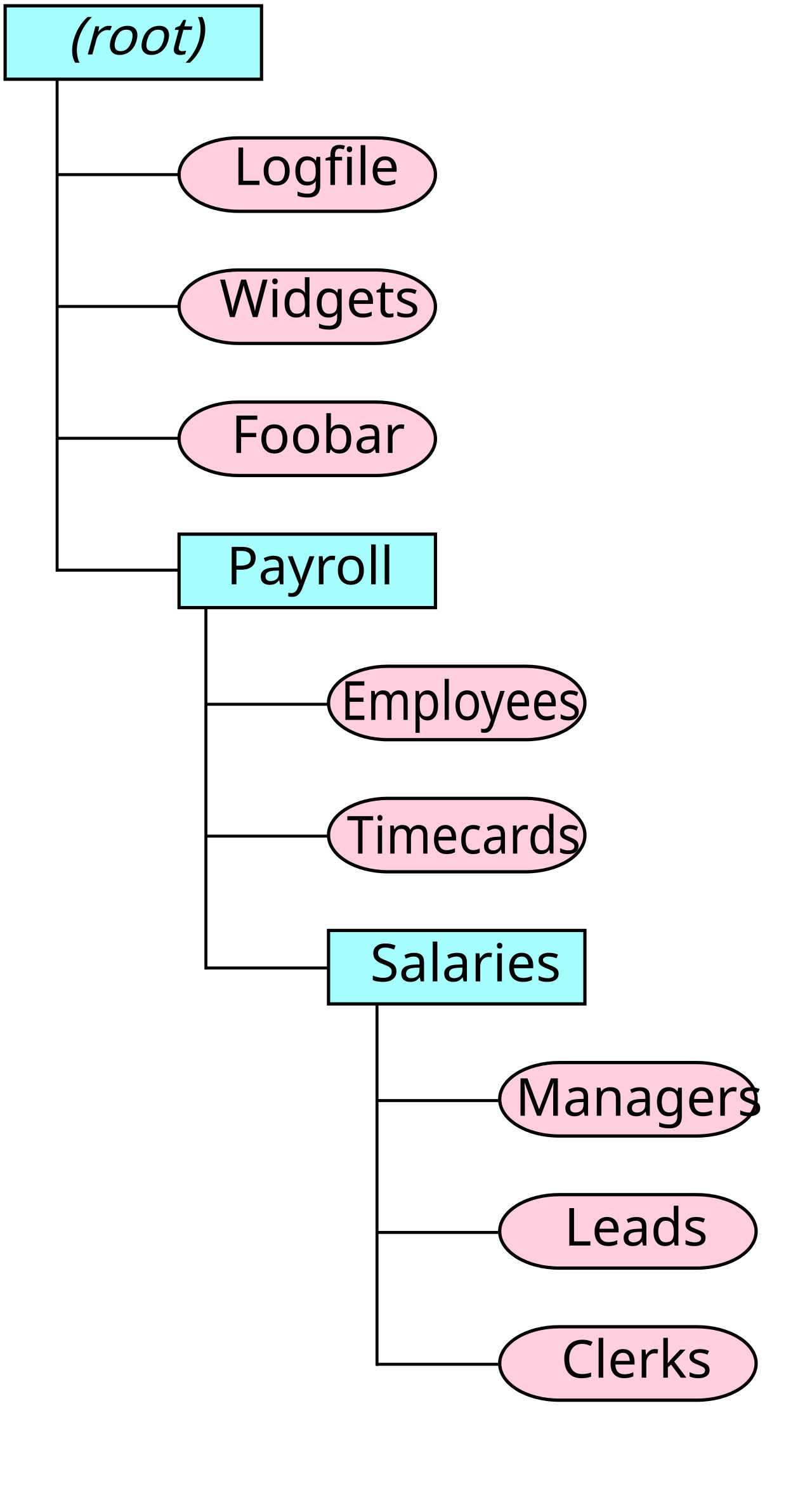 A useful folder hierarchy is shallow enough to navigate but specific enough to make files easy to retrieve. Image: TotoBaggins, Wikimedia Commons, CC BY-SA 3.0.
Digital clutter rarely appears all at once. It grows one download, screenshot, attachment, duplicate, draft, export, and “final-final-v2” file at a time. After a few years, documents may be spread across the desktop, Downloads folder, phone, cloud drive, email attachments, external disks, old laptops, shared folders, messaging apps, and several almost-identical project directories. The files still exist, but finding the correct one becomes a search problem.
The goal of digital organization is not to create a beautiful folder tree. The goal is to reduce the time and uncertainty involved in answering questions such as: Where is the signed contract? Which version of the presentation was approved? Are these photos backed up? Can I delete this duplicate? Does the filename tell me what this document contains? Would another person understand this folder if I were unavailable?
Library of Congress personal digital archiving guidance recommends descriptive file names, an understandable directory structure, multiple copies in different places, and periodic checks that important files remain readable. Those principles are simple, but they solve most real-world file-management problems. This guide turns them into a practical system for personal files, freelancers, students, households, small businesses, and anyone whose computer has become harder to navigate than it should be.
1. Define What “Organized” Means for You
Before moving a single file, decide what success looks like. A person organizing family documents has different needs from a photographer, university student, bookkeeper, consultant, or software team.
Write down three to five retrieval tasks you need to perform reliably. For example:
- find any current client contract within 30 seconds;
- locate the latest approved version of a proposal without opening five drafts;
- retrieve tax records by year;
- find family photos by event and year;
- identify which documents are active and which are archived;
- know which important files exist in more than one backup location.
This step prevents overengineering. If your real problem is finding tax forms, you do not need a 12-level folder taxonomy. If your real problem is version confusion, renaming may matter more than moving.
2. Inventory Where Your Files Actually Live
Most people underestimate how many storage locations they use. Create a short inventory before consolidating.
Typical locations include:
- Desktop;
- Documents;
- Downloads;
- Pictures and Videos;
- phone storage;
- OneDrive, Google Drive, Dropbox, iCloud Drive, or another cloud service;
- email attachments;
- WhatsApp, Telegram, Slack, Teams, Discord, or other messaging downloads;
- USB drives;
- external hard drives;
- NAS devices;
- old computers;
- shared team folders;
- application-specific libraries such as photo or music software.
Do not immediately copy everything into one giant folder. First identify the sources. If the same 50 GB photo library exists on a laptop, cloud account, and two drives, careless consolidation can create four duplicates instead of one organized collection.
Verification: At the end of the inventory, you should be able to name every location that contains files you would regret losing.
3. Decide Which Location Will Be the Primary Working Home
An organization system becomes unstable when the same category is actively edited in several places.
Choose a primary working location for each major category. For example:
- current work documents in OneDrive;
- personal records in a local Documents folder synchronized to a cloud service;
- photo masters in a dedicated photo library plus backup;
- large video projects on a fast external SSD with secondary backup.
The primary location is where you edit and manage the active copy. Backups and archives are not equal working copies.
Common mistake: Treating Dropbox, an external drive, and a laptop folder as three interchangeable active versions. That makes it difficult to know which file is authoritative.
4. Build Top-Level Folders Around Durable Areas, Not Temporary Moods
Your highest-level folders should represent categories that will still make sense in several years.
A personal system might use:
- 01 Personal Records
- 02 Finance and Taxes
- 03 Home
- 04 Work
- 05 Education
- 06 Photos and Media
- 07 Projects
- 08 Archive
A small business might use:
- 01 Administration
- 02 Finance
- 03 Clients
- 04 Sales and Marketing
- 05 Operations
- 06 People
- 07 Products or Services
- 08 Legal and Compliance
- 09 Archive
Numbers are optional. They are useful when you want a consistent manual order rather than alphabetical sorting.
Avoid top-level folders named “Misc,” “Stuff,” “New Folder,” or “To Sort Forever.” Temporary holding folders can exist, but they need a review rule.
5. Keep the Folder Tree Shallow
Too little structure creates clutter, but too much structure creates navigation fatigue.
A practical system usually works best when most files sit three or four levels below the root, not eight or ten.
For example:
Clients / Acme / Contracts / 2026-08-12_Service-Agreement_Signed.pdf
is easier to navigate than:
Business / External / Clients / Active / North America / Retail / Acme / Legal / Contracts / Signed / Current / Agreement.pdf
Deep folders also become fragile when categories change. If Acme changes industry, country, or account owner, the entire tree may need restructuring.
6. Organize by How You Search, Not by How the File Was Created
A useful question is: “What would I remember when I need this file?”
You might remember:
- client name;
- year;
- project;
- document type;
- event;
- course;
- property;
- tax year;
- person.
Use those retrieval cues in folders and filenames.
For example, storing invoices by Finance / 2026 / Vendor Invoices may be better than grouping them by file format or where they were downloaded from.
7. Create a Naming Convention Before Renaming Hundreds of Files
A naming convention is simply a repeatable pattern.
Useful elements include:
- date;
- subject or project;
- document type;
- person or organization;
- status;
- version.
A practical pattern is:
YYYY-MM-DD_Subject_Document-Type_Status.ext
Examples:
2026-08-14_Acme_Proposal_Approved.pdf2026-07-31_Bank-Reconciliation_Final.xlsx2026-08-01_Kitchen-Renovation_Contract_Signed.pdf2025_Tax-Return_Federal_Filed.pdf
Not every category needs every element. Photos, legal records, research papers, and design files may use different conventions. Consistency within a category matters more than forcing one global formula onto everything.
8. Use ISO-Style Dates When Dates Matter
Dates written as YYYY-MM-DD sort chronologically when filenames are sorted alphabetically.
Compare:
2026-01-052026-02-122026-11-03
with ambiguous formats such as 3-4-26, which may mean March 4 or April 3 depending on region.
If you only need a month, use 2026-08. If you only need a year, use 2026.
9. Make Filenames Descriptive Enough to Survive Outside Their Folder
A file called contract.pdf makes sense only while it remains inside the correct folder. If it is emailed, downloaded, or copied elsewhere, context disappears.
Prefer:
2026-08-12_Acme_Service-Agreement_Signed.pdf
Similarly, scan001.pdf, image123.jpg, notes.docx, and final.xlsx are weak long-term names.
A filename should answer at least two questions without opening the file: what is it, and what does it belong to?
10. Avoid Characters That Cause Cross-Platform Problems
If files move between Windows, macOS, cloud storage, external drives, and collaboration systems, conservative naming is safer.
Microsoft currently documents several characters that are not permitted in OneDrive and SharePoint file or folder names, including:
" * : < > ? / \ |
Leading and trailing spaces can also cause problems. Different operating systems support different characters, but a portable naming style avoids edge cases.
A safe convention uses letters, numbers, hyphens, underscores, and periods where appropriate.
11. Choose Between Spaces, Hyphens, and Underscores Once
All three can work in modern file systems. The important issue is consistency.
Examples:
2026-08-14 Client Proposal.pdf2026-08-14_Client-Proposal.pdf2026-08-14_client_proposal.pdf
For personal use, spaces are usually fine. If files are used in websites, scripts, programming environments, or systems with strict parsing, hyphens or underscores may be easier.
Do not spend hours renaming an existing collection solely to replace spaces with underscores unless a technical requirement justifies it.
12. Stop Using “Final,” “Final2,” and “Really Final” as Version Control
Version confusion is one of the most common digital-file problems.
Use a clear pattern such as:
Proposal_v01.docxProposal_v02.docxProposal_v03_ClientReview.docxProposal_v04_Approved.docx
When a document is formally completed, save a non-editable delivery copy if appropriate:
2026-08-14_Acme_Proposal_Approved.pdf
Keep the editable source separately if you may need it later.
13. Use Application Version History When It Is Reliable
Cloud platforms can reduce manual version files. Microsoft OneDrive, for example, supports version history for many files. Collaborative tools may record who changed a document and let you restore earlier versions.
When the platform’s version history is reliable, you may not need five physical copies named v01 through v05.
However, do not assume version history is permanent backup. Retention periods, account deletion, synchronization errors, and organization policies can affect what remains available.
14. Separate Active Work From Reference and Archive Material
Active folders should contain work you are currently using.
Reference folders contain material that is still useful but not being edited regularly.
Archive folders contain completed or inactive material retained for legal, historical, tax, operational, or personal reasons.
This separation keeps current work visible.
Example:
Clients / Active / AcmeClients / Archive / 2025 / FormerClient
or simply:
Clients / Acme / CurrentClients / Acme / Archive
15. Archive by a Rule, Not by Feeling
Define what makes something inactive.
Examples:
- project completed more than 90 days ago;
- client relationship ended;
- academic course finished;
- tax year filed and closed;
- event completed;
- old software project superseded.
Then archive on a schedule—monthly, quarterly, or annually.
An archive should still be organized and searchable. It is not a dumping ground.
16. Create One Temporary Inbox for Unsorted Files
Real life produces files faster than you can classify them. Instead of letting Downloads and Desktop become permanent archives, create one temporary intake folder such as:
00 Inbox - To File
Use it for material that needs a decision.
Review it on a fixed schedule. A good rule is that nothing remains there longer than one week or one month, depending on volume.
The advantage is psychological: you can save quickly without abandoning the overall system.
17. Treat Downloads as a Transit Station
The Downloads folder is where files arrive, not necessarily where they belong.
Once a week:
- delete installers you no longer need;
- move important documents into their proper folders;
- rename vague downloads;
- remove duplicate PDFs and images;
- review anything whose purpose you cannot identify.
If you leave thousands of files in Downloads, your search results become noisier and you risk keeping important records in a folder that many people periodically empty.
18. Clean the Desktop Without Turning It Into Another Hidden Folder
The desktop is visually convenient, but a crowded desktop makes every session feel disorganized.
Keep only:
- shortcuts;
- current working items;
- temporary files that will be filed soon.
Do not solve desktop clutter by creating Desktop Old and moving everything into it. That changes the location, not the organization problem.
19. Find Duplicates Carefully
Duplicate cleanup can recover storage, but careless deletion can destroy the wrong copy.
Files with the same name are not necessarily identical. Files with different names can be identical.
Use a staged process:
- identify obvious duplicate downloads such as
document (1).pdf; - compare file size and modified date;
- for important files, compare content or use a duplicate-finder that hashes files;
- keep one authoritative copy in the correct location;
- move questionable duplicates to a temporary review folder rather than deleting immediately;
- empty the review folder only after you are confident.
For photos and media, duplicates may have different metadata or editing history, so be more conservative.
20. Understand the Difference Between a Duplicate, a Version, and a Backup
These terms are often confused.
A duplicate is an unnecessary extra copy with no distinct purpose.
A version records a meaningful stage of work.
A backup is a separate copy kept so you can recover from deletion, corruption, theft, hardware failure, ransomware, or another loss.
Deleting all “duplicates” can be dangerous if some of them are your only backups.
21. Consolidate Files From Old Computers Methodically
Do not drag the entire old computer into a folder called Old Laptop and forget it.
Instead:
- create a read-only or untouched safety copy first if the data is important;
- identify major categories;
- move unique files into the new structure;
- compare duplicates;
- preserve application libraries that require special migration;
- verify that important files open;
- keep the original disk untouched until you are confident the migration succeeded.
This approach prevents accidental data loss during cleanup.
22. Do Not Forget Files Trapped in Email
Email is often an unofficial file cabinet.
Important attachments may include signed contracts, receipts, invoices, travel documents, scans, creative assets, and approvals.
If an attachment matters beyond the conversation, save it into the appropriate file system with a descriptive name. Keep the email when the surrounding message provides important evidence or context.
Do not rely on a single email account as the only home for a critical document.
23. Export Important Files From Messaging Apps
Messaging apps are even more fragile as archives because files can expire, links can break, groups can disappear, and accounts can be lost.
When a chat contains a file with lasting value:
- download it;
- rename it;
- place it in the correct project or records folder;
- preserve any important context separately if required.
For business approvals, follow your organization’s record-retention rules rather than assuming chat history is enough.
24. Use Search as a Companion to Folders, Not a Replacement for All Structure
Modern operating systems and cloud services can search filenames, content, dates, and metadata. Search is powerful, but it works better when files have useful names.
Searching for contract is more helpful if files are named Acme_Service-Agreement_Signed.pdf than if they are named scan0041.pdf.
Folders provide context. Search provides speed. Good systems use both.
25. Add Metadata Where It Provides Real Value
Metadata can include author, creation date, keywords, location, client, project, rating, caption, or other information stored inside or alongside a file.
It is especially useful for:
- photos;
- research collections;
- media archives;
- large document repositories;
- records that need identifiers.
But metadata requires maintenance. Do not create 50 custom fields if filenames and folders already solve the retrieval problem.
26. Make Folder Names Understandable to Another Person
If the files matter to a household, team, executor, partner, or successor, avoid private abbreviations that only you understand.
FY26_AR_Recon may be obvious to an accountant but meaningless to a family member.
For shared systems, prefer names such as:
Finance / 2026 / Accounts Receivable Reconciliations
Document unusual abbreviations in a short README file when needed.
27. Use a README File for Complex Folders
A README can explain:
- what the folder contains;
- who maintains it;
- the naming convention;
- which file is authoritative;
- how versions work;
- retention rules;
- software required to open special formats.
Library of Congress personal archiving guidance recommends writing a brief description of directory structure and important documents. A README is a practical way to do that.
28. Decide How You Will Handle Photos Separately
Photos behave differently from ordinary documents because visual browsing, date metadata, albums, faces, and locations matter.
If you use photo-management software, avoid reorganizing the underlying files outside the application unless you understand how the library works.
For folder-based photo collections, a structure such as:
Photos / 2026 / 2026-08 Cairo Trip
is easy to maintain.
Keep original files when they have long-term value. Edited exports can live in a subfolder such as Edits or Exports.
29. Keep Scans and Originals Linked
When you digitize paper records, use names that connect the digital file to the physical item or event.
For example:
2024-11-02_Home-Insurance_Policy.pdf
rather than:
Scan_20241102_154421.pdf
If the paper original is retained, note its physical location when necessary.
30. Separate Master Files From Convenience Copies
Some files exist in high-quality master form and smaller convenience form.
Examples include:
- TIFF photo master and JPEG sharing copy;
- editable design source and exported PDF;
- raw video and compressed web version;
- spreadsheet model and published PDF report.
Label them clearly. Do not accidentally delete the only editable source because the PDF “looks the same.”
31. Understand Sync Versus Backup
Cloud synchronization makes files available across devices. Backup protects you from loss. The two overlap, but they are not identical.
If you delete a synchronized file, the deletion may propagate to every synchronized device. Version history and recycle bins can help, but their retention is not always unlimited.
Therefore, important files should have at least one recovery copy that is not merely another live synchronized replica.
32. Build Multiple Copies of Important Files
Library of Congress personal archiving guidance recommends making at least two copies of important digital records and keeping copies on separate media and in different locations.
A practical home setup may include:
- working copy on computer or cloud-synced folder;
- local backup on external drive;
- second backup in another physical location or reputable cloud backup service.
The exact tools matter less than independence. If one ransomware infection, house fire, account lockout, or accidental deletion can destroy every copy, the copies are not sufficiently independent.
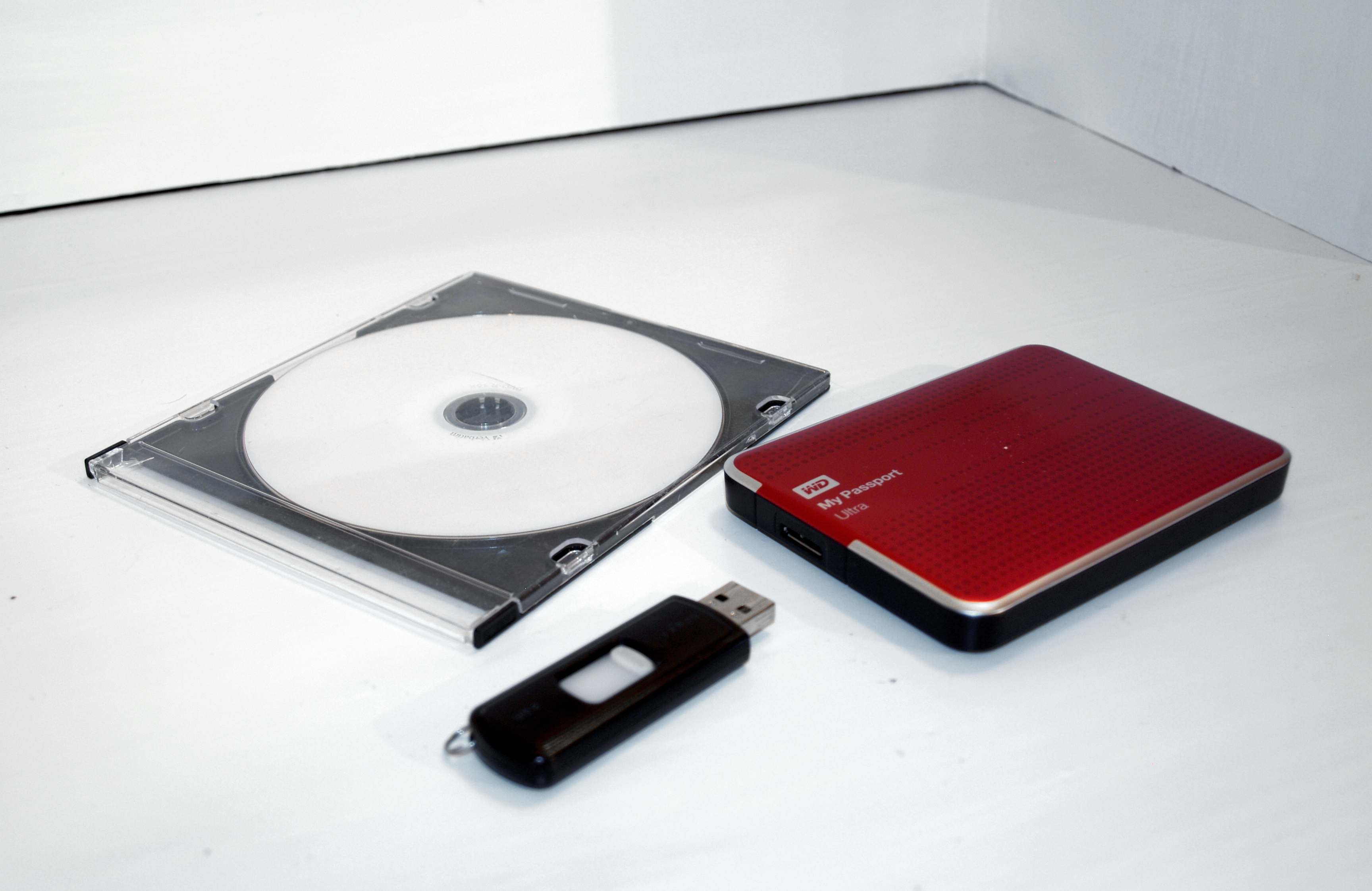 Different storage media can provide independent copies, but every medium requires periodic checking and eventual replacement. Image: Santeri Viinamäki, Wikimedia Commons, CC BY-SA 4.0.
33. Test Backups Instead of Trusting a Green Checkmark
A backup is useful only if you can restore from it.
Once per quarter or at least annually:
- choose several important files;
- restore them to a temporary folder;
- open them;
- compare file size and content;
- confirm that your backup includes the categories you think it includes.
Library of Congress guidance also recommends checking files periodically to make sure they remain readable and refreshing media over time.
34. Keep Backups Physically Separate
Two external drives sitting beside the same laptop do not protect against theft, fire, flood, or a power incident affecting that location.
Use one offsite or cloud copy for material you cannot replace.
For businesses, consider geographic separation and access controls appropriate to the sensitivity of the data.
35. Encrypt Sensitive Storage
Organization can make sensitive files easier to find—for you and for anyone who steals the device.
Use device encryption and strong account protection for records containing:
- identity documents;
- financial information;
- tax data;
- medical records;
- client information;
- employee records;
- confidential business files.
Store recovery keys securely. Encryption without a recovery plan can turn a forgotten password into permanent data loss.
36. Use Access Permissions in Shared Folders
A shared drive should not give everyone edit access to everything.
Separate:
- public or team-wide reference;
- working project files;
- finance;
- HR;
- legal;
- executive or confidential material.
Use the least access required for the work. Review permissions when people change roles or leave.
37. Do Not Put Passwords Inside Ordinary Document Folders
A file named passwords.xlsx inside Documents is not a good credential-management system.
Use a reputable password manager designed to protect credentials. If you maintain emergency access instructions, secure them separately and avoid storing plain-text passwords beside the files they unlock.
38. Manage Large Files Intentionally
Video projects, virtual machines, disk images, RAW photos, and design caches can consume enormous space.
Ask:
- Is this source file still needed?
- Can temporary render files be recreated?
- Does the application manage its own cache?
- Should the master live on external storage?
- Is it included in backup?
Deleting large files solely because they are large can be a costly mistake. Deleting regenerable cache files can be sensible.
39. Handle Software Installers Separately From Your Own Data
Downloaded installers are usually replaceable. Your documents are not.
Unless you need a specific legacy installer, move installers out of long-term document folders. Keep license keys and proof of purchase securely where appropriate.
This makes backup sets smaller and reduces clutter.
40. Preserve Original File Extensions
Do not rename report.pdf to report.docx to “convert” it. The extension tells the operating system what format the file uses; changing the extension does not transform the contents.
Use an actual export or conversion function when changing formats.
41. Avoid Bulk Renaming Until You Have a Safety Copy
Batch rename tools are powerful and can also make hundreds of files harder to identify in seconds.
Before a large operation:
- back up the folder;
- test the naming rule on ten files;
- check sort order;
- verify dates and numbering;
- then apply to the full set.
If the tool supports undo, do not assume undo will remain available after closing the program.
42. Use Leading Zeros When Numeric Order Matters
Some systems sort text so that 10 appears before 2.
Use:
010203- …
10
This works well for chapters, phases, invoices in a manual sequence, or ordered reference folders.
43. Do Not Encode Too Much Information Into a Filename
A filename should be descriptive, not a database.
This is too much:
2026-08-14_Acme_Enterprise-Europe_Retail_Q3_Marketing-Proposal_Alice-Smith_ClientReview_v07_Final2.pdf
Move stable context into folders and keep only the information needed to identify the file.
44. Set Retention Rules for Files You Are Allowed to Delete
Not every file needs permanent storage.
Create simple rules such as:
- delete temporary exports after 30 days;
- archive completed projects annually;
- keep tax records according to applicable legal advice and jurisdictional requirements;
- delete duplicate downloads after verification;
- retain signed agreements according to business and legal needs.
For regulated, legal, financial, medical, or employment records, do not invent a retention period. Follow the applicable law, contract, policy, or professional advice.
45. Create a “Needs Review” Quarantine Before Deleting Unknown Files
When cleaning an old drive, you may find files you do not recognize.
Instead of immediate deletion, move questionable personal files into:
Needs Review - Delete After YYYY-MM-DD
Keep them through one normal work cycle. If nothing breaks and you confirm they have no value, delete them later.
Do not use this method for system files or application directories you do not understand. Removing operating-system files requires different expertise.
46. Build a Shared Team Naming Standard
Teams need written rules because personal preferences conflict quickly.
A one-page standard can define:
- top-level folders;
- date format;
- project identifier;
- versioning;
- status terms;
- where approved files live;
- who can archive;
- which files should not be stored locally.
Keep the standard short enough that people actually follow it.
47. Choose One Place for Approved Deliverables
Every project should have a clearly defined location for the accepted output.
For example:
Project / 05 Deliverables / Approved
Working drafts can live elsewhere. This solves the classic question: “Which file did we actually send?”
48. Use Status Words Consistently
If you add status to names, use a controlled vocabulary:
- Draft
- Review
- Approved
- Signed
- Filed
- Superseded
Avoid random variants such as done, complete, approved-final, sent-new, and use-this.
49. Separate Templates From Completed Documents
Templates should not sit beside filled-in records with almost identical names.
Use a folder such as:
Templates
and name the file:
Client-Onboarding-Checklist_TEMPLATE.docx
This reduces accidental overwriting of the master template.
50. Make a Digital Estate Map for Important Personal Files
Households often have valuable digital files that nobody else knows exist.
Create a secure inventory describing:
- where important documents are stored;
- which cloud services hold family files;
- where backups are kept;
- how to access password-manager emergency features;
- which subscriptions or accounts contain purchased media or records;
- who should receive access if necessary.
Do not place all passwords in the map. The map should explain the system and point to secure access methods.
51. Review File Organization After Major Life Events
Good times to review include:
- moving house;
- changing jobs;
- starting a business;
- closing a business;
- marriage;
- new child;
- retirement;
- buying a new computer;
- changing cloud providers;
- finishing a degree.
These events create new categories and obsolete old ones.
52. Use a Quarterly Digital Reset
Every three months:
- clear Downloads;
- review the Desktop;
- empty the temporary file inbox;
- archive completed projects;
- remove obvious duplicates;
- check cloud synchronization errors;
- review shared-folder permissions;
- test a few backup restores;
- check free storage;
- update the README or file map if the structure changed.
This prevents a once-a-year cleanup from becoming overwhelming.
53. Use Annual Preservation Checks for Irreplaceable Files
Once a year, focus specifically on files you cannot replace:
- family photos;
- signed legal documents;
- creative work;
- business records;
- research data;
- personal writing;
- important scans.
Verify that copies exist, storage devices are healthy, accounts are accessible, and files open correctly. Library of Congress guidance explicitly encourages periodic readability checks and replacement or migration of storage media as needed.
54. Worked Example: Cleaning Up Five Years of Freelance Files
A freelance designer has files spread across Desktop, Downloads, Dropbox, two USB drives, and email.
Step 1: Create a safety backup before changing anything.
Step 2: Build:
Clients / ActiveClients / ArchiveBusiness / FinanceBusiness / LegalTemplates
Step 3: Move each client into one folder with subfolders for Brief, Working, Assets, and Deliverables.
Step 4: Rename only high-value deliverables and legal/financial records first. Do not waste a week renaming every temporary image.
Step 5: Compare old USB-drive copies and remove only verified duplicates.
Step 6: Set cloud sync for working folders and external-drive backup for the entire business archive.
Result: Current clients become easy to navigate, while old projects remain available without cluttering active work.
55. Worked Example: Household Documents
A household needs quick access to insurance, property, vehicle, school, medical, and identity records.
A simple structure might be:
Household / IdentityHousehold / PropertyHousehold / VehiclesHousehold / InsuranceHousehold / EducationHousehold / MedicalHousehold / Taxes / 2026
Highly sensitive files should be protected with appropriate encryption and access controls.
Each file gets a descriptive name such as:
2026-01-01_Home-Insurance_Policy.pdf
The family keeps a second backup and a short map explaining where critical records are stored.
56. Worked Example: Student File System
A student begins each semester with files scattered across Downloads and course portals.
Create:
Education / 2026 Fall / Course-Code Course-Name
Inside each course:
- 01 Syllabus
- 02 Lectures
- 03 Readings
- 04 Assignments
- 05 Projects
- 06 Exams
Assignments might use:
2026-10-04_ECON201_Assignment-03_Submitted.pdf
At the end of the semester, the entire semester moves into Archive while reusable reference material is copied to a subject reference library.
57. Worked Example: Small Business Shared Drive
A ten-person agency has inconsistent folders created by each employee.
The team standardizes top-level folders:
- Administration
- Finance
- Clients
- Marketing
- Operations
- People
- Templates
- Archive
Every client folder contains the same six subfolders. Approved deliverables have one destination. Finance and People folders receive restricted permissions. Old client projects move to Archive quarterly.
The result is not just tidiness. New employees can understand the system without asking where every document lives.
58. Troubleshooting: “I Have Too Many Files to Start”
Do not begin file by file.
Start with broad groups. Move the obvious categories first: photos, finance, clients, school, downloads, projects. Leave difficult items in a review folder.
This resembles professional archival practice: broad arrangement first, detailed description later. Library of Congress archivists have publicly advised people beginning personal archiving projects to avoid getting stuck scrutinizing every individual item at the start.
59. Troubleshooting: “My Folder Structure Keeps Changing”
Your top level may be based on temporary projects rather than durable areas.
Move transient projects one level lower:
Projects / Website Redesign
instead of making Website Redesign a permanent root folder.
Stable roots make future changes easier.
60. Troubleshooting: “Search Finds Too Many Results”
Improve filenames and remove clutter from high-volume folders.
A search for invoice is noisy when every downloaded attachment is named invoice.pdf. Rename important records with vendor, date, and invoice number where appropriate.
61. Troubleshooting: “I Cannot Tell Which Copy Is Current”
Choose one authoritative working location and stop editing replicas.
Use version history or a clear versioning pattern. Move old alternatives into Superseded rather than leaving them beside the current file.
62. Troubleshooting: “Cloud Sync Keeps Creating Conflicted Copies”
Conflicts usually occur when the same file is edited simultaneously from multiple devices or sync is interrupted.
Stop editing, let synchronization complete, compare the conflicted versions, merge carefully, and remove duplicates only after confirming content.
If conflicts recur, investigate account duplication, offline editing, unsupported characters, or multiple sync clients controlling the same folder.
63. Troubleshooting: “My External Drive Is the Only Copy”
That is storage, not backup.
Copy irreplaceable data to another independent location before reorganizing the drive. External drives fail, get dropped, are stolen, and can be corrupted just like internal drives.
64. A Two-Hour Digital Cleanup for Busy People
If you cannot reorganize everything, do the highest-value work first.
First 20 minutes: inventory storage locations and identify irreplaceable files.
Next 20 minutes: create six to eight durable top-level folders.
Next 20 minutes: empty the Desktop into real destinations or a temporary intake folder.
Next 20 minutes: review Downloads and delete obvious junk.
Next 20 minutes: rename the most important current documents and define your naming convention.
Final 20 minutes: create or verify an independent backup of critical folders.
You will not finish the entire archive, but the system will already be safer and easier to use.
 Any modern file manager can support a clear system; the important part is the structure and naming logic, not the specific operating system. Image: Gaba p, Wikimedia Commons, CC BY-SA 3.0.
65. A Practical File Organization Checklist
- You know every storage location containing important files.
- Each major category has one primary working home.
- Top-level folders are durable and understandable.
- Most folder paths are not excessively deep.
- Important filenames are descriptive.
- Dates use a consistent format.
- Versions follow one rule.
- Approved or signed files have a clear destination.
- Downloads is not being used as a permanent archive.
- The Desktop contains only active or temporary items.
- Duplicate cleanup does not remove backup copies.
- Shared folders have appropriate permissions.
- Sensitive files are protected.
- At least one backup is independent from live synchronization.
- Important files exist in more than one physical or logical location.
- Backups are tested periodically.
- Archived files remain searchable.
- A quarterly cleanup is scheduled.
- Irreplaceable files receive an annual preservation check.
Frequently Asked Questions
What is the best folder structure for personal files?
There is no universal best structure. Use a small set of durable areas such as Personal Records, Finance, Home, Work, Education, Photos, Projects, and Archive. Build subfolders around how you naturally search for information.
Should I organize files by year or by category?
Use whichever you remember first. Taxes usually work well by year. Clients usually work well by client name with years or projects underneath. Photos often work well by year and event. You can combine both where useful.
Is it better to use folders or tags?
Folders provide stable context and work across almost every platform. Tags add flexible cross-cutting metadata. For most people, folders should provide the basic structure and tags should be used only where they add real retrieval value.
How should I name files?
Use descriptive, consistent names containing the few pieces of information needed to identify the file without opening it. Dates in YYYY-MM-DD format are useful when chronology matters.
Should I rename every old file?
No. Rename high-value, frequently used, ambiguous, or long-term files first. Renaming thousands of low-value historical files can consume more time than it saves.
Is OneDrive or another cloud drive a backup?
Cloud sync provides useful redundancy and recovery features, but synchronized deletion and account problems can affect all synced devices. Important files should have an additional independent backup.
How many backup copies should I keep?
For important personal digital records, Library of Congress guidance recommends at least two copies and suggests storing copies on separate media and in different places. Many people choose a working copy plus local backup plus offsite or cloud backup for stronger resilience.
How often should I organize files?
Do small maintenance weekly or monthly and a deeper reset quarterly. Important long-term files should also be checked periodically to confirm they remain readable and backed up.
How do I know whether a file is safe to delete?
Confirm that it is truly redundant, not a unique version or backup. For uncertain files, place them in a temporary review folder and delay permanent deletion until you are confident.
What should I do first if my files are completely chaotic?
Create a safety backup, identify storage locations, build a small top-level structure, and sort broad categories. Do not begin by renaming every individual file.
Conclusion: Design for Retrieval, Not Perfection
A strong digital filing system is one you can maintain when you are busy. It does not require hundreds of folders or a perfect taxonomy. It needs clear homes for important categories, descriptive names, predictable version rules, and independent backups.
Start with retrieval. Ask what you need to find quickly, then build the structure around those questions. Keep active work separate from archives, use a temporary inbox instead of letting clutter spread everywhere, and review Downloads and Desktop regularly. Most importantly, do not confuse synchronization with preservation. A beautifully organized folder tree is still fragile if it exists in only one place.
The biggest mistake is trying to organize everything perfectly before creating a safety copy. Back up first. Then improve the system in broad passes. Your first practical step today can be as small as creating six durable top-level folders and moving the ten most important current files into their correct homes.
Sources and Further Reading
- Library of Congress — Personal Digital Records
- Library of Congress — How to Begin a Personal Archiving Project
- Microsoft Support — Sort, Rename, or Move Photos and Files in OneDrive
- Microsoft Support — Organize Files and Folders in OneDrive
- Microsoft Support — Restrictions and Limitations in OneDrive and SharePoint
Image Credits
- “FileFolders.svg” — TotoBaggins, Wikimedia Commons, CC BY-SA 3.0.
- “DVD, USB flash drive and external hard drive.jpg” — Santeri Viinamäki, Wikimedia Commons, CC BY-SA 4.0.
- “Screenshot of Nemo (file manager).png” — Gaba p, Wikimedia Commons, CC BY-SA 3.0.