

Quick answer: Treat any unexpected message that asks you to log in, pay, open an attachment, share a code, reset a password, or act urgently as unverified until you confirm it through a separate channel. Check the full sender address, inspect the domain in links before clicking, look for mismatched names and addresses, and be skeptical of emotional pressure, unusual payment methods, fake invoices, account warnings, delivery notices, and requests for credentials. If the message may be real, open the company’s official app or type the known website yourself rather than using the message’s link. Report phishing through your email provider, preserve evidence when money or identity theft may be involved, and secure affected accounts immediately if you already responded.
 A well-made phishing message can look polished and familiar. Evaluate the request, sender, domain, and verification path rather than relying on appearance alone. Image: Isochrone, Wikimedia Commons, CC BY 4.0.
Phishing is no longer limited to obviously misspelled emails promising lottery winnings. Modern scams can copy a company’s branding, use a real person’s name, imitate a delivery notice, appear inside a compromised email thread, or arrive as a short text that looks routine. Some phishing attempts are designed to steal passwords. Others try to convince you to send money, approve a login, reveal a one-time code, install software, open a malicious document, or call a fake support number.
That is why a useful phishing defense cannot be reduced to “look for bad grammar.” Grammar can still be a clue, but polished messages can be malicious and clumsy messages can be legitimate. The stronger method is procedural: slow the interaction down, identify what the sender is asking you to do, verify the request independently, and protect your account even if one signal looks normal.
Google’s current Gmail guidance describes phishing as deceptive email, messages, ads, or sites that imitate people or organizations you trust in order to steal private information or access online accounts. The U.S. Federal Trade Commission similarly warns that phishing commonly arrives as email or text messages designed to make people click links, open attachments, reveal passwords or financial information, or respond to a fake account problem. Both sources emphasize a simple defensive habit: if you think a message might be legitimate, contact the organization using a website, app, or phone number you already know is real instead of using the contact information inside the suspicious message.
This guide turns that principle into a full decision process for everyday users. It covers email, text messages, workplace requests, fake invoices, login alerts, package notices, account-recovery scams, compromised contacts, suspicious attachments, QR codes, one-time-code theft, and what to do after a mistake.
1. Start With the Request, Not the Logo
The fastest way to evaluate a suspicious message is to ignore the branding for a moment and ask: What does this message want me to do?
Common phishing actions include:
- click a link and sign in;
- open an attachment;
- download software;
- send money or buy gift cards;
- change bank details;
- verify an account;
- share a password, PIN, security answer, or one-time code;
- call a phone number in the message;
- scan a QR code;
- approve a login notification;
- reply with personal information;
- send a document containing identity or financial details.
A message becomes higher risk when it asks you to move from reading to taking a security-sensitive action. A newsletter is mostly informational. An “account suspended — sign in now” email asks you to change state. The second deserves verification.
Practical test: Rewrite the request in one sentence without the company name. “Someone wants me to enter my bank password through a link.” “Someone wants me to pay an invoice to new bank details.” “Someone wants me to install a file.” This often makes the risk much clearer.
2. Treat Unexpected Urgency as a Warning Signal
Scammers use urgency because careful verification takes time.
Common pressure phrases include:
- “Your account will be closed today.”
- “Immediate action required.”
- “Payment failed — update within two hours.”
- “Your package cannot be delivered.”
- “Unusual login detected — verify now.”
- “I’m in a meeting; buy gift cards and send the codes.”
- “Final notice.”
- “You will lose access if you do not respond.”
Urgency does not prove fraud. Real security alerts can be urgent. The correct response is not to ignore the message; it is to verify through a separate path.
If the email says your bank account has suspicious activity, open the bank’s official app yourself. If a coworker asks for a transfer, call or message them using a known contact method. If a delivery company says a package needs attention, open the carrier’s app or type its official domain manually.
Success check: You should be able to confirm the underlying problem without using the suspicious message’s link, attachment, phone number, or QR code.
3. Expand the Full Sender Address
A display name is not proof of identity.
An email might display:
Microsoft Account Team
while the actual address is something unrelated, such as:
or an address on a free consumer domain.
On your email app, tap or click the sender name so the complete address appears. Check both the mailbox name and the domain after the @ symbol.
Look for:
- misspelled domains;
- extra words added before or after a brand;
- numbers substituted for letters;
- unrelated free-email domains;
- country-code domains you do not expect;
- unexpected subdomains;
- addresses that differ from previous legitimate messages.
Do not rely on whether the sender’s name is familiar. Google specifically warns that phishing can impersonate someone you know, and compromised accounts can send malicious messages from a real address.
4. Understand Lookalike Domains Before You Inspect Links
The important part of a web address is the registered domain, not the word that appears first.
Consider:
The actual domain there is example.com; “paypal” is only a subdomain.
Compare with:
Here the registered domain is paypal.com.
Scammers rely on people scanning from left to right and stopping when they see a familiar brand. The same trick appears in long domains such as:
microsoft-account-security-check.example.net
The familiar words do not make the domain official.
5. Inspect Links Before Clicking
On a desktop browser or email client, hovering over a link often reveals the destination. On a phone, long-pressing a link may show a preview or URL, but behavior varies by app.
Compare the visible text with the actual destination.
Example:
Visible text: https://accounts.google.com
Actual destination: https://google-login.example.org/security
That mismatch is a strong warning.
Google’s Gmail guidance specifically recommends checking whether link destinations match their descriptions. If anything looks wrong, do not click. Go to the service directly instead.
Important: URL shorteners make inspection harder. A shortened link is not automatically malicious, but if an unexpected security-sensitive message uses one, verification is safer than clicking.
6. Do Not Trust a Link Just Because It Uses HTTPS
The padlock or https:// indicates that your connection to that site is encrypted. It does not prove the site belongs to the company it claims to represent.
A phishing site can obtain a valid TLS certificate and show a padlock.
What matters is whether the domain is correct and whether you reached it through a trusted route.
This is one of the most useful corrections to old internet advice: “look for the padlock” is not enough.
7. Verify Account Alerts Inside the Account
Security-alert phishing is effective because the topic itself is plausible.
If an email claims:
- someone logged in from a new device;
- your password was changed;
- your account will be suspended;
- you need to verify your identity;
- a recovery email was changed;
- a payment was added;
do not use the email to reach the account.
Open the official app or type the known website. Then check security activity, recent devices, notifications, billing, or account settings.
Google advises users who receive suspicious Google security mail to review recent security activity directly in their Google Account. The principle applies widely: verify the alert inside the service.
8. Separate “From,” “Reply-To,” and Where the Message Sends You
Email can contain several identity fields.
The visible From address may look normal, while the Reply-To points somewhere else. A legitimate organization can have different reply addresses, but an unexpected mismatch deserves attention.
If replying would send your answer to an unrelated domain, stop.
Likewise, the sender’s domain, reply domain, and linked website should make organizational sense together. You do not need to become an email administrator to notice obvious inconsistencies.
9. Use Email Authentication as Supporting Evidence, Not a Magic Verdict
Many email providers evaluate authentication mechanisms such as SPF, DKIM, and DMARC to help determine whether a message is authorized to use a domain.
In Gmail on desktop, message details can show authentication information. Google recommends checking whether a suspicious message is authenticated.
However, authentication is not a universal “safe” stamp. A scammer can authenticate email sent from a domain they legitimately control, and a compromised real account can send authenticated malicious email.
Use authentication to answer one narrow question: “Does this message appear authorized for the domain it claims to come from?” You must still evaluate the request.
10. Do Not Use Grammar as Your Primary Test
Poor grammar, odd punctuation, inconsistent capitalization, or strange wording can be warning signs. But they are weak evidence on their own.
Legitimate messages can contain mistakes. Phishing messages can be professionally written.
Better signals include:
- unexpected request;
- wrong domain;
- mismatched link destination;
- unusual payment method;
- request for credentials or codes;
- pressure to bypass normal procedures;
- unexpected attachment;
- request that cannot be verified independently.
11. Be Suspicious of Requests for Passwords and One-Time Codes
A password should be entered only into the service you intentionally opened.
If an email or text asks you to reply with a password, send a login code, read out a one-time password, or approve an authentication prompt you did not initiate, stop.
One-time codes are valuable because they can be the second factor needed to complete a login. Scammers may first obtain your password and then contact you pretending to be support, asking you to “verify” the code that arrives.
That code may actually be the key that lets them finish signing in.
If you did not initiate the login, do not approve it.
If you receive repeated authentication prompts you did not request, change the password through the official service and review active sessions.
12. Recognize MFA Fatigue and Push-Approval Scams
Some accounts use push notifications that ask you to approve or deny a login.
An attacker who already knows a password may send repeated approval prompts, hoping the user eventually taps “Approve” just to make them stop.
Do not approve an unexpected login request.
If a prompt appears:
- deny it;
- open the account’s security settings directly;
- change the password if there is evidence the password may be exposed;
- review active sessions and recovery information;
- contact the provider if suspicious access continues.
For a broader account-hardening process, see LordAI’s guide to setting up two-factor authentication without locking yourself out.
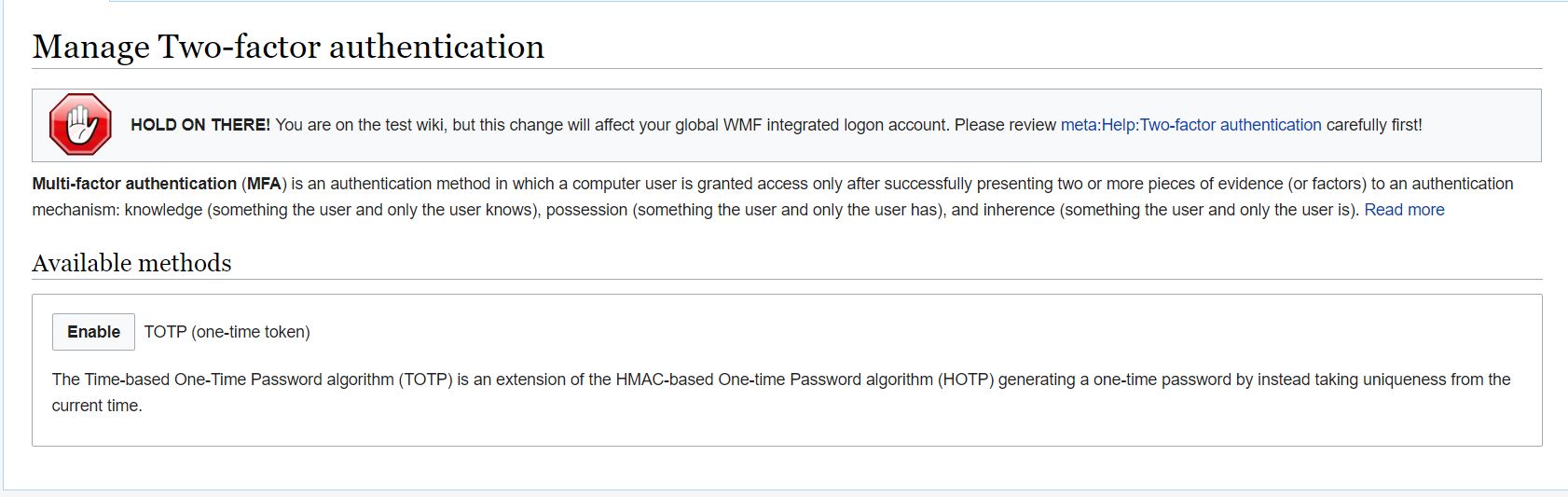 MFA can protect an account after password theft, but unexpected login prompts should never be approved. Image: Xaosflux / Wikimedia Commons, CC0 1.0.
13. Treat Unexpected Attachments as Executable Decisions
Opening an attachment is an action, not passive reading.
Unexpected files may contain malware, malicious scripts, deceptive forms, or links to credential-stealing pages.
High-risk situations include:
- an invoice you were not expecting;
- a resume from an unknown sender;
- a “secure document” that demands login;
- a compressed ZIP file;
- a file asking you to enable macros or editing;
- an executable or installer;
- a document sent from a known person with no context.
If the attachment could be legitimate, verify with the sender through another channel before opening it.
FTC guidance warns that links and attachments in phishing messages may install harmful software. A cautious verification call is usually cheaper than recovering a compromised device.
14. Understand Why File Extensions Can Mislead
A filename that appears to be a PDF may not be one.
Operating systems sometimes hide known extensions, and filenames can contain multiple dots:
invoice.pdf.exe
If the system hides .exe, the file may appear deceptively similar to a document.
Keep file extensions visible where practical and avoid opening unexpected executable files.
15. Be Careful With QR Codes in Messages
QR codes can hide the destination until after the phone scans them. This makes them useful in phishing campaigns because the reader cannot inspect a normal visible link first.
If an unexpected email says “scan to verify account,” “scan to view payroll,” or “scan to pay invoice,” do not treat the QR code as safer than a link.
Use the official app or website instead.
If your phone previews the destination before opening it, inspect the domain carefully.
16. Recognize Fake Invoice and Payment-Change Scams
Businesses are frequent targets of messages that imitate vendors, executives, or finance staff.
Examples:
- “Our bank account changed; use this new routing number.”
- “Please pay the attached overdue invoice immediately.”
- “I’m traveling; wire this today.”
- “Update our vendor payment details.”
- “Buy gift cards for a client and send the codes.”
Payment changes should be verified using an established contact method already on file. Do not use the phone number in the change request itself.
A strong business process requires a second person or second channel for high-risk payment changes.
17. Treat Gift Cards as a Major Scam Signal
FTC consumer guidance repeatedly identifies gift cards as a common scam payment method because they are difficult to reverse after the code is shared.
If a supposed employer, government agency, support representative, family member, or company asks you to buy gift cards and send the codes, do not proceed.
The same caution applies when someone insists that you pay only through cryptocurrency, wire transfer, bank transfer, or a particular payment app in an unexpected situation. FTC guidance published in July 2026 emphasizes that scammers often demand payment methods that are difficult to recover.
18. Verify Executive and Coworker Requests Out of Band
Spear phishing targets specific people and organizations.
A scammer may know:
- your manager’s name;
- your company structure;
- the client you are working with;
- a colleague’s travel schedule;
- your job title;
- your vendor relationships.
Public information from LinkedIn, websites, social media, press releases, and breached databases can make fake messages highly convincing.
If an unusual request appears to come from someone you know, confirm it through a known Slack account, phone number, internal directory, or face-to-face conversation.
Do not reply to the suspicious message asking, “Is this really you?” If the sender account is compromised, the attacker may answer yes.
19. Understand Compromised-Account Phishing
One of the hardest phishing messages to detect can come from a real account that has been taken over.
The email address may be correct. The display name may be correct. The message may appear in an existing thread.
Look for behavioral anomalies:
- unusual request;
- unexpected file;
- different payment instructions;
- strange writing style;
- request to bypass a normal process;
- sudden urgency;
- link to a login page unrelated to the usual workflow.
Google explicitly warns that scam messages can arrive from people in your contacts if their account has been compromised.
20. Do Not Call the Phone Number in a Suspicious Alert
Some phishing campaigns try to move the victim from email to phone.
A fake invoice may say:
“If you did not authorize this $499 purchase, call 1-800-xxx-xxxx immediately.”
The purpose is to get you to call a scammer who then asks for remote access, passwords, payment, or bank details.
If you are worried about the transaction, find the company’s official support number independently from its app, statement, card, or official website.
21. Be Skeptical of Remote-Access Requests
A stranger who contacted you unexpectedly should not be allowed to control your computer.
Scammers often claim they need remote access to:
- remove a virus;
- refund a charge;
- fix an account;
- reverse a bank transaction;
- install security software.
Installing remote-control software can give an attacker access to files, browser sessions, email, and financial accounts.
Use support channels you initiated through a trusted provider.
22. Recognize Delivery and Toll Phishing Texts
Text-message phishing, often called smishing, frequently uses everyday logistics.
Examples include:
- “Package held due to incomplete address.”
- “Small customs fee required.”
- “Unpaid toll — pay now to avoid penalty.”
- “USPS delivery failed.”
- “Your parcel is waiting.”
The message usually contains a short link designed to collect payment-card details or identity information.
Open the carrier’s official app or type the tracking number into the known official website instead.
23. Treat Job, Investment, and Task Messages With the Same Verification Process
Phishing is not limited to account alerts.
Unexpected messages may promise:
- remote jobs;
- easy commissions;
- investment returns;
- crypto opportunities;
- paid online tasks;
- survey payments;
- recruiter interviews.
Scammers can use these offers to collect identity documents, bank information, money, or account credentials.
Verify the employer or organization independently. Do not pay to receive a job. Be cautious when the entire interview occurs through messaging apps and the recruiter uses a domain unrelated to the company.
24. Do Not Assume a Familiar Brand Means a Familiar Sender
Large brands are frequently impersonated because recipients recognize them.
The message may copy:
- logo;
- colors;
- button styles;
- legal footer;
- support language;
- privacy links;
- email templates.
Visual similarity is easy to copy.
Identity verification must come from the address, domain, account context, and independent confirmation.
25. Use Your Password Manager as a Phishing Signal
A password manager can provide more than convenience.
When you visit the correct saved domain, a password manager can offer the matching credential. If a fake site uses a different domain, the credential may not appear automatically.
That mismatch can be a warning.
Do not defeat the protection by manually copying a password into an unfamiliar domain just because the page looks right.
A password manager is not infallible, but domain-aware autofill adds useful friction.
26. Use Unique Passwords So One Phish Does Not Become Ten Compromises
If the same password is reused across multiple sites, one stolen credential can expose many accounts.
Use a unique password for every important account.
If you think a password has been exposed, change it first on the affected account and then anywhere else it was reused.
A password manager makes this practical because you do not have to memorize every unique password.
27. Prefer Phishing-Resistant Authentication Where Available
Not all MFA methods offer the same protection.
SMS and one-time authenticator codes improve security, but attackers can sometimes trick users into revealing codes.
Security keys and passkey-style authentication can provide stronger resistance to credential phishing because authentication is tied more closely to the legitimate service and device.
Use the strongest authentication method a critical account supports, especially for email, banking, cloud storage, and administrative accounts.
28. Protect Your Email Account First
Email often controls account recovery for everything else.
If an attacker compromises your primary email, they may reset passwords for social media, shopping, cloud, banking-adjacent, and work accounts.
Prioritize:
- unique password;
- MFA;
- recovery information;
- recent-device review;
- forwarding rules;
- mail filters;
- delegated access;
- connected apps.
Google’s Gmail security guidance specifically recommends checking forwarding, filters, “Send mail as,” delegated access, POP/IMAP, and other settings for changes you did not make.
29. Know What to Do When Gmail Shows a Warning
Gmail may display warnings for messages it identifies as suspicious, spoofed, unauthenticated, or potentially phishing.
When you see a warning:
- do not reply;
- do not open links;
- do not download attachments;
- verify the sender independently if necessary;
- use Gmail’s report-phishing option if appropriate.
Do not dismiss a warning simply because the sender name is familiar.
30. Learn the Difference Between Spam and Phishing
Spam is unsolicited or unwanted messaging. Phishing is deception designed to steal information, money, access, or induce another harmful action.
A marketing email you never requested may be spam without being phishing.
A fake “Microsoft password expired” email is phishing because it tries to capture credentials.
Email providers offer different reporting options because the distinction matters.
31. Report Phishing Through the Mail Provider
In Gmail on desktop, Google’s current instructions are:
- open the suspicious message;
- open the More menu near Reply;
- choose Report phishing.
Reporting helps the provider identify malicious patterns and protect other users.
If the message is simply unwanted marketing, use spam or unsubscribe controls instead of labeling legitimate mail as phishing.
32. Report Serious Fraud to the Appropriate Authority
In the United States, FTC guidance recommends reporting phishing to reportphishing. For phishing texts, FTC guidance recommends forwarding the message to 7726 (SPAM) where supported.
Other countries have their own national cybercrime, consumer protection, or telecommunications reporting systems.
If money was transferred, contact the bank, card issuer, payment app, or transfer provider immediately and ask whether the transaction can be stopped or reversed.
33. Preserve Evidence Before Deleting a Financial Scam
If no money or sensitive information was involved, reporting and deleting may be enough.
If the incident involved money, identity information, workplace systems, or possible account compromise, preserve evidence first.
Keep:
- screenshots;
- sender address;
- message date and time;
- phone number;
- full URL if visible;
- transaction ID;
- invoice;
- bank details supplied by the scammer;
- chat history;
- support case number.
Do not continue interacting with the scammer simply to collect evidence.
34. What to Do If You Clicked a Link but Entered Nothing
Clicking does not automatically mean the account is compromised, but the response should depend on what happened.
If the page merely opened:
- close it;
- do not download anything;
- do not allow notifications or permissions;
- update the browser and operating system if updates are pending;
- run the device’s trusted security scan if the site triggered a download or suspicious behavior;
- review browser downloads.
FTC guidance recommends updating security software and running a scan when you believe a malicious link or attachment may have installed harmful software.
For a broader device-hardening checklist, see How to Set Up a New Computer Safely: Updates, Backups, Privacy, and Recovery.
35. What to Do If You Entered a Password
Act quickly.
- Go to the real service using the official app or typed website.
- Change the password.
- Sign out other sessions if the service supports it.
- Review recent logins and devices.
- Check recovery email and phone information.
- Enable or strengthen MFA.
- Change the password anywhere else it was reused.
- Check connected applications and authorization tokens.
If the compromised password was your email password, prioritize email recovery immediately because other accounts may depend on it.
36. What to Do If You Shared a One-Time Code
Assume the attacker may have completed the login.
Change the account password immediately, review active sessions, revoke unfamiliar devices, and inspect security settings.
If the account contains payment or identity information, monitor related accounts.
Do not assume the code is harmless because it expired. Its value may have been used within seconds.
37. What to Do If You Installed Software
If an unexpected message persuaded you to install software or grant remote access, treat the device as potentially compromised.
Disconnect from the network if suspicious activity is ongoing. Use a trusted clean device to change critical account passwords, beginning with email and financial accounts.
Remove untrusted remote-access software and run trusted security tools. For workplace devices, contact the organization’s IT or security team rather than attempting to hide or fix the incident alone.
If you are unsure whether persistence or malware remains, professional remediation may be safer than continuing to use the system for banking or sensitive work.
38. What to Do If You Sent Money
Contact the financial provider immediately.
Depending on the method, call the bank, card issuer, payment app, cryptocurrency exchange, or wire-transfer provider and state clearly that the transaction was induced by fraud.
Ask whether the payment can be stopped, recalled, frozen, or disputed.
Do not pay anyone who claims they can recover stolen money for an upfront fee. Recovery scams often target people immediately after the original loss.
39. What to Do If You Sent Identity Documents
If you shared government identification, Social Security information, banking details, or other identity data, follow the identity-theft process applicable to your country.
In the United States, FTC guidance directs affected consumers to IdentityTheft.gov for a tailored recovery plan.
Depending on what was exposed, actions may include fraud alerts, credit freezes, bank monitoring, replacement documents, and account notifications.
40. Review Your Email Rules After an Account Compromise
Attackers sometimes create forwarding rules or filters so they can keep receiving security messages even after the password changes.
Check:
- automatic forwarding;
- filters that delete security messages;
- delegated mailbox access;
- connected POP/IMAP accounts;
- unknown “send as” addresses;
- recovery addresses;
- third-party app access.
Google’s security guidance specifically advises reviewing these areas in Gmail.
41. Review Banking and Shopping Accounts After Email Compromise
If email was compromised, attackers may have used password-reset links before you recovered the account.
Check important services for:
- password-reset emails;
- new addresses;
- new payment methods;
- new beneficiaries;
- orders you did not place;
- changed security settings;
- new devices;
- deleted alerts.
Contact the provider immediately about unauthorized changes.
42. Use a Separate Verification Channel for High-Risk Requests
Build a personal rule:
Any unexpected request involving money, passwords, one-time codes, bank details, sensitive documents, or software installation must be verified through a second channel.
Examples:
- Email request from boss → call known number.
- Bank text → open official banking app.
- Vendor bank change → call vendor contact already stored in accounting system.
- Friend asking for emergency money → call the friend.
- Delivery SMS → open carrier app.
This rule blocks many sophisticated scams because the attacker often controls only one communication path.
43. Create a Family Verification Phrase for Emergency Money Requests
AI-generated voices and stolen social accounts can make impersonation more convincing.
Families can agree on a verification process for unusual requests.
This may be a private phrase, a callback procedure, or a question whose answer is not publicly available.
Do not use obvious information such as birthdays, pet names, or mother’s maiden name if that information appears online.
The goal is not secrecy alone; it is to make emergency requests follow a known process.
44. Build a Small-Business Payment Verification Policy
Businesses should not rely on employee intuition alone.
A simple policy might require:
- independent callback for new bank details;
- two-person approval above a defined amount;
- no gift-card purchases requested only by email;
- no password or MFA-code sharing;
- known vendor contacts stored separately;
- reporting suspicious messages to IT or management;
- documented emergency payment procedures.
Process reduces the pressure on individuals to detect every sophisticated message perfectly.
45. Train With Examples, Not Only Rules
People learn phishing detection faster when they practice decisions.
Use examples such as:
- a fake Microsoft password-expiration notice;
- a compromised vendor changing bank details;
- a package-delivery text;
- a fake executive gift-card request;
- a legitimate security alert;
- a real invoice with an unusual but explainable attachment.
For each example, ask:
- What is the requested action?
- What makes it risky?
- What evidence would verify it?
- What independent channel should be used?
46. Do Not Shame People Who Report Mistakes
Security improves when people report incidents quickly.
If employees or family members fear embarrassment or punishment, they may hide the click, payment, or password entry until the damage grows.
A useful response is:
“Thanks for reporting it quickly. Let’s secure the account and device first, then reconstruct what happened.”
Post-incident learning can follow after containment.
47. Use a 30-Second Phishing Check
When a message feels suspicious, use this short process:
- Pause: Do not click yet.
- Request: What does the sender want?
- Sender: What is the full address?
- Domain: Where does the link actually go?
- Context: Was I expecting this?
- Pressure: Is urgency or fear being used?
- Verification: Can I confirm it in the official app or through a known contact?
If the message fails verification, report and delete it.
48. Use a Five-Minute Check for High-Value Requests
For money, access, identity documents, or software:
- close the message;
- open the official service directly;
- check whether the claimed event exists;
- call the known person or organization if necessary;
- confirm exact payment or account details;
- document the verification.
Five minutes of friction can prevent weeks of recovery.
49. Worked Example: Fake Bank Security Alert
You receive an email saying:
“We detected a suspicious $1,280 transaction. Confirm your identity within 30 minutes or your account will be locked.”
The message uses your bank’s logo and a red button labeled “Review Activity.”
Correct process:
- Do not click the button.
- Expand the sender address.
- Open the bank’s official mobile app from your phone’s app screen.
- Review transactions and alerts.
- If there is a real suspicious transaction, use the official in-app fraud process or the number on the back of the card.
- Report the phishing message.
Why this works: You handle the possible bank problem without giving the email control over where you sign in.
 Phishing often combines a familiar brand with an unrelated domain and an urgent request. Image: Belbury and Isochrone, Wikimedia Commons, CC BY 4.0.
50. Worked Example: Vendor Bank Details Changed
An accounts-payable employee receives an email from a familiar vendor contact:
“We changed banks. Please use the attached details for today’s $18,000 payment.”
The sender address is correct because the vendor mailbox has been compromised.
Correct process:
- Do not update the bank record from the email alone.
- Call the vendor using the phone number already stored in the accounting system.
- Ask the known contact to verify the change.
- Use a second approver for the payment-data update.
- Document the verification.
Lesson: Correct sender address is not enough when an account itself can be compromised.
51. Worked Example: Fake Package Text
You receive:
“Your parcel is on hold due to incomplete address. Pay $0.47 redelivery fee here.”
The amount is deliberately small so you may enter card details without thinking.
Correct process:
- Do not open the link.
- Check whether you are actually expecting a package.
- Open the carrier’s official app or website manually.
- Enter the tracking number if you have one.
- Report the text as spam/phishing through the messaging platform and carrier process.
52. Worked Example: Compromised Friend Asking for Money
A message arrives from a friend’s real social-media account:
“I’m stuck at the airport. Can you send $300 right now? My phone isn’t working, so don’t call.”
The “don’t call” instruction is itself a clue that verification is being blocked.
Correct process:
Call the friend’s known number, contact a family member, or use another established channel. Do not send money until identity is confirmed.
53. Worked Example: You Entered Your Password Before Realizing
You clicked a fake cloud-document email, entered your email address and password, and then the page went blank.
Immediate response:
- Open the real email service directly.
- Change the password.
- Revoke other sessions.
- Check MFA and recovery information.
- Inspect forwarding rules and filters.
- Change any reused password elsewhere.
- Review sent mail, trash, and security alerts.
- Tell your workplace IT/security team if it was a work account.
Fast containment matters more than embarrassment.
54. Troubleshooting: “The Sender Address Looks Correct”
Assume the real account could be compromised.
Evaluate the request and verify out of band. Real addresses can send malicious messages after takeover.
55. Troubleshooting: “The Link Is on a Famous Cloud Service”
Attackers can host malicious files or redirectors on legitimate services.
The hosting brand does not automatically make the content safe. Verify why the file was shared and who shared it.
56. Troubleshooting: “The Message Knows My Real Name and Order”
Personal detail can come from breached data, public records, compromised accounts, or information visible online.
Personalization increases credibility but does not prove legitimacy.
57. Troubleshooting: “It Passed Spam Filters”
Filters reduce risk; they do not eliminate it.
Google itself notes that users should still evaluate suspicious requests even when no warning is shown.
Human verification remains important for unusual high-impact actions.
58. Troubleshooting: “I Replied but Shared No Information”
A reply can confirm that the address is active and monitored.
Stop engaging, block or report the sender if appropriate, and be alert for follow-up attempts.
If the reply contained a signature with phone number, job title, or other details, assume the scammer now knows that information.
59. Troubleshooting: “I Opened the Attachment but Nothing Happened”
Do not assume nothing happened.
Close the file, update trusted security software, run a scan, review downloads, and contact IT if the device is managed by your employer.
If the attachment asked you to enable macros, install software, or enter credentials, treat those additional actions as higher risk.
60. Troubleshooting: “I Approved the Login Prompt by Accident”
Change the account password immediately, sign out unfamiliar sessions, review security activity, and reset MFA if necessary.
Check whether recovery information or forwarding rules changed.
61. Build a Monthly Account-Security Routine
Once a month, review critical accounts:
- unknown devices;
- recent security events;
- recovery email and phone;
- MFA methods;
- connected apps;
- email forwarding;
- browser extensions;
- software updates.
For home internet security more broadly, see LordAI’s home Wi-Fi security and troubleshooting guide.
62. A Practical Phishing-Response Checklist
- Was I expecting this message?
- What action does it want me to take?
- Is money, login access, identity data, or software involved?
- What is the full sender address?
- Does the sender domain match the organization?
- Where does the link actually point?
- Is the message using urgency, fear, reward, or secrecy?
- Is it asking for a password, PIN, one-time code, or MFA approval?
- Can I verify the request in the official app or website?
- Can I contact the person through a known second channel?
- Is the attachment expected?
- Does the payment request follow normal procedure?
- Has any bank detail changed?
- Did my email provider show a warning?
- Should I report the message as phishing?
- If I already acted, have I secured the account or contacted the financial provider?
Frequently Asked Questions
Can a phishing email come from a real email address?
Yes. A real account can be compromised and used to send malicious messages. Verify unusual requests through another channel even when the sender address is genuine.
Does HTTPS mean a website is safe?
No. HTTPS means the connection is encrypted; it does not prove the site belongs to the organization it imitates. Check the domain and how you reached the site.
Should I click “unsubscribe” in a suspicious email?
If the message appears to be ordinary legitimate marketing, the provider’s unsubscribe feature may be appropriate. If the message looks malicious or deceptive, do not interact with its links. Report it as spam or phishing instead.
Can I get hacked just by opening an email?
Modern email clients reduce many passive-content risks, but security vulnerabilities can exist. The more common danger is interacting with malicious links, attachments, login forms, or downloads. Keep the mail app, browser, operating system, and security software updated.
What if a phishing email uses my real password?
That password may have come from an old breach or previous compromise. Change it immediately anywhere it is still used and replace reused passwords with unique ones.
Is a QR code safer than a link?
No. A QR code can point to the same malicious destinations as a normal link while making the destination harder to inspect before scanning.
What should I do with a fake invoice?
Do not call the number, open the attachment, or pay through the message. Verify the invoice through your vendor records or official account portal. Report the phishing message if fraudulent.
Should I reply to a suspicious sender to confirm identity?
No. If the sender account is compromised, the attacker can answer. Verify through a separate known channel.
What is the safest way to check a bank alert?
Open the official banking app yourself or type the bank’s known website. You can also call the number printed on your card or statement. Do not use the link or number in the suspicious message.
What if I already paid a scammer?
Contact the payment provider immediately and report that the transaction was fraudulent. Ask whether it can be stopped, reversed, frozen, or disputed. Preserve records and report the fraud to the appropriate authority.
Conclusion: Build a Verification Habit, Not a Fear Habit
The goal of phishing awareness is not to make every email feel dangerous. It is to create a reliable pause before high-impact actions.
Most phishing attempts need you to do something: click, sign in, pay, approve, install, reply, or reveal information. That is the moment when your process matters.
Start with the request. Expand the sender. Inspect the domain. Ignore emotional pressure. Verify inside the official app or through a known contact. Protect your email account with unique passwords and strong MFA. Report suspicious messages so providers can improve detection. And if you make a mistake, respond quickly rather than hoping nothing happened.
The single most useful first step is simple: when an unexpected message asks you to take a security-sensitive action, do not use the message itself to verify the claim. Open the trusted channel yourself. That one habit defeats a surprisingly wide range of scams.
Sources and Further Reading
- Google Gmail Help — Avoid and report phishing emails
- Google Gmail Help — Report spam in Gmail
- Google Account Help — Suspicious sign-in activity
- Federal Trade Commission — How to Recognize and Avoid Phishing Scams
- Federal Trade Commission — Protect Yourself From Phishing Scams
- Federal Trade Commission — A Way to Spot Scams: How Someone Asks You to Pay
Image Credits
- “Example phishing email.svg” — Isochrone / Wikimedia Commons, CC BY 4.0.
- “Test Wiki Two-factor authentication warning.jpg” — Xaosflux / Wikimedia Commons, CC0 1.0.
- “Example bank phishing email.svg” — Belbury and Isochrone / Wikimedia Commons, CC BY 4.0.