


Featured image: “Wireless Router” by Deavmi, via Wikimedia Commons, licensed CC BY-SA 3.0. Source and license details.
Your home Wi-Fi router quietly sits between almost every connected device you own and the wider internet. Phones, laptops, televisions, game consoles, smart speakers, security cameras, printers, thermostats, and many other devices depend on it. That makes the router more than a box that distributes internet access: it is a central control point for the security and privacy of your home network.
Securing a home Wi-Fi network does not require advanced cybersecurity knowledge. The most important improvements are practical: use modern encryption, replace default passwords, keep router firmware current, disable risky convenience features you do not need, separate less-trusted devices, review what is connected, and know when an aging router should be replaced. The challenge is doing these steps in the right order without accidentally locking yourself out, breaking important devices, or creating a false sense of security.
This guide explains how to secure your home Wi-Fi network from the ground up. It is written for ordinary home users, remote workers, families, renters, and small households rather than network engineers. Menu names vary by manufacturer, so the exact buttons on your router may look different. The principles, however, are widely applicable. Where a setting is vendor-specific, use the router manufacturer’s official documentation before making a change.
Quick answer: the most important Wi-Fi security steps
If you only have a few minutes, start with these actions:
- Use WPA3-Personal if all important devices support it; otherwise use WPA2-Personal or an appropriate WPA2/WPA3 transition mode.
- Change both the Wi-Fi password and the router administrator password from their defaults.
- Install the latest router firmware and enable automatic updates when the manufacturer provides that option.
- Turn off remote administration unless you have a specific, well-understood need for it.
- Disable WPS if you do not need it.
- Review UPnP and disable it when you can live without automatic port-opening behavior.
- Enable the router’s firewall.
- Create a guest network for visitors and, where practical, isolate smart-home and IoT devices from your primary computers and phones.
- Review the connected-device list and remove devices you no longer recognize or use.
- Replace a router that no longer receives security updates or cannot provide modern Wi-Fi encryption.
The U.S. Federal Trade Commission recommends WPA3 Personal or WPA2 Personal, changing default administrative and network credentials, keeping router software updated, disabling remote management, WPS, and UPnP when they are not needed, using a guest network, enabling the router firewall, and securing devices connected to the network. NIST’s consumer-router cybersecurity guidance likewise treats router security as important because consumer routers connect many devices and can affect the confidentiality, integrity, and availability of the network.
Understand what you are protecting
Before changing settings, it helps to understand the basic path your traffic follows. Your internet service usually enters the home through a modem, an optical network terminal, a cellular gateway, or a combined modem-router unit. The router then creates your local network, assigns addresses to devices, sends traffic between your home and the internet, and often provides the wireless access point that creates your Wi-Fi network.
Some households have one all-in-one device from the internet service provider. Others have a separate modem and router. Mesh Wi-Fi systems may have one main router and several satellite access points. The security steps in this article still apply, but you may need to change settings in an ISP app, a router mobile app, a web-based admin console, or more than one device.
A home network has several different kinds of credentials and protections. Confusing them is a common source of trouble. The Wi-Fi password is what your phone or laptop uses to join the wireless network. The router administrator password controls access to configuration settings. Your internet service provider account has its own password. A mesh system may also have a cloud account password. These should not be treated as one interchangeable secret.
Step 1: Identify your router, access method, and support status
Start by identifying exactly what device controls your Wi-Fi. Look at the label on the router or gateway and record the manufacturer and model number. If you rent equipment from your internet service provider, record the ISP name and gateway model as well. For mesh systems, note the product family and generation.
Next, determine how the router is managed. Many modern products use a mobile app. Others use a local web interface at an address such as 192.168.0.1 or 192.168.1.1, but do not assume one of these addresses is correct. You can often find the router or default gateway address in your device’s network details. Use the manufacturer’s documentation if you are unsure.
Do not search for random “router login” websites and enter your administrator credentials into a third-party page. A router’s local administrative interface should normally be accessed through its local network address or an official manufacturer application. If your router uses a cloud account, verify that you are in the manufacturer’s genuine app or website.
Then check whether the model is still supported. Visit the manufacturer’s official support page and look for firmware releases, security notices, or an end-of-life notice. A router that functions perfectly can still become a security liability if the vendor no longer supplies patches. Support status is one of the most important facts to establish before investing time in fine-tuning settings.
How to verify success
You should be able to write down four things: router model, management method, current firmware version, and whether the model still receives updates. If any of these is unknown, resolve it before making major configuration changes.
Common mistake
Do not reset the router simply because you forgot the administrator password unless you have first documented your internet configuration, Wi-Fi name, device list, and any special settings. A factory reset can erase ISP credentials, port rules, parental controls, and other custom settings.
Step 2: Back up the configuration before you change anything
If your router provides a configuration backup or export feature, use it before making significant changes. The backup may let you restore your current working setup if a new setting causes problems. Store the backup securely because configuration files can contain sensitive network information. Do not upload them to public file-sharing services or attach them to forum posts.
If the router does not support configuration export, take screenshots of important pages instead. Record the current wireless network name, encryption mode, DHCP settings, DNS settings, guest network configuration, device reservations, parental controls, VPN configuration, and port-forwarding rules. Make a note of which devices are wired and which are wireless.
A backup is especially useful when you are changing security modes. Some older printers, smart plugs, cameras, and home automation devices may fail to connect after you move from an older encryption mode to a newer one. If you know the previous state, troubleshooting becomes much easier.
Step 3: Change the router administrator password
The administrator account can change almost everything about your home network. Someone with administrative access may be able to change Wi-Fi credentials, modify DNS settings, expose internal services, disable security features, create guest networks, or lock you out. That is why the administrator password deserves the same seriousness as an important online account password.
Replace any default administrator password with a unique password that you do not use anywhere else. A password manager can generate and store a long random password. If you prefer a passphrase, make it long and difficult to guess. Avoid names, addresses, phone numbers, birthdays, router model names, pet names, or other information someone could learn about you.
If the router allows you to change the administrator username as well, replace a predictable default such as “admin” with something unique. This is not a substitute for a strong password, but it removes another default credential from the system.
Some routers force management through a cloud account. If yours does, protect that account with a unique password and multi-factor authentication if the manufacturer offers it. The FTC recommends using two-factor authentication on accounts and devices when it is available.
How to verify success
Log out of the router interface completely. Open it again and confirm that the old credentials no longer work and the new credentials do. Then store the new password in your password manager or another secure place.
What to do if you get locked out
First, check whether the router is asking for the local administrator account or a cloud account. Confirm that caps lock and keyboard layout are correct. Try the official password recovery process if one exists. Use a factory reset only as a last resort and only after you understand what settings will be lost.
Step 4: Give the Wi-Fi network a sensible name
Your Wi-Fi network name, called the SSID, is visible to nearby devices. It does not need to be secret, but it should not reveal unnecessary personal information. Avoid names that include your full name, apartment number, exact address, phone number, employer, or router model.
Using the router brand and model in the SSID can tell an attacker what equipment you own. A playful or memorable network name is fine, but keep it neutral. If you operate separate primary, guest, and IoT networks, choose names that you can recognize without publicly exposing sensitive details.
Hiding the SSID is not a meaningful replacement for proper encryption. Hidden networks can still be detected, and devices may actively probe for a hidden network name. Focus on strong authentication and modern encryption rather than trying to make the network invisible.
Step 5: Use WPA3 or WPA2 encryption correctly
Wireless encryption protects data traveling between your devices and your Wi-Fi access point and helps prevent unauthorized devices from joining the network. The FTC recommends WPA3 Personal or WPA2 Personal, with WPA3 described as the newer option. Older protocols such as WEP are outdated and should not be used.
If your router and all important devices support WPA3-Personal reliably, use it. If you have older devices that cannot join a WPA3-only network, many routers provide a transition mode that allows both WPA2 and WPA3 clients. This can be a practical compromise while you replace older devices. If your only options are WEP or outdated WPA modes, check for a firmware update. If modern encryption still is not available, the router is a strong candidate for replacement.
Do not choose an enterprise authentication mode unless you actually run the required authentication infrastructure. Home users generally want WPA2-Personal, WPA3-Personal, or the manufacturer’s clearly labeled personal transition mode.
Avoid “open” networks for your primary home Wi-Fi. An open network allows devices to join without a Wi-Fi password. Even though most websites now use HTTPS encryption, an open home network still removes a major access-control layer and exposes you to unnecessary risk.
How to verify success
After applying the new encryption mode, reconnect a phone and laptop. In the Wi-Fi details on those devices, confirm that the security type shows WPA2 or WPA3. Then test internet access and local services you rely on.
What if a device stops connecting?
Check whether the device supports your selected security mode. Update the device firmware if possible. Forget the Wi-Fi network on the device and reconnect using the current password. If an old IoT device only supports obsolete encryption, it may be safer to replace it rather than weaken the entire primary network.
Step 6: Create a strong, unique Wi-Fi password
The Wi-Fi password controls who can join the network. Make it long, unique, and unrelated to personal information. Do not reuse the same password you use for email, banking, social media, or the router administrator account.
A password manager can generate a random password. A long passphrase can also work well if it is made from an unpredictable combination of words rather than a famous quote or personal phrase. The exact maximum length supported by home routers varies, so use a strong password that all of your devices can handle reliably.
If you share the primary Wi-Fi password widely, changing it later becomes disruptive because every device must reconnect. A guest network reduces this problem by giving visitors a separate password.
After changing the Wi-Fi password, expect all devices to disconnect. Reconnect your most important devices first: primary phone, computer, work laptop, then trusted household devices. This is also an opportunity to leave obsolete devices disconnected.
Step 7: Update router firmware and turn on automatic updates
Router firmware is the software that runs the router. Like operating systems and applications, it can contain security flaws that vendors later fix. Keeping firmware current is one of the most valuable security habits because configuration changes cannot compensate for known vulnerabilities in outdated software.
The FTC recommends checking the manufacturer’s website for newer router software and, when applicable, checking whether your internet service provider automatically distributes updates to rented equipment.
Look for a setting called Automatic Updates, Auto Update, Firmware Update, System Update, or Software Update. If automatic security updates are available from the manufacturer, enabling them reduces the chance that you will forget. Some routers only install updates during a maintenance window, while others require manual confirmation.
Before installing firmware manually, use only files from the manufacturer’s official support site and confirm the exact hardware revision. Installing firmware intended for a different model or hardware version can make a router unusable. Do not interrupt power during a firmware update unless the manufacturer explicitly tells you to do so.
How to verify success
After the update, sign back in and confirm the installed firmware version. Check that Wi-Fi, guest networks, device reservations, and other important settings still work. Reboot the router if the manufacturer requires it.
Set a recurring reminder
If automatic updates are unavailable, add a calendar reminder every two or three months to check the support page. You do not need to obsessively check every week; the key is creating a repeatable process that prevents years of neglect.
Step 8: Turn off remote administration unless you truly need it
Remote administration lets you change router settings from outside your home network. It can be convenient, but convenience expands exposure. The FTC specifically recommends turning off remote management as one of the ways to improve home Wi-Fi security.
Look for settings named Remote Management, Remote Administration, Web Access from WAN, Internet Administration, or Remote GUI. If you never intentionally manage the router while away from home, disable the feature.
Some mesh systems use cloud-based management by design. In that case, you may not be able to disable remote access entirely. Protect the cloud account with a strong unique password, enable multi-factor authentication when available, and review account login history or authorized devices if the platform provides those controls.
If you have a legitimate technical reason to manage the router remotely, prefer a secure method recommended by the manufacturer or access the home network through a properly configured VPN rather than exposing an administrative web panel directly to the internet.
Step 9: Disable WPS
Wi-Fi Protected Setup, commonly called WPS, was designed to make joining a wireless network easier. Routers may offer a push-button method or PIN-based enrollment. The FTC recommends turning WPS off because convenience features can weaken network security.
Most households do not need WPS after initial setup. Modern phones, computers, and many smart devices can join by scanning a QR code or entering the Wi-Fi password. Disabling WPS removes an unnecessary connection path.
After you turn it off, confirm that your regular devices remain connected. If a particular smart-home device requires WPS, check whether the manufacturer provides another onboarding method. If WPS is absolutely required, enable it only for the shortest practical time and disable it again afterward, if your router allows that workflow.
Step 10: Review UPnP before leaving it enabled
Universal Plug and Play, or UPnP, allows devices and applications inside the network to discover one another and may automatically create port mappings on the router. This can make game consoles, media servers, peer-to-peer software, and smart-home devices easier to use. It can also allow software to change network exposure without you manually approving every port.
The FTC advises turning off UPnP as part of home Wi-Fi hardening. For many households, disabling it causes no noticeable problem. For others, online games, consoles, remote media access, or specific applications may need manual configuration afterward.
Before disabling UPnP, take a screenshot of the current port-mapping page if the router displays one. Turn UPnP off, then test the applications you care about. If something breaks, look for the vendor’s official instructions for manual port forwarding or another safer connection method. Avoid opening large port ranges just to make an application work.
Step 11: Turn on the router firewall
Most consumer routers include a basic stateful firewall that blocks unsolicited inbound traffic from the internet unless a connection is established from inside the network or a rule explicitly allows it. The FTC recommends checking that the router’s firewall is enabled.
Look for settings named Firewall, SPI Firewall, Stateful Packet Inspection, or Internet Firewall. In a typical household, the firewall should be enabled. Do not disable it because an online troubleshooting page claims that doing so will improve gaming or fix a single application. Solve the specific connectivity problem instead.
If the router offers separate IPv4 and IPv6 firewall controls, review both. IPv6 does not eliminate the need for firewall policy. If you do not understand an advanced firewall feature, use the secure default recommended by the manufacturer rather than experimenting with permissive rules.
Step 12: Remove unnecessary port forwarding and DMZ settings
Port forwarding deliberately exposes a service on your home network to the internet. It can be useful for self-hosted servers, remote cameras, gaming, or specialized applications, but every exposed service becomes part of your internet-facing attack surface.
Open the Port Forwarding, Virtual Server, NAT Rules, or Port Mapping section of the router and review every entry. If you do not know why a rule exists, do not immediately delete it; first identify the destination device and the application that created it. Then remove rules that are obsolete or unnecessary.
Pay special attention to a feature labeled DMZ Host. On many home routers, placing a device in the DMZ forwards a very broad range of unsolicited inbound traffic to that device. This is not the same as an enterprise-grade segmented DMZ. Do not put a normal computer, NAS, console, or camera in the router’s DMZ just to solve a connectivity problem.
If you need remote access to a home service, prefer a method that minimizes exposure, uses strong authentication, and is maintained by the vendor. A VPN can often be safer than exposing an administrative interface directly.
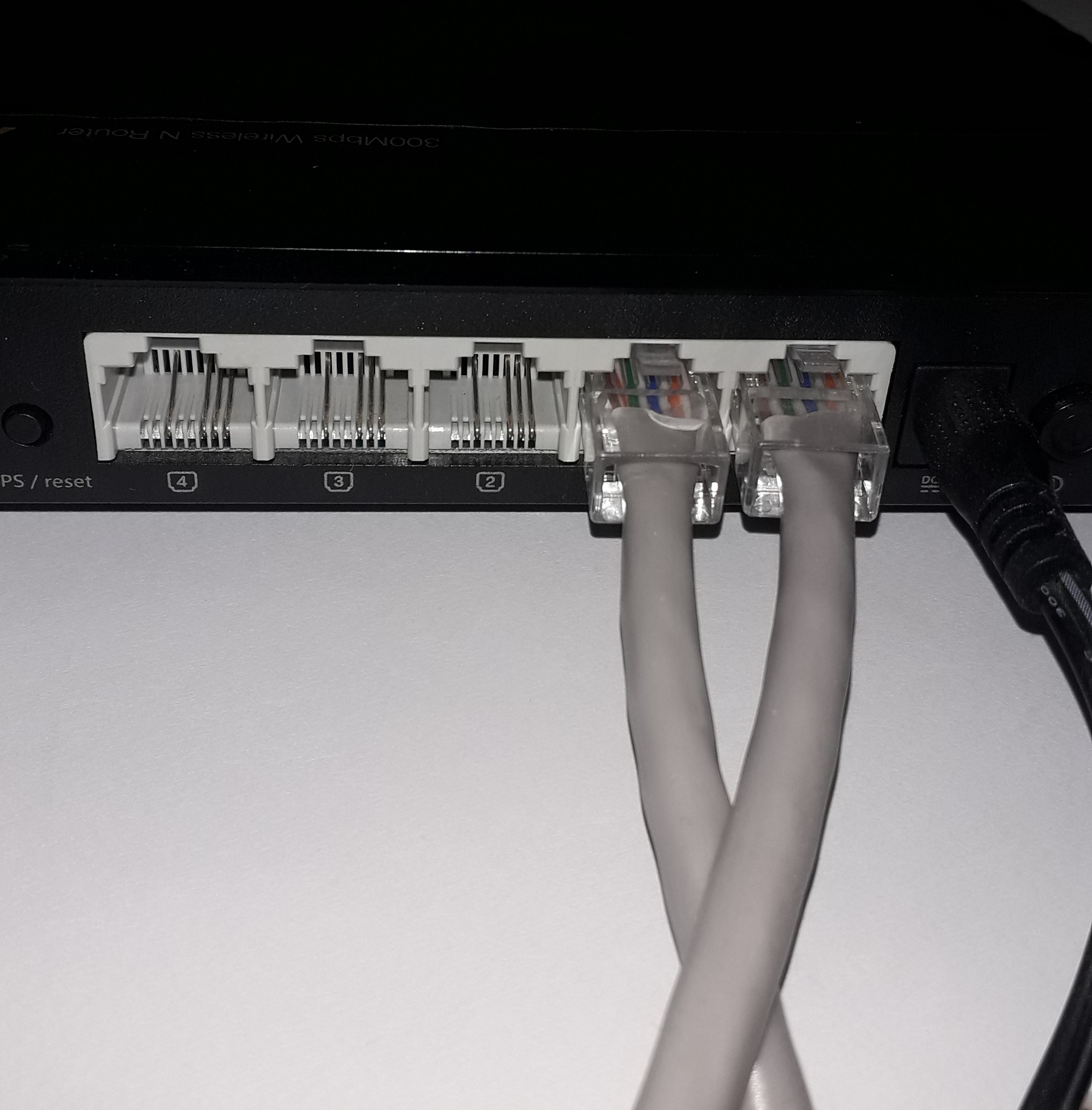
Image: Ethernet cables connected to router LAN ports, by Leutrim Potera, via Wikimedia Commons, licensed CC BY-SA 4.0. Source and license details.
Step 13: Create a guest network for visitors
A guest network gives visitors internet access without handing out the credentials to your primary network. The FTC recommends guest networks because fewer people learn the main Wi-Fi password and because a compromised guest device is less likely to gain easy access to primary devices when the network is properly isolated.
Turn on the Guest Network feature and give it a different SSID and password. Do not reuse the primary Wi-Fi password. If the router offers an option such as “Allow guests to access local network,” “Intranet access,” or “Access LAN resources,” turn that option off unless guests specifically need to use a local printer, media server, or similar resource.
Guest networks are useful for contractors, babysitters, visiting relatives, customers in a home office, and temporary devices. You can rotate the guest password without reconnecting your family’s phones and computers.
How to test isolation
Connect a phone to the guest network. Confirm that internet access works. Then try to reach a known local device such as a printer administration page or another computer. If the guest network is supposed to be isolated, local access should be blocked. Router implementations vary, so confirm the behavior rather than trusting the label alone.
Step 14: Separate smart-home and IoT devices when practical
Internet-connected cameras, plugs, televisions, speakers, appliances, toys, doorbells, and sensors can have very different security quality from modern computers and phones. The FTC recommends changing default credentials, enabling two-factor authentication where available, keeping device firmware updated, disabling unused features, and disconnecting older devices that are no longer used.
If your router supports multiple guest networks, VLANs, or a dedicated IoT network, place less-trusted smart devices on a separate network from your primary laptops and phones. The goal is to reduce the damage one compromised device could cause.
Segmentation must be practical. Some smart-home ecosystems require the phone and device to communicate locally during setup or normal use. If isolation breaks an essential function, look for documented options such as mDNS relaying, temporary setup access, or a manufacturer-supported hub architecture. Do not create complex network rules you cannot maintain.
A simple household approach is often enough: primary network for trusted computers and phones, guest network for visitors, and an IoT network for devices that only need internet access. If your router cannot provide proper isolation, a newer router or mesh system may make this easier.
Step 15: Review every connected device
Open the router’s device list. It may be called Connected Devices, Clients, Network Map, DHCP Clients, Attached Devices, or Device Manager. Compare the list with what you actually own.
Device names can be confusing. A phone may appear under a manufacturer name or a random hostname. Modern phones and computers may use private or randomized MAC addresses, so the same physical device can sometimes appear differently over time. Do not assume an unfamiliar label is malicious.
Work methodically. Turn Wi-Fi off on one device and refresh the list to see which entry disappears. Label devices inside the router interface if the product allows it. Create a simple inventory that includes device name, owner, purpose, and whether it belongs on the primary, guest, or IoT network.
If you find a truly unknown device, change the Wi-Fi password, disable WPS, and reconnect only known devices. Then monitor the list. If the unknown device returns, investigate the possibility of a forgotten appliance, extender, camera, TV, or neighbor-owned device that previously had the password.
Step 16: Secure every device connected to the network
A secure router cannot compensate for a completely unmaintained laptop, camera, or smart-home device. The FTC advises changing default device usernames and passwords, using unique passwords, enabling two-factor authentication where available, turning on security features, updating firmware and apps, disabling unused functions, and disconnecting devices you no longer use.
Start with devices that have microphones, cameras, financial information, work data, or remote access. Security cameras deserve special attention because unauthorized access can expose live video and audio. The FTC advises checking whether cameras use encryption, keeping router software current, using WPA2 or WPA3, and considering a separate network for cameras.
For every important device, ask:
- Does it still receive security updates?
- Does it have a unique password?
- Can I enable multi-factor authentication?
- Is remote access enabled even though I never use it?
- Does it expose a web dashboard on the local network?
- Is there an unused cloud account still linked to it?
- Can I remove old user accounts or authorized phones?
Step 17: Use secure DNS settings deliberately
The Domain Name System translates names such as example.com into network addresses. Your router may use DNS servers supplied by the internet provider, a public DNS provider, a security-filtering provider, or custom servers you configured.
There is no single DNS provider that is automatically best for every household. Privacy policies, filtering features, speed, parental controls, logging, and encrypted DNS support vary. The important security point is to know what your router is using and make sure the setting has not changed unexpectedly.
If you never intentionally changed DNS and suddenly see unfamiliar server addresses, investigate. DNS manipulation can redirect users to malicious destinations. Compare the current values with your ISP documentation or the DNS provider you intentionally selected.
Some devices use encrypted DNS directly and may bypass router-level DNS settings. That is normal in many modern systems. Do not disable modern encrypted DNS purely to make every device use the same resolver unless you understand the privacy and security tradeoffs.
Step 18: Check IPv6, mesh nodes, extenders, and secondary access points
Security reviews often focus only on the main router. That can leave secondary equipment forgotten. Wi-Fi extenders, mesh satellites, old access points, powerline adapters, travel routers, and ISP gateways may each have firmware, administrator credentials, or wireless settings of their own.
If you use mesh Wi-Fi, confirm that every node is running current firmware. Remove old nodes you no longer use. If you use a separate router behind an ISP gateway, determine whether both devices are routing traffic or whether the gateway is in bridge mode. Double NAT is not automatically insecure, but it can complicate port forwarding, remote access, and troubleshooting.
Review IPv6 firewall settings as well as IPv4. Many households now receive IPv6 service automatically. A device having a globally routable IPv6 address does not mean it should be reachable from the internet; the router firewall should still control unsolicited inbound access.
Step 19: Protect physical access to the router
A strong password does less good if anyone can press the reset button, read printed credentials, unplug security devices, or connect directly to an accessible Ethernet port. Place the router in a reasonably controlled location that still allows adequate ventilation and good wireless coverage.
Do not cover the router with fabric or put it in a sealed cabinet simply to hide it. Heat can shorten hardware life and reduce reliability. Keep the device dry, stable, and away from easy tampering when possible.
If the label on the router includes a default Wi-Fi password, QR code, or administrator credential that is no longer needed, consider whether it is visible to visitors. Do not damage required regulatory labels or serial numbers. The goal is simply to avoid leaving useful credentials in plain view.
Step 20: Make router recovery possible without making it insecure
Good security should not leave you unable to recover your own network. Store the administrator password in a password manager. Keep a record of the model number, ISP support information, warranty details, and current configuration. If you export a configuration file, protect it.
Document how to perform a factory reset, but do not do it casually. Know whether your ISP requires a username, password, VLAN setting, or special provisioning after a reset. If you use a separate modem, know which device should be restarted first during troubleshooting.
For families, designate at least one trusted adult who knows how to access the router if the usual administrator is unavailable. The recovery plan should be secure but not dependent on one person’s memory.
Step 21: Improve Wi-Fi privacy without chasing myths
Home-network security advice often mixes useful practices with myths. Understanding the difference helps you spend time on controls that actually matter.
Myth: hiding the SSID makes the network secure
Hidden SSIDs are not a substitute for WPA2 or WPA3. Wireless network activity can still reveal the network, and devices may probe for hidden SSIDs.
Myth: MAC address filtering keeps attackers out
MAC filtering can be useful for inventory or simple access management, but MAC addresses can be observed and spoofed. It should not be treated as a primary security control.
Myth: changing the Wi-Fi password every month is always necessary
Frequent forced password changes can create weak, predictable patterns and unnecessary disruption. Change the Wi-Fi password when it is exposed, shared too widely, reused, or when unauthorized access is suspected. A long unique password plus good network separation is more important than arbitrary monthly rotation.
Myth: disabling SSID broadcast, DHCP, or 5 GHz makes a network safe
These changes do not replace encryption and proper authentication. DHCP is a convenience mechanism for address assignment, not a security boundary. Both 2.4 GHz and 5 GHz networks can be secured properly.
Step 22: Decide when to replace an old router
Replacing a router is justified when the hardware can no longer receive security updates, only supports obsolete Wi-Fi encryption, has unreliable firmware, cannot meet your current performance needs, or lacks basic security features you need.
Do not replace a functioning, supported router merely because a marketing campaign promises a newer Wi-Fi generation. Security support and patch policy matter more than fashionable specifications. When shopping, check whether the manufacturer publishes security updates, how long it supports products, whether automatic updates are available, and whether the router offers modern encryption, guest networking, and sensible management controls.
NIST’s 2024 consumer-grade router guidance emphasizes cybersecurity outcomes for router products, reflecting the importance of secure configuration, software updates, protection of data, interface access control, and related safeguards. Use that principle when comparing products: a router is infrastructure, not a disposable accessory.
A practical one-hour home Wi-Fi security plan
If the full guide feels overwhelming, use this order. It minimizes disruption while addressing the highest-value controls first.
First 10 minutes: inventory and backup
- Record router make and model.
- Confirm how you access the admin interface.
- Check current firmware and support status.
- Export the configuration or take screenshots.
Minutes 10–25: credentials and encryption
- Change the administrator password.
- Change the Wi-Fi password if it is weak or reused.
- Use WPA3-Personal or WPA2-Personal as appropriate.
- Remove personal details from the network name.
Minutes 25–40: harden router features
- Install firmware updates.
- Enable automatic updates if available.
- Disable remote management.
- Disable WPS.
- Review UPnP.
- Confirm the firewall is enabled.
Minutes 40–50: segment the network
- Create a guest network.
- Disable guest access to the local network.
- Move IoT devices to a separate network if your router supports it and your ecosystem still functions.
Minutes 50–60: review devices and document
- Review connected clients.
- Label devices you recognize.
- Disconnect obsolete devices.
- Store credentials securely.
- Set a reminder to review firmware and connected devices again.

Image: Laptop and home wireless router, via Wikimedia Commons. Source and license details.
How to troubleshoot problems after tightening security
A printer or smart device will not reconnect
First confirm that the device supports the new encryption mode. Many older IoT devices only support 2.4 GHz Wi-Fi and can become confused by combined network names or WPA3-only mode. Update the device, forget the old network, and reconnect. If your router offers a WPA2/WPA3 transition mode, it may provide a temporary compatibility path while you replace obsolete equipment.
A game console reports strict NAT
Do not disable the firewall or put the console in the router’s DMZ as your first response. Check the console vendor’s official networking documentation. If UPnP is disabled, the console may require a limited manual port-forwarding configuration. Use the smallest set of rules required.
You cannot reach the router admin page
Confirm that you are connected to the primary local network and not the guest network. Find the current default gateway address from your computer or phone. Some routers block administration over Wi-Fi and require a wired connection. If you recently changed the LAN address range, the previous admin address may no longer work.
Internet works but local devices cannot see each other
You may have enabled client isolation, moved devices to separate networks, or disabled a discovery feature used by printers or media devices. Decide whether local communication is actually required. If it is, create the narrowest exception that solves the problem instead of merging every device back into one trusted network.
The router keeps losing settings
Unexpected resets can indicate failing hardware, power problems, corrupted firmware, or an ISP-managed gateway overriding local configuration. Check the event log if available, update firmware, verify the power adapter, and contact the manufacturer or ISP if the problem continues.
What to do if you suspect the router has been compromised
Warning signs can include an administrator password that no longer works, unfamiliar DNS servers, unexplained port-forwarding rules, disabled security settings, unknown administrator accounts, unusual redirects, or devices repeatedly connecting after you change Wi-Fi credentials.
Do not assume every strange behavior is an attack. Router firmware bugs, ISP changes, browser extensions, malware on a computer, DNS outages, and simple configuration mistakes can produce similar symptoms. Investigate systematically.
- Disconnect highly sensitive devices if you believe active compromise is occurring.
- Use a trusted device to download the latest official firmware and router documentation.
- Back up important configuration details, but do not blindly restore a possibly compromised configuration file later.
- Factory-reset the router using the manufacturer’s documented process if compromise is credible.
- Install current firmware before reconnecting normal devices if the workflow permits.
- Set a new administrator password and a new Wi-Fi password.
- Reconfigure settings manually rather than restoring suspicious old settings.
- Review DNS, port forwarding, remote management, UPnP, WPS, and firewall configuration.
- Update and scan computers and other devices that were connected to the network.
- Change passwords for important accounts if you have evidence that credentials may have been exposed.
If the router is unsupported or compromise persists after a clean reset and update, replace it. If you are dealing with business data, stalking, targeted abuse, or a serious intrusion, consider getting professional help rather than relying only on consumer troubleshooting steps.
Home Wi-Fi security for remote workers
Remote work raises the stakes because a home network may carry employer data, videoconferences, source code, client information, financial records, or access to internal systems. Follow your employer’s security rules first. Use the company VPN, endpoint security software, managed laptop, and multi-factor authentication exactly as instructed.
Do not make your work computer a general-purpose family device. Keep the operating system and browser updated. Avoid installing unapproved remote-access tools. If possible, connect a desktop workstation by Ethernet for stability, but remember that wired access does not bypass the need for a secure router.
A separate work network can be useful when the router supports it, especially in homes full of IoT devices. However, do not create a complicated setup that interferes with your employer’s VPN or device-management software. A well-maintained primary network with strong router security may be enough for many households.
Home Wi-Fi security for families and shared households
Security controls need to fit real life. If a network is so difficult to use that everyone shares passwords in public notes, disables security settings, or repeatedly factory-resets devices, the design has failed.
Create simple rules:
- Primary Wi-Fi is for household members and trusted personal devices.
- Guest Wi-Fi is for visitors and temporary users.
- Smart-home devices use the IoT network when practical.
- Only one or two trusted adults know the router administrator credentials.
- No one enables remote access, port forwarding, or DMZ mode without documenting why.
- Old devices are removed from the network when retired.
Teach family members that the router admin password is not the same as the Wi-Fi password. They should not give either one to unsolicited callers or supposed “technical support” representatives. Internet providers and router manufacturers do not need you to reveal your password to an unexpected caller in order to diagnose a connection.
How often should you review your home network?
A full security overhaul is not something you need to perform every week. A practical schedule is:
- Monthly: glance at the connected-device list and investigate anything truly unfamiliar.
- Every two or three months: check firmware if automatic updates are unavailable.
- Every six months: review guest access, old devices, port forwarding, remote management, UPnP, and account security.
- Whenever someone moves out or a shared password is exposed: change the relevant Wi-Fi password.
- Whenever the vendor ends support: plan to replace the router.
- After a suspected compromise: perform a clean security review immediately.
Frequently asked questions
Is WPA3 always better than WPA2?
WPA3 is the newer standard and is generally preferred when your router and devices support it properly. WPA2 remains widely used and is still recommended by the FTC as an acceptable modern option for home networks. The best practical configuration is the strongest supported mode that does not force you to weaken the network for obsolete devices.
Should I turn off 2.4 GHz Wi-Fi?
Not purely for security. Many smart-home devices require 2.4 GHz, and both 2.4 GHz and 5 GHz networks can use strong encryption. Disable a band only if you do not need it or it creates a specific operational problem.
Should I hide my Wi-Fi network name?
Usually no. Hiding the SSID does not provide strong security and can make devices less convenient to manage. Use WPA2 or WPA3 with a strong password instead.
Do I need to change my Wi-Fi password regularly?
Change it when there is a reason: it was exposed, reused, shared too widely, an unauthorized user had access, or someone who should no longer have access still knows it. Arbitrary frequent changes are less important than having a strong unique password and a separate guest network.
Is a guest network really safer?
It can be, if the router properly isolates guests from the local network. Test the behavior. A guest network is especially useful because it lets visitors access the internet without receiving the main network password.
Should I disable UPnP?
The FTC recommends turning it off as part of home Wi-Fi security. Many households can disable it without noticing. If a game console or application stops working, use the vendor’s documentation to determine whether a limited manual configuration is needed.
Should I disable WPS?
Yes, if you do not need it. The FTC recommends turning WPS off. Modern devices generally offer other connection methods.
Does a VPN secure my router?
No. A VPN can encrypt traffic between a device or router and the VPN provider, depending on the setup, but it does not replace firmware updates, strong passwords, WPA2/WPA3, firewall rules, or secure router administration.
Can antivirus software protect an insecure router?
No. Endpoint security helps protect individual computers, but it cannot replace correct router configuration or firmware updates.
How can I tell whether someone is using my Wi-Fi?
Review the router’s connected-device list and compare it with your device inventory. Remember that randomized MAC addresses and unclear hostnames can make familiar devices look unfamiliar. Confirm before assuming intrusion.
What is the safest way to share Wi-Fi with guests?
Use a dedicated guest network with its own strong password and local-network isolation. Change the guest password when necessary without disturbing the main network.
Final home Wi-Fi security checklist
- Identify the router model and verify that it is still supported.
- Back up the current configuration or take screenshots.
- Use a unique router administrator password.
- Protect any router cloud account with a unique password and multi-factor authentication where available.
- Use a neutral SSID that does not reveal personal information.
- Use WPA3-Personal or WPA2-Personal as appropriate.
- Use a long, unique Wi-Fi password.
- Keep firmware updated and enable automatic updates when available.
- Disable remote administration unless it is genuinely required.
- Disable WPS.
- Review and preferably disable UPnP unless you need it.
- Confirm that the router firewall is on.
- Delete obsolete port-forwarding rules.
- Avoid using the consumer-router DMZ as a troubleshooting shortcut.
- Create a guest network and test local-network isolation.
- Separate IoT devices where practical.
- Review connected devices regularly.
- Update and secure individual devices.
- Check that DNS settings are intentional.
- Review mesh nodes, extenders, and secondary gateways.
- Secure physical access and store recovery information safely.
- Replace unsupported hardware.
Final thoughts
The strongest home Wi-Fi security comes from a small number of controls applied consistently. Modern encryption, unique credentials, current firmware, a working firewall, reduced exposure, network separation, and basic device hygiene accomplish far more than obscure tricks such as hiding the SSID or constantly changing settings.
Start with the router model and firmware. Then secure administrator access and Wi-Fi encryption. After that, remove convenience features you do not need, build a guest network, review connected devices, and separate lower-trust smart devices where practical. Document what you change so you can recover quickly if something stops working.
Most importantly, treat the router as long-lived security infrastructure. It should receive updates, use modern standards, and be reviewed periodically just like the computers and phones that depend on it. If the manufacturer no longer supports it, replacement is not simply a speed upgrade; it can be a security upgrade as well.
Sources
- Federal Trade Commission: How To Secure Your Home Wi-Fi Network
- Federal Trade Commission: Securing Your Internet-Connected Devices at Home
- Federal Trade Commission: How To Secure Your Home Security Cameras
- NIST: Recommended Cybersecurity Requirements for Consumer-Grade Router Products (NIST IR 8425A)
- NIST: Consumer IoT Cybersecurity