

 Cybersecurity protects the connected systems your household depends on. Image: jaydeep_ via Wikimedia Commons, CC0.
A family cybersecurity plan is a written, repeatable system for protecting the people, accounts, devices, money, and memories in your household. It is not a collection of expensive tools, and it is not a one-time afternoon of changing random settings. The strongest plan is simple enough that everyone can follow it, detailed enough to prevent common mistakes, and realistic enough to maintain when life gets busy.
Modern households often have dozens of connected devices: phones, laptops, tablets, televisions, game consoles, printers, cameras, voice assistants, smart plugs, thermostats, doorbells, watches, and children’s devices. Each one may connect to personal accounts, payment information, private messages, work files, school records, family photos, or location data. Attackers do not need to “hack the whole house.” They only need one weak account, one reused password, one unpatched device, or one convincing message.
This guide shows you how to build a complete home cybersecurity plan in 21 practical steps. It follows a wikiHow-style process: inventory what you have, secure the most important accounts first, strengthen your network, reduce phishing risk, protect smart devices, build reliable backups, and create an emergency response plan. The goal is not perfect security. The goal is to make your household a difficult, low-reward target while ensuring you can recover quickly if something goes wrong.
Quick Answer: The Minimum Effective Family Cybersecurity Plan
For a fast and meaningful improvement, complete these seven actions first:
- Protect the main family email accounts with unique passwords, multifactor authentication, updated recovery information, and saved recovery codes.
- Use a reputable password manager so every important account has a different password.
- Change the router administrator password, update its firmware, use WPA2-AES or WPA3, and disable insecure convenience features you do not need.
- Turn on automatic updates for phones, computers, browsers, apps, routers, and smart devices.
- Create a family phishing rule: nobody clicks urgent links or sends money based only on an unexpected message.
- Back up essential files to both a cloud service and a disconnected or separately protected external drive.
- Write a one-page emergency checklist containing bank numbers, carrier contacts, account recovery steps, and the order in which compromised accounts must be secured.
These actions address the most common paths into household accounts. Current consumer guidance from security agencies consistently emphasizes strong unique passwords, password managers, multifactor authentication, phishing awareness, software updates, and backups. The remaining steps in this guide turn those principles into a dependable household system.
Before You Begin: Choose a Family Security Coordinator
One adult should serve as the family security coordinator. This person does not need advanced technical knowledge. Their job is to keep the inventory, schedule reviews, help relatives recover accounts, and make sure changes are documented. A second trusted adult should know where the emergency information is stored in case the coordinator loses access, is traveling, or becomes unavailable.
Keep the plan collaborative rather than controlling. Children and teenagers are more likely to report suspicious messages when they know they will not be punished for asking. Older relatives are more likely to pause before paying a fake invoice when they know exactly whom to call. A good plan reduces shame and secrecy. The household rule should be: “If something feels strange, stop and ask. Fast reporting is more important than avoiding embarrassment.”
Part 1: Understand What You Are Protecting
Step 1: Inventory Every Device That Connects to Your Network
Begin with a simple table. Walk through the home and list every device that connects by Wi-Fi, Ethernet, Bluetooth, cellular service, or a smart-home hub. Include devices that are rarely used. Old tablets, forgotten printers, streaming boxes, and outdated phones can remain logged in to important accounts for years.
| Device | Owner | Operating System | Automatic Updates | Important Accounts | Action Needed |
|---|---|---|---|---|---|
| Main laptop | Parent 1 | Windows or macOS | Yes | Email, banking, work | Encrypt drive |
| Teen phone | Child 1 | iOS or Android | Yes | Email, school, social | Enable MFA |
| Smart television | Household | Vendor firmware | Unknown | Streaming accounts | Check updates |
| Doorbell camera | Household | Vendor firmware | Yes | Home security account | Move to IoT network |
Record the brand, model, approximate purchase date, and whether the manufacturer still provides security updates. Devices that no longer receive updates should be replaced, isolated on a guest or IoT network, or disconnected. A device can still “work” while being unsafe to expose to the internet.
Next, log in to the router’s connected-device list. Compare it with your inventory. Unknown entries may be harmless devices with unclear names, but investigate each one. Change the Wi-Fi password if you find unexplained devices and cannot identify them after checking MAC-address labels or temporarily disconnecting known equipment.
Step 2: List Your Household’s “Crown Jewels”
Not every account deserves the same effort. Prioritize the accounts and information that could unlock other parts of your life. For most families, the crown jewels include:
- Primary email accounts and the recovery email connected to them.
- Mobile phone accounts, because phone numbers are often used for password resets.
- Password-manager vaults and passkey accounts.
- Banking, payment, investment, tax, and credit accounts.
- Cloud photo libraries and file storage.
- Work and school accounts.
- Health portals and insurance accounts.
- Government identity and benefit accounts.
- Home security cameras, door locks, and alarm systems.
- Domain names, websites, or business accounts owned by family members.
Mark each item as critical, important, or replaceable. Ask two questions: “What would happen if a stranger gained access?” and “How difficult would recovery be if this account disappeared?” A social media account may feel less important than banking, but it can still be used to impersonate a family member and scam relatives. A cloud photo account may have no direct financial value yet contain irreplaceable memories.
Step 3: Map the Recovery Chain
Account security is only as strong as its recovery path. An attacker who cannot guess your password may still reset it through an old email address or a phone number that you no longer control. For each crown-jewel account, record:
- The recovery email address.
- The recovery phone number.
- Whether multifactor authentication is enabled.
- Where backup codes are stored.
- Whether trusted devices are still current.
- Whether security questions have guessable answers.
- Whether an emergency contact or legacy contact is configured.
Remove old phone numbers, abandoned email addresses, former employees, ex-partners, and devices you no longer own. Review authorized applications and connected services. A forgotten third-party app can retain access long after you stop using it.
Part 2: Secure Accounts and Identity
Step 4: Secure the Primary Email Account First
Your primary email account is the master key to your digital life because most password-reset messages arrive there. Secure it before banking, shopping, social media, or entertainment accounts.
Create a unique master password or passphrase that is not used anywhere else. Current NIST consumer guidance recommends passwords of at least 15 characters when a password is required. Length is usually more useful than forced complexity. A memorable passphrase can be long without becoming impossible to type. Do not use birthdays, names, addresses, favorite teams, or quotations that appear on your public profiles.
Turn on multifactor authentication. Prefer passkeys, a hardware security key, or an authenticator app when the provider supports them. Text-message codes are better than password-only access, but they are more exposed to phone-number theft and interception. Save backup codes offline. Confirm that recovery information is correct, sign out unknown sessions, and review forwarding rules. Attackers who enter an email account sometimes create hidden forwarding rules so they can continue receiving messages after the password changes.
Step 5: Adopt a Password Manager for the Entire Household
A password manager creates and stores unique credentials so people do not have to remember dozens of passwords. Choose a well-established service with strong encryption, independent security reviews, clear account-recovery options, and support for the devices your family uses. The best product is one the household will actually use consistently.
Create a long, unique master passphrase. Enable the strongest available MFA for the vault. Print or securely store the emergency kit provided by the service. Teach each person how to generate a new password, save a login, update a compromised password, and share a credential through the manager rather than by text message.
Do not put the master password in ordinary notes, email drafts, or unencrypted cloud documents. Do not share one giant vault with every family member if the service supports separate accounts or family groups. Separate vaults preserve privacy while allowing controlled sharing for utilities, streaming services, emergency contacts, and household bills.
Move accounts gradually. Start with email, phone carrier, banking, cloud storage, and social media. Then update shopping, subscriptions, and less important accounts. Every password should be unique. A single leaked shopping password should not unlock email, work, or banking.
Step 6: Use Passkeys and Strong Multifactor Authentication
 A hardware security key can provide phishing-resistant account protection. Photo: Warfieldian via Wikimedia Commons, CC BY-SA 3.0.
Multifactor authentication requires more than one type of proof before access is granted. The factors usually fall into three groups: something you know, something you have, and something you are. A password plus a hardware key is stronger than two pieces of information that can both be guessed.
Use this preference order when options are available:
- Passkeys: convenient and resistant to ordinary phishing because the credential is tied to the correct website or application.
- Hardware security keys: excellent for email, business, developer, financial, and administrative accounts.
- Authenticator applications: strong and broadly supported.
- Push approvals: useful, but never approve a prompt you did not initiate.
- Text or email codes: better than no MFA, but not the strongest option.
Register at least two authentication methods for critical accounts. For example, keep one security key on your keyring and another in a secure location. Store recovery codes separately from the device used to log in. Test the backup method before you need it.
Teach the family about MFA fatigue attacks. A criminal who already has a password may send repeated approval prompts hoping the victim taps “Allow” to stop the notifications. The correct response is to deny the request, change the password from a known-good device, and review recent sessions.
Step 7: Protect the Mobile Phone Account
A phone number can be used to reset passwords, receive security codes, and impersonate the owner. Contact the mobile carrier and add an account PIN or port-out lock. Use a unique carrier password. Remove people who no longer need account-management access.
Enable a strong screen lock on every phone. Use a six-digit or longer PIN rather than a simple pattern. Turn on device encryption, automatic updates, device-finding tools, and remote-wipe capability. Hide sensitive notification previews on the lock screen, especially one-time codes and financial alerts.
Be cautious when a phone suddenly loses service. Unexpected loss of cellular connectivity can indicate a carrier outage, a damaged SIM, or an attempted SIM swap. Contact the carrier using a trusted number and check email for account-change notices.
Step 8: Reduce Financial and Identity Exposure
Turn on transaction alerts for bank accounts and payment cards. Alerts should cover purchases, transfers, password changes, new payees, and contact-information changes. Use a separate low-limit card or virtual card for unfamiliar merchants when available.
Freeze credit files when appropriate for your country and circumstances, especially for adults and children who do not need new credit applications. A credit freeze is different from monitoring: monitoring tells you that something happened, while a freeze can prevent certain new accounts from being opened.
Store tax forms, identity documents, and financial records in encrypted storage. Avoid keeping unprotected scans of passports, national IDs, Social Security cards, or bank statements in ordinary email or a downloads folder. Shred paper documents that are no longer needed.
Part 3: Lock Down the Home Network
Step 9: Change the Router Administrator Credentials
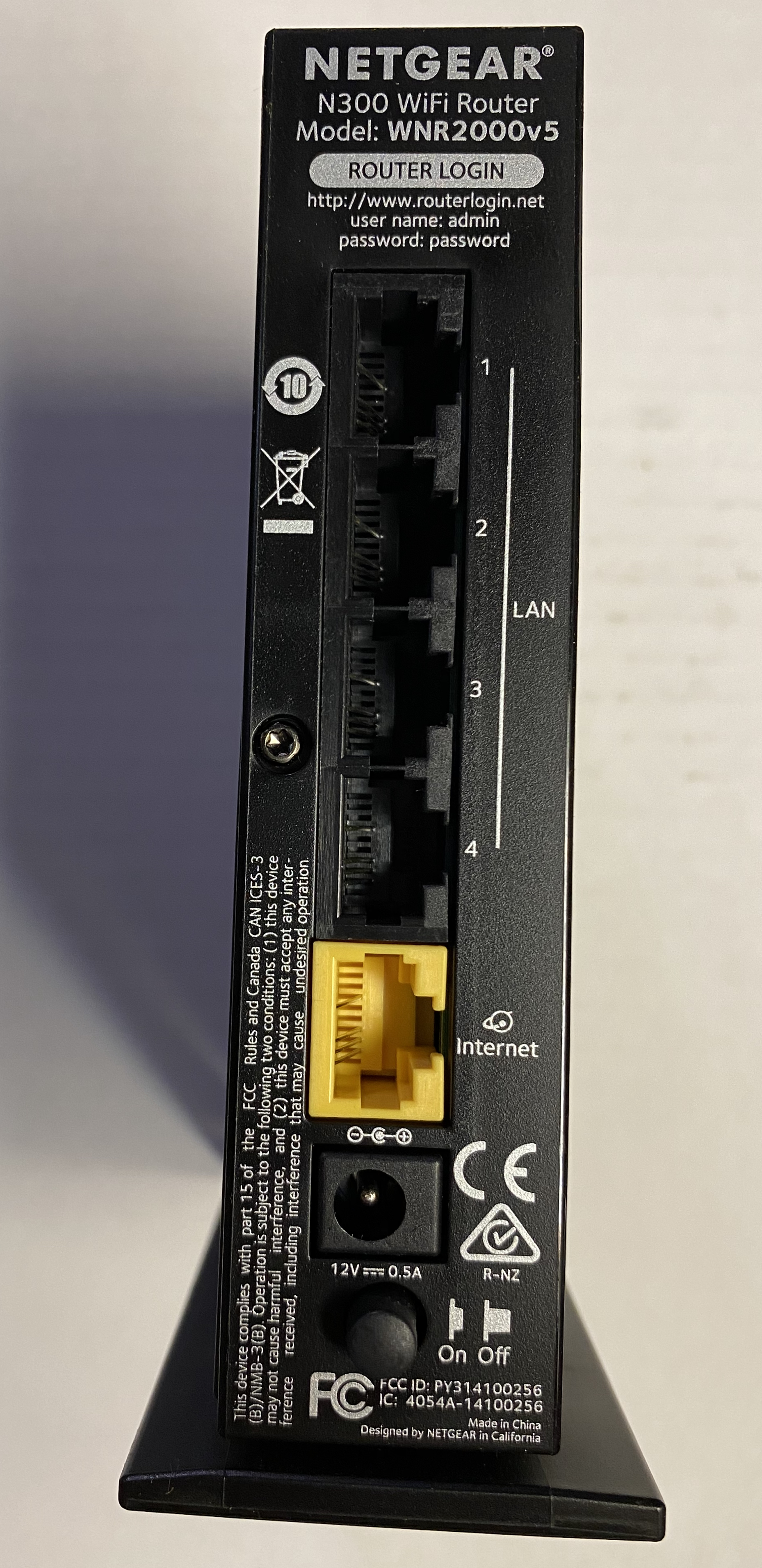 Factory credentials should be changed during setup. Photo: ArnoldReinhold via Wikimedia Commons, CC BY-SA 4.0.
The router controls traffic entering and leaving the home. Its administrator password is different from the Wi-Fi password. Change both. Never leave the administrator username and password at their factory defaults.
Open the router’s management interface from a device connected to the home network. Use the manufacturer’s official instructions rather than clicking an advertisement or an unexpected setup link. Create a long, unique administrator password and store it in the password manager. Disable remote administration from the internet unless you have a specific, well-understood need for it.
Update the router firmware. Enable automatic updates if supported. If the manufacturer no longer provides updates, replace the router. Internet service provider equipment may update automatically, but verify the model and update policy rather than assuming.
Step 10: Configure Modern Wi-Fi Encryption
Use WPA3 when all essential devices support it. Otherwise use WPA2 with AES encryption. Avoid WEP, WPA, and WPA2-TKIP because they are outdated. Choose a long Wi-Fi password that is not shared with any online account.
Disable Wi-Fi Protected Setup push-button or PIN features when they are unnecessary. Disable Universal Plug and Play if your household does not need it. These convenience functions can create exposure when implemented poorly or left enabled without a purpose.
Changing the network name is optional, but avoid including your surname, apartment number, or other personal information. Do not rely on hiding the network name as a security control. Hidden networks can still be detected, and the feature often creates connection problems without meaningful protection.
Step 11: Separate Trusted, Guest, and Smart-Device Traffic
Create at least two networks:
- Trusted network: computers, phones, and tablets used for sensitive activity.
- Guest or IoT network: visitors, smart televisions, plugs, speakers, cameras, appliances, and devices that do not need access to personal computers.
If the router supports client isolation, enable it on the guest network so guest devices cannot communicate directly with one another. Use a different password for the guest network. Change it periodically or after large gatherings.
More advanced routers support multiple VLANs or separate networks for work devices, children, cameras, and smart-home hubs. This can reduce risk, but complexity creates its own problems. A simple setup that is documented and maintained is better than an elaborate setup nobody understands.
Step 12: Check DNS, Firewall, and Remote-Access Settings
Keep the router firewall enabled. Review port-forwarding rules and delete entries you do not recognize or no longer need. Avoid exposing cameras, storage devices, or remote desktop services directly to the internet. Use vendor-supported secure access or a properly configured VPN when remote access is necessary.
Choose a trustworthy DNS provider or use the provider supplied by your internet service. Some family-focused DNS services can block known malicious domains or adult content, but they are not a substitute for endpoint protection and supervision. Document any custom DNS setting so future troubleshooting is easier.
Back up the router configuration after you finish. Store the backup securely, because it may contain network details. Record the router model, support website, administrator address, and reset instructions in the household security plan.
Part 4: Protect Devices, Messages, and Smart Technology
Step 13: Turn On Automatic Updates Everywhere
Enable automatic operating-system, browser, application, and firmware updates. Updates often fix vulnerabilities that criminals are already trying to exploit. Delaying updates for weeks because a device is “working fine” leaves known weaknesses open.
For computers, verify that the operating system is still supported. Remove software you no longer use. Browser extensions deserve special attention because they can read web pages, modify searches, or access clipboard data. Keep only extensions from trusted developers that serve a current purpose.
For phones and tablets, update the operating system and applications. Delete apps that request excessive permissions or come from unofficial stores. Review camera, microphone, location, contact, accessibility, and notification access. A flashlight or game rarely needs full contact-list access.
For printers, cameras, network storage, and smart-home equipment, check the vendor’s application or support page. These devices may not display obvious update prompts. Put a quarterly reminder on the calendar.
Step 14: Harden Computers and Mobile Devices
Use separate user accounts on shared computers. Adults should not conduct daily work from an administrator account when a standard account is practical. Children should have age-appropriate accounts with limited privileges. Lock screens automatically after a short period of inactivity.
Turn on full-disk encryption. On supported Windows devices, use Device Encryption or BitLocker. On macOS, use FileVault. Modern phones usually encrypt data when a passcode is enabled. Store recovery keys securely and test that another trusted adult can locate them.
Use built-in security software or a reputable security suite and keep it updated. Avoid running multiple real-time antivirus products simultaneously, as they can conflict. Turn on the operating system firewall. Configure automatic screen locking and device-finding features.
Before selling, donating, or recycling a device, back up needed files, sign out of accounts, remove the device from trusted-device lists, erase it using the manufacturer’s reset process, and remove physical SIM or storage cards.
Step 15: Create a Family Phishing Rule
 A fictional delivery message shows how smishing creates urgency around a link. Image: Belbury via Wikimedia Commons, CC0.
Phishing succeeds by creating urgency, fear, curiosity, authority, or greed. Messages may claim that an account is locked, a package is delayed, a payment failed, a relative needs help, a refund is waiting, or a legal deadline is approaching. Modern messages can use correct spelling, familiar logos, personal details, and convincing artificial voices.
Adopt one household rule: Never use the link, phone number, QR code, payment instructions, or attachment in an unexpected urgent message. Instead, open the official app, type the known website address, call a saved number, or contact the person through a separate channel.
Teach these warning signs:
- An unexpected request for passwords, verification codes, gift cards, cryptocurrency, wire transfers, or remote access.
- A demand to act secretly or immediately.
- A message claiming that security requires you to disable security.
- A request to move a conversation away from an official platform.
- A login page whose domain name is misspelled or unfamiliar.
- An attachment you were not expecting, even when it appears to come from a known person.
- A request to approve an MFA prompt you did not initiate.
Include current scam patterns in family discussions. In 2026, consumer authorities warned about fake CAPTCHA pages that instruct users to press keyboard shortcuts and paste commands. Real CAPTCHA checks do not require users to open a run box, paste hidden commands, or install software. Another current pattern uses fake party invitations to steal email credentials. The exact story changes; the verification habit should not.
Create a “two-person rule” for unusual payments. Any unexpected request to send money, change bank details, purchase gift cards, or share a verification code must be confirmed with another adult and independently verified.
Step 16: Secure Smart-Home and Internet-of-Things Devices
 Smart-home devices should be updated, isolated, and protected with unique credentials. Photo: Georg Pik via Wikimedia Commons, CC0.
Smart devices are convenient but often have limited screens, long replacement cycles, and unclear update policies. Before buying a connected product, check whether the manufacturer publishes security updates, supports MFA, allows local operation, and explains how long the product will receive support.
During setup:
- Change default passwords immediately.
- Use a unique account password and MFA.
- Install available firmware updates.
- Disable microphones, remote access, cloud recording, or integrations you do not need.
- Review who can view cameras, unlock doors, or manage household members.
- Place the device on the guest or IoT network when practical.
- Turn off automatic discovery or pairing after setup.
For cameras and doorbells, review shared access every few months. Remove former residents, contractors, temporary guests, and old phones. Use activity alerts for new logins. Avoid placing internet-connected cameras in highly private areas.
When a smart device stops receiving updates, decide whether to replace, isolate, or disconnect it. A discounted product is not a bargain if it creates years of unmanaged exposure.
Step 17: Protect Children and Teenagers Without Destroying Trust
Children need both technical safeguards and judgment. Parental controls can reduce exposure, but no filter can recognize every scam, manipulation attempt, or harmful conversation. Teach children to pause when a stranger asks for private information, photos, location, money, codes, or secrecy.
Set age-appropriate rules for:
- Installing apps and browser extensions.
- Accepting friend requests.
- Sharing school names, schedules, uniforms, addresses, or live location.
- Purchasing game items or responding to “free currency” offers.
- Using family devices for school and entertainment.
- Reporting bullying, threats, blackmail, or inappropriate requests.
Explain that online accounts can be taken over and used to send messages that appear to come from friends. Teach them to verify strange requests through another channel. Make it clear that reporting quickly will not result in automatic punishment or device confiscation. Fear of punishment causes children to hide incidents until the damage grows.
Use family groups and child accounts rather than sharing an adult’s primary account. Limit stored payment methods. Require approval for purchases. Review privacy settings together instead of secretly monitoring everything; transparency builds the judgment they will need when controls are no longer present.
Step 18: Secure Remote Work and School Access
Keep work and school devices separate from shared entertainment devices when possible. Follow the organization’s security rules, even when home practices differ. Do not install unauthorized software or allow children to use an employer-managed computer.
Use the organization’s approved VPN and collaboration tools. Verify unexpected requests to change payroll, payment, or account details. Business email compromise often targets employees with messages that appear to come from executives, vendors, or coworkers.
Position screens so sensitive information is not visible to visitors or through windows. Use headphones for confidential meetings. Lock the device whenever stepping away. Store work papers securely and shred them when disposal is permitted.
Part 5: Build Reliable Recovery
Step 19: Create a 3-2-1 Backup System
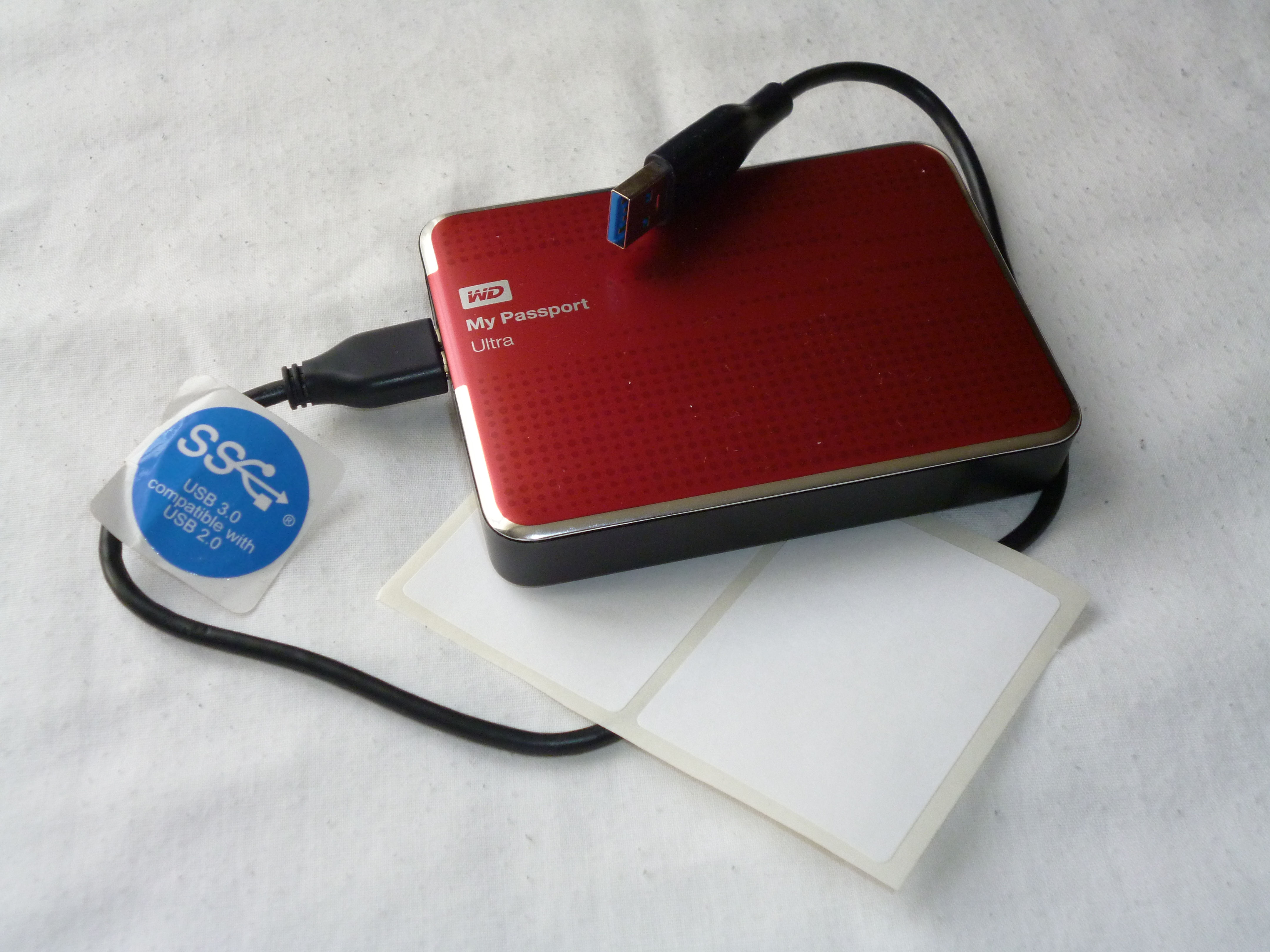 An external drive can provide a separately protected backup copy. Photo: Armchair via Wikimedia Commons, CC BY-SA 4.0.
The 3-2-1 approach means keeping at least three copies of important data, on two different types of storage, with one copy stored separately or off-site. A practical household version is:
- The working copy on the computer or phone.
- An automatic encrypted cloud backup.
- An encrypted external drive that is disconnected after backup or otherwise protected from ordinary account compromise.
Back up family photos, identity documents, tax records, business files, school work, password-manager recovery kits, device recovery keys, and the security plan itself. Do not assume synchronization equals backup. If a file is deleted or encrypted by ransomware, a synchronized service may reproduce the problem across devices unless it retains version history.
Automate backups whenever possible. Keep at least one copy inaccessible to a compromised administrator account. Label external drives clearly and store them away from the computer. For irreplaceable photos and documents, consider a second drive at a trusted relative’s home or another secure location.
Test restoration every quarter. A backup that has never been restored is only a hope. Open several files, restore a folder, verify photographs, and confirm that encryption passwords and recovery keys are available.
Step 20: Write an Incident-Response Checklist
During an account takeover, people make mistakes because they are frightened and unsure where to begin. A written checklist reduces panic. Keep a printed copy in a secure place and an encrypted digital copy accessible to two trusted adults.
Use this order when an important account may be compromised:
- Use a known-good device. If malware is suspected, do not change every password from the affected computer.
- Secure the primary email account. Change the password, revoke unknown sessions, review recovery information, remove forwarding rules, and enable stronger MFA.
- Secure the phone carrier account. Confirm that no SIM or port change occurred.
- Change the password-manager master password if there is evidence the vault or device was exposed.
- Contact financial institutions using trusted numbers. Freeze cards, stop transfers, and preserve case numbers.
- Recover affected accounts and revoke unknown applications and devices.
- Scan or reset compromised devices.
- Warn contacts if the attacker sent messages from the account.
- Preserve evidence such as screenshots, timestamps, email headers, transaction records, and carrier notices.
- Report the incident to the appropriate platform, financial institution, employer, school, carrier, police, or consumer-protection authority.
Do not negotiate with a person claiming to have access unless advised by qualified professionals or law enforcement. Do not send verification codes. Do not pay a “recovery expert” who contacted you unexpectedly. Scam victims are often targeted again by fake recovery services.
Step 21: Schedule a Monthly 20-Minute Security Review
Security fails when it depends on memory. Put a recurring event on the family calendar. A monthly review can be completed in 20 minutes:
- Install pending updates.
- Check email and financial security alerts.
- Review new devices connected to the router.
- Confirm backups completed successfully.
- Remove unused apps, browser extensions, and account access.
- Discuss one current scam example with the family.
- Confirm that recovery codes and emergency contacts remain available.
Every six months, perform a deeper review: update the device inventory, review smart-home access, test file restoration, check router support status, review credit reports where available, and verify that trusted adults can follow the recovery plan.
Family Cybersecurity Risk Matrix
| Risk | Likelihood | Potential Impact | Best First Control |
|---|---|---|---|
| Reused password exposed in a breach | High | High | Password manager and unique passwords |
| Phishing message steals credentials | High | High | Passkeys or MFA plus independent verification |
| Lost or stolen phone | Medium | High | Strong screen lock, encryption, remote wipe |
| Router compromise | Medium | High | Firmware updates and unique admin password |
| Ransomware or destructive malware | Medium | Very high | Updated systems and separately protected backups |
| Smart camera account takeover | Medium | High | Unique password, MFA, access review, IoT network |
| Child targeted by account or gaming scam | High | Medium to high | Open reporting culture and purchase controls |
| SIM swap or phone-number takeover | Low to medium | High | Carrier PIN, port lock, non-SMS MFA |
A Seven-Day Implementation Plan
Day 1: Protect Email and the Phone Carrier
Secure primary email accounts, remove old recovery methods, enable strong MFA, save backup codes, and add carrier account PINs. This creates a stable foundation for every other change.
Day 2: Set Up the Password Manager
Create individual vaults, choose strong master passphrases, enable MFA, store emergency information, and migrate the ten most important accounts.
Day 3: Secure the Router
Change administrator and Wi-Fi passwords, update firmware, configure WPA2-AES or WPA3, disable unnecessary remote management, create a guest or IoT network, and record the final settings.
Day 4: Update and Encrypt Devices
Install updates, remove unsupported software, enable disk encryption, configure screen locks, and review application permissions.
Day 5: Build the Backup System
Configure cloud backup, create an external-drive copy, store recovery keys, and perform a test restoration.
Day 6: Secure Smart Devices and Children’s Accounts
Change smart-device passwords, enable MFA, isolate devices, remove old users, review child account settings, and discuss the family phishing rule.
Day 7: Print and Practice the Emergency Plan
Write contact numbers, recovery priorities, financial steps, carrier details, and evidence-preservation instructions. Run a ten-minute exercise: pretend the primary email account was compromised and have the family explain what they would do first.
Common Mistakes That Weaken a Good Plan
Using One “Strong” Password Everywhere
A complex password reused across many accounts is still dangerous. One breached service can expose every account that uses it. Uniqueness is essential.
Enabling MFA Without Saving Recovery Codes
MFA can lock the legitimate owner out when a phone is lost. Store recovery codes offline and test a backup method.
Buying Security Products Before Fixing Basic Settings
Expensive software cannot compensate for an exposed email account, default router password, or nonexistent backups. Start with fundamentals.
Treating Family Members Like the Problem
Shame discourages reporting. A child or older relative who immediately reports a suspicious click gives the household time to respond. Encourage fast disclosure.
Assuming Cloud Sync Is a Complete Backup
Synchronization may copy deletion, corruption, or ransomware changes. Maintain version history and a separately protected copy.
Ignoring Old Devices
A forgotten tablet or camera may remain logged in to sensitive accounts and miss years of updates. Inventory and remove obsolete equipment.
Installing Random “Security” Applications
Scareware and fake support tools often claim to detect urgent problems. Install software only from official stores or known vendors, and never because an unexpected pop-up demanded it.
Writer’s Opinion
The most effective family cybersecurity plan is not the most technical one. It is the plan that reduces the number of decisions people must make under pressure. Unique passwords remove the decision to invent credentials. MFA removes the assumption that a password is enough. Automatic updates remove the decision to postpone patches. A two-person payment rule removes the decision to trust an urgent request. Backups remove the fear that one device failure will erase a decade of memories.
Many households focus on blocking “hackers” while leaving recovery unplanned. I believe recovery deserves equal attention. Even careful people can be deceived, devices can be stolen, providers can suffer breaches, and hardware can fail. A family that can rapidly secure email, contact banks, restore files, and warn relatives is safer than a family that owns many security products but has no process.
The second overlooked factor is emotional safety. Criminals exploit panic and embarrassment. Families should practice calm verification and make reporting easy. The phrase “I clicked something and I am not sure” should trigger help, not blame. Early reporting frequently determines whether an incident remains a minor inconvenience or becomes a financial and identity crisis.
Finally, avoid chasing perfection. Secure the email account, phone number, password manager, router, devices, smart-home access, and backups. Review them on a schedule. Those actions create far more real protection than constantly changing tools or reacting to every frightening headline.
Frequently Asked Questions
How much does a family cybersecurity plan cost?
The core plan can be built with free or already included features: automatic updates, built-in encryption, device locks, account alerts, free authenticator apps, router settings, and basic cloud backup. A paid password-manager family plan, external drive, modern router, or hardware security keys may improve convenience and resilience, but purchasing everything at once is unnecessary.
Is antivirus software enough to protect a family?
No. Antivirus can detect some malware, but it does not prevent password reuse, fraudulent payments, phishing, weak recovery settings, SIM swaps, or lost devices. It should be one layer within a broader plan.
Should every family member have a separate password-manager account?
Usually yes. Family plans can provide separate private vaults with shared collections for household accounts. This is safer and more respectful than giving everyone access to one master vault.
Are passkeys safer than passwords?
Passkeys are generally more resistant to ordinary phishing and password reuse because they are tied to a specific service and protected by the user’s device. Keep backup devices and recovery methods current so losing one device does not cause permanent lockout.
Is SMS-based two-factor authentication useless?
No. It is usually better than password-only access. However, authenticator apps, passkeys, and hardware keys are preferable for high-value accounts because phone numbers can be transferred or intercepted.
How often should the Wi-Fi password be changed?
Change it when an unauthorized person may know it, after a suspected compromise, after certain residents or workers no longer need access, or when unknown devices appear. Routine monthly changes are not necessary when the password is strong and access is controlled.
Should smart devices be placed on a guest network?
Yes, when the router supports a guest or IoT network that still allows the devices to function. Separation limits what a compromised smart device can reach. Test automations and casting functions after moving devices because some rely on local-network discovery.
What should I do immediately after clicking a suspicious link?
Stop interacting with the page. If you entered credentials, use a known-good device to change the password, revoke sessions, and enable MFA. If a file downloaded or commands were run, disconnect the affected device from the network and perform a security scan or professional assessment. Contact financial institutions quickly if payment or identity information was exposed.
Can a VPN secure the entire home?
A VPN can protect traffic in specific situations and provide secure remote access when properly configured, but it does not fix phishing, compromised accounts, weak passwords, infected devices, or missing backups. Treat it as one tool, not a complete security plan.
How can I help an older relative avoid scams?
Create a simple verification routine. Save trusted phone numbers, enable account alerts, reduce payment limits where appropriate, use a password manager, enable MFA, and establish a rule that unusual money requests must be confirmed with a family member. Avoid overwhelming them with technical warnings; practice a few repeatable actions.
How do I know whether my router is too old?
Check the manufacturer’s support page for the model. Replace it if security updates have ended, if it cannot use WPA2-AES or WPA3, if it has known unpatched vulnerabilities, or if the administration interface cannot be secured. Performance problems alone are not the only reason to upgrade.
Where should recovery codes be stored?
Keep them outside the account and device they protect. Good options include a secure password-manager emergency record, a printed copy in a safe, or an encrypted drive. Two trusted adults should know how to access them.
Final Checklist
- Device and account inventory completed.
- Primary email and carrier accounts secured.
- Password manager adopted.
- Unique passwords used for critical accounts.
- Passkeys or strong MFA enabled.
- Router administrator password changed.
- WPA2-AES or WPA3 enabled.
- Guest or IoT network created.
- Automatic updates enabled.
- Computers and phones encrypted and locked.
- Family phishing and payment-verification rules agreed.
- Smart-device access reviewed.
- Children’s accounts and purchasing controls configured.
- Cloud and external backups running.
- A test restoration completed.
- Incident-response checklist printed.
- Monthly review scheduled.
Conclusion
A strong family cybersecurity plan turns scattered security advice into a practical household routine. Start with the accounts that control recovery, especially email and mobile service. Use unique passwords, passkeys or multifactor authentication, modern router settings, automatic updates, and separate networks. Teach the family to verify urgent messages independently. Protect connected devices, build dependable backups, and write down the response steps before an emergency occurs.
You do not need to eliminate every risk. You need to prevent easy compromises, detect unusual activity early, and recover without panic. Complete the first seven actions today, follow the seven-day implementation plan, and maintain the system with a short monthly review. That combination creates a level of protection far stronger than relying on memory, luck, or a single security product.