

How to Secure Your Home Wi-Fi Network and Protect Every Connected Device in 2026
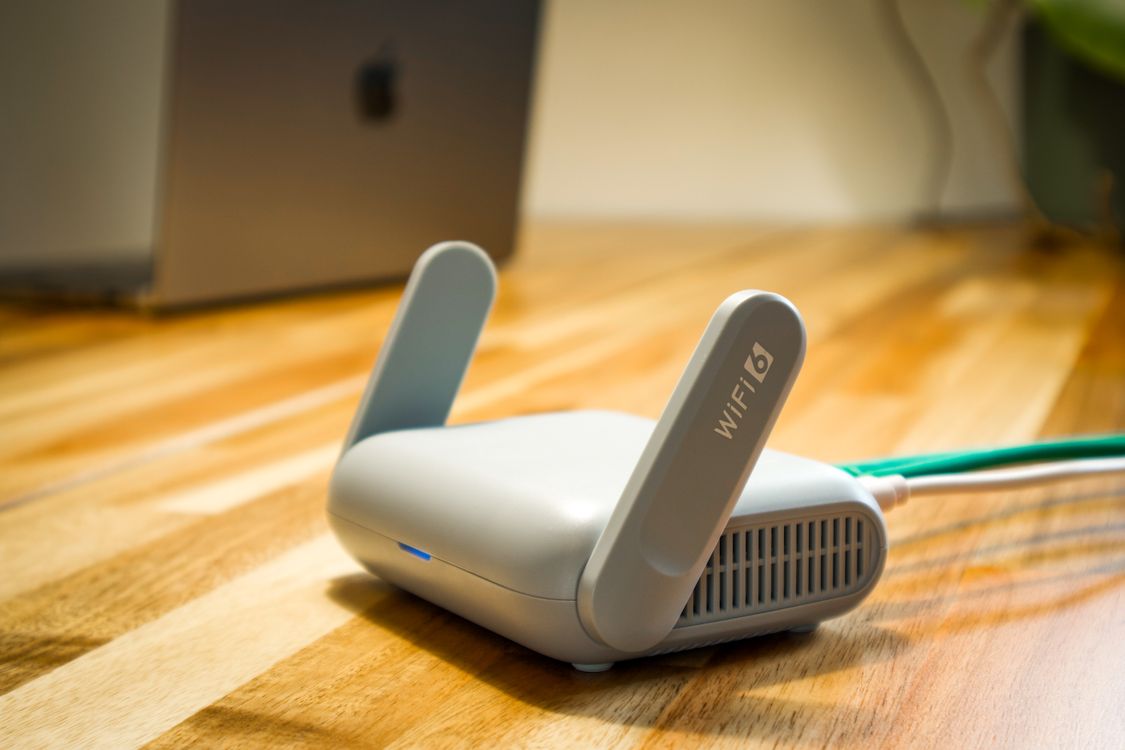 A secure home network begins with a supported router, current firmware, and deliberate configuration. Photo by Pascal via Pexels.
Your home router is the traffic controller between the internet and nearly every connected device you own. Phones, laptops, televisions, game consoles, cameras, voice assistants, printers, thermostats, doorbells, appliances, work computers, and children’s tablets may all depend on one small box. When that box is outdated or poorly configured, one weak setting can affect the privacy, reliability, and security of the entire household.
This guide shows you how to secure a home Wi-Fi network from the ground up in 2026. It is written in a practical WikiHow-style sequence: identify what you have, create a safe backup, update the router, replace default credentials, choose modern encryption, separate devices, reduce unnecessary exposure, monitor the network, and prepare a recovery plan. You do not need to be a network engineer. You do need patience, access to the router’s official manual or app, and a willingness to document each change.
The Federal Trade Commission recommends WPA3 Personal or WPA2 Personal, unique router-admin and Wi-Fi passwords, firmware updates, a guest network, and disabling features such as remote management, Wi-Fi Protected Setup, and Universal Plug and Play when they are not needed. NIST’s consumer-router cybersecurity guidance emphasizes that the router is central to the security and availability of the home network, especially as smart-home and remote-work devices increase. These recommendations shape the process below.
Important: Router interfaces differ. A setting may be called “Wireless Security,” “Wi-Fi Security,” “Access Control,” “Device Isolation,” “IoT Network,” “Guest Network,” “Administration,” or “Advanced.” Use the manufacturer’s current documentation for your exact model. Do not install unofficial firmware or change advanced networking values simply because a random forum recommends them.
Part 1: Prepare Before Changing Anything
1. Identify every piece of network equipment
Start by locating the modem, router, mesh nodes, access points, Ethernet switches, powerline adapters, range extenders, and any router supplied by your internet provider. In some homes the modem and router are combined in one gateway. In others, the provider’s gateway feeds a separate personal router. Write down the manufacturer, model number, hardware revision, serial number, and who owns the equipment.
This matters because two routers connected without a plan can create double network address translation, competing Wi-Fi networks, confusing firewall behavior, and devices that cannot find each other. It also matters because an old extender or forgotten access point can continue broadcasting an insecure network even after the main router is fixed.
- Photograph the labels on the bottom or back of each device.
- Record which cables connect to the internet port, local-area-network ports, and switches.
- Note every Wi-Fi network name visible in your home.
- Ask whether your internet provider manages firmware automatically.
- Identify equipment that no longer receives security updates.
2. Create a simple network inventory
Make a table with one row for each connected device. Include the device name, owner, type, connection method, approximate purchase year, update method, and whether it stores sensitive information. You can begin with the connected-device list in the router interface, but do not assume every label is accurate. Routers may display generic names, old names, or only a manufacturer identifier.
Walk through the home and account for televisions, speakers, cameras, printers, appliances, game systems, hubs, smart plugs, lighting bridges, security panels, and wearable-device chargers. Include devices that are currently offline. The goal is to know what should be on your network before you try to identify what should not be there.
3. Choose a maintenance window
Changing the Wi-Fi password or encryption mode disconnects devices. Schedule the work when nobody is attending a video meeting, uploading files, using a medical monitoring service, operating a security system, or relying on a connected lock. Tell the household that the network may restart several times.
Keep one device connected by Ethernet if possible. A wired connection is less likely to disappear when wireless settings change. If you have only a phone, confirm that mobile data works so you can reach the manufacturer’s documentation if the Wi-Fi becomes unavailable.
4. Save the current configuration safely
Many routers can export a configuration file. Save it before making major changes, but protect it because it may contain network names, settings, and encrypted credentials. Store it in an offline or access-controlled location rather than a shared cloud folder. Also take screenshots of important pages and write down the current internet connection type.
A configuration backup is useful when a change breaks the connection, but restoring an old backup can also restore insecure settings. Treat the backup as an emergency reference, not as a permanent substitute for rebuilding the network correctly.
Part 2: Establish Secure Administrative Access
 The router’s administrative account controls the settings that protect every connected device. Photo by Jakub Zerdzicki via Pexels.
5. Open the router interface through a trusted method
Use the official mobile app, a local web address printed in the manual, or the router’s local IP address. Do not search for a login page and click a sponsored result, because fake support pages can imitate well-known brands. Verify the app publisher and download it from the official app store listing linked by the manufacturer.
Prefer a local HTTPS management page when supported. Your browser may warn about a self-signed certificate on some older routers; consult the manual rather than bypassing warnings automatically. Never administer the router from public Wi-Fi, a borrowed computer, or an unknown remote-support session.
6. Change the default administrator username and password
The router-admin password is different from the Wi-Fi password. The admin credential lets someone change DNS settings, create forwarding rules, view devices, replace passwords, disable security controls, and sometimes access attached storage. A strong Wi-Fi password cannot protect you if the admin account still uses a printed or predictable default.
Create a unique administrator password that is not used anywhere else. A password manager can generate and store a long random value. When the router permits changing the administrator username, replace common names such as “admin.” Do not include your address, surname, internet-provider name, router brand, or Wi-Fi name.
If the router supports multi-factor authentication for cloud administration, enable it. Prefer an authenticator app or security key when available. Save recovery codes securely. If cloud administration is not needed, consider disabling the cloud account after confirming that local management and updates will still work.
7. Create a separate maintenance record
Document the date, firmware version, configuration changes, and where recovery information is stored. Do not write the actual passwords in an unprotected notebook next to the router. A password manager entry can include the model, local address, support page, purchase date, and next review date.
This record becomes valuable months later when the internet provider resets the gateway, a new phone needs access, or a security notice mentions a specific version. Good security is easier when future maintenance does not depend on memory.
Part 3: Update or Replace the Router
8. Install the latest official firmware
Firmware is the router’s operating software. Updates can fix vulnerabilities, improve stability, add encryption options, and correct configuration errors. Use the router’s built-in update function or download firmware only from the manufacturer’s official support page for the exact model and hardware revision.
Do not interrupt power during an update. If the router supports automatic security updates, enable them unless the manufacturer documents a strong reason not to. Register the product or subscribe to security notices. Provider-owned gateways may update automatically, but confirm this with the provider instead of assuming.
After the update, sign in again, verify the version, and confirm that your security settings were preserved. Some upgrades restore defaults or introduce new features in an enabled state.
9. Check whether the router has reached end of support
A router that appears to work can still be unsafe if the manufacturer no longer fixes vulnerabilities. Search the official support or end-of-life page for your model. Warning signs include no firmware updates for years, no WPA2 or WPA3 option, only WEP or original WPA, a management interface that uses obsolete encryption, or a vendor statement that support has ended.
When replacing a router, prioritize a clear update policy, automatic security updates, WPA3 Personal, guest or IoT network support, firewall controls, device visibility, and a vendor with published security-contact information. NIST’s consumer-router profile treats updateability, secure configuration, data protection, access control, documentation, and vulnerability reporting as important product outcomes.
10. Reset a used or uncertain router before trusting it
If the router was purchased used, inherited, previously managed by someone else, or involved in a suspected compromise, perform a factory reset according to the official instructions. Then update the firmware and configure it from scratch. Do not restore a configuration backup from an unknown source.
A factory reset erases the internet setup, Wi-Fi names, passwords, reservations, port rules, and other settings. Obtain the provider details first. In homes with complex automation or static addresses, record the required configuration carefully.
Part 4: Configure Modern Wi-Fi Encryption
11. Select WPA3 Personal when all important devices support it
Open the wireless-security settings and look for WPA3 Personal, WPA2/WPA3 transition mode, or WPA2 Personal. WPA3 is the newer option. WPA2 Personal remains acceptable for many existing devices when it uses AES-based encryption and a strong password. Avoid WEP, original WPA, and settings labeled TKIP-only.
Use WPA3 Personal for a network whose devices support it reliably. A transition mode can help older devices connect, but it may retain compatibility risks. A practical approach is to use the strongest mode for the primary network and place legacy devices on a separate network while planning their replacement.
After changing the mode, test every critical device. Some older printers, cameras, and appliances may need a firmware update, a dedicated compatibility network, or replacement.
12. Create a long, unique Wi-Fi passphrase
The Wi-Fi password protects admission to the network. Use a long passphrase or a password-manager-generated value. It should be unique to this network and unrelated to personal details. Do not reuse an email, banking, work, or router-admin password.
Households often need to type the passphrase on televisions or appliances, so balance length with usability. A sequence of unrelated words can be easier to enter than a short string of substitutions. Avoid famous quotations, addresses, telephone numbers, pet names, birthdays, or predictable patterns.
Share the primary password only with trusted household members. Give visitors access through the guest network. When someone who knew the password should no longer have access, change it and reconnect authorized devices deliberately.
13. Rename the wireless network without revealing personal information
The network name, or SSID, does not need to identify your family, apartment number, router model, or internet provider. Choose a neutral name. Hiding the SSID is not a meaningful security control and can make setup or troubleshooting more difficult. The security comes from strong encryption, strong credentials, updates, and controlled access.
If you operate multiple networks, label them in a way the household understands without advertising their purpose to outsiders. For example, use internal documentation to record which neutral SSID is the primary, guest, and device network.
Part 5: Segment Guests and Smart Devices
 Smart-home products vary widely in update support and should not automatically share the most trusted network. Photo by Jakub Zerdzicki via Pexels.
14. Turn on a guest network
A guest network gives visitors internet access without revealing the primary Wi-Fi password. Configure a separate SSID and unique password. Enable client isolation or “prevent guests from accessing the local network” when the router offers it. This blocks guests from browsing printers, shared storage, cameras, and household computers.
Do not leave the guest network open. Use WPA2 or WPA3 and change its password periodically. Turn it off when it is not needed if managing it is inconvenient. Remember that a guest network is a security boundary only when the router actually isolates it from the local network.
15. Create a separate IoT or smart-home network
Smart devices may have limited update support, weak account recovery, unnecessary cloud access, or long service lives. Separating them from laptops and phones reduces the opportunity for a compromised device to reach sensitive systems. NIST consumer guidance and FTC advice both support taking the router and device ecosystem seriously; the FTC specifically recommends considering a separate network for security cameras.
Use a built-in IoT network, a guest network that allows only the required local communication, or VLANs on advanced equipment. Test automation carefully because phones, hubs, speakers, and discovery protocols may need controlled communication across networks. Do not defeat segmentation by enabling unrestricted access merely because one device is difficult to configure.
16. Keep work devices separate when practical
Remote-work laptops may contain business data and use corporate security controls. Ask the employer whether a dedicated network or wired connection is required. Avoid placing an employer-managed computer on the same unrestricted segment as unsupported cameras, hobby devices, or experimental servers.
Do not install network-scanning tools, certificates, or remote-control software on a work computer without authorization. Home security improvements should complement, not bypass, the organization’s policies.
17. Use wired Ethernet for stable, sensitive, or stationary equipment
 Ethernet can reduce wireless exposure and improve stability for stationary devices, but the connected device still needs updates and access control. Photo by Pixabay via Pexels.
A wired connection can improve reliability for desktop computers, network storage, televisions, game systems, and access points. It does not automatically make a device secure, but it removes the need to share a Wi-Fi credential with some equipment and can reduce congestion.
Use intact cables of the appropriate category, avoid sharp bends, label both ends, and secure unused wall ports in publicly accessible areas. Managed switches and VLANs can add segmentation, but incorrect configurations can also expose devices. Keep the design simple unless you understand how each rule works.
Part 6: Disable Features That Create Unnecessary Exposure
18. Turn off remote router administration
Remote administration allows the router interface to be reached from the internet. Most households do not need it. Disable settings labeled Remote Management, Web Access from WAN, Internet Administration, or Remote GUI. If remote access is essential, use the vendor’s documented secure method, multi-factor authentication, a limited source address, and current firmware.
Do not expose the router-admin page through a manual port-forwarding rule. Avoid third-party remote-support services that ask you to leave permanent access enabled. After disabling remote management, test from mobile data to confirm the page is not reachable from outside.
19. Disable Wi-Fi Protected Setup
Wi-Fi Protected Setup, or WPS, was designed to simplify joining devices through a button or PIN. The FTC recommends turning it off because convenience can weaken network security. Disable both push-button and PIN modes when possible. A physical button may remain on the router even after the feature is disabled in software.
Connect devices by entering the Wi-Fi password or using a secure vendor-supported enrollment process. If a device can connect only through WPS and receives no update, consider whether it belongs on a trusted network.
20. Disable Universal Plug and Play unless a verified application needs it
Universal Plug and Play, or UPnP, allows devices and applications to request network mappings automatically. It can make games, cameras, and media systems easier to configure, but it also reduces visibility and control. The FTC advises turning it off when it is not needed.
After disabling UPnP, test games, calls, and remote-access services. When a service genuinely requires an inbound connection, create the narrowest documented rule or use a safer relay or VPN method. Delete old port-forwarding entries and never expose camera, storage, remote-desktop, or router-management interfaces directly without understanding the risk.
21. Review port forwarding, DMZ, exposed host, and dynamic DNS
Delete rules you do not recognize or no longer use. A “DMZ host” setting on a consumer router often forwards broad unsolicited traffic to one internal device; it is not the same as a professionally designed demilitarized zone. Disable it unless you have a specific, documented need and understand the consequences.
Dynamic DNS makes a home connection easier to locate from the internet. If you no longer use it, remove the account and router configuration. Check whether old usernames, hostnames, or remote-access apps remain connected to the router.
22. Keep the firewall enabled
Most consumer routers include a stateful firewall that blocks unsolicited inbound traffic. Confirm that it is enabled. Do not choose an “open” or “minimum security” mode merely to fix one application. Troubleshoot the application and create a limited exception if required.
IPv6 should not be disabled automatically; it is a normal internet protocol. However, confirm that the router applies firewall policy to IPv6 as well as IPv4. Use the manufacturer’s documentation or provider support when the options are unclear.
Part 7: Protect DNS, Accounts, and Devices
 Router security and device-account security work together; a secure network cannot compensate for weak cloud accounts. Photo by Jakub Zerdzicki via Pexels.
23. Inspect the DNS settings
Domain Name System servers translate website names into network addresses. Attackers who control router administration may change DNS settings to redirect traffic. Check whether the router uses your provider’s DNS, a reputable public resolver you selected, or an unknown address. Record the choice.
Encrypted DNS on individual devices can improve privacy between the device and resolver, but it is not an antivirus system and does not make every destination trustworthy. Parental-control and filtering services can block categories, but they may also collect browsing metadata or create false positives. Read the privacy policy and understand who controls the account.
24. Secure every device account
Router hardening is not enough if cameras, doorbells, storage systems, or smart-home accounts use reused passwords. Change default device credentials, use unique passwords, enable multi-factor authentication, and remove old household members or installers from shared accounts. The FTC recommends two-factor authentication and regular device updates where available.
Review account recovery email addresses, telephone numbers, authorized applications, shared users, and login history. For security cameras, check access logs for unfamiliar addresses or unusual times. Remove unused integrations and revoke tokens for phones you no longer own.
25. Enable automatic updates on connected devices
Update phones, computers, browsers, security software, smart-home hubs, cameras, televisions, printers, and mobile apps. A router can limit inbound exposure, but compromised applications and old device software can still create risk through normal outbound connections, phishing, or malicious files.
For each device in the inventory, determine whether updates are automatic, manual, or no longer available. Replace products that handle sensitive data but have reached end of support. Disconnect unused devices instead of leaving them online indefinitely.
26. Remove unnecessary services and applications
Disable file sharing, media servers, printer sharing, remote desktop, cloud storage, microphones, cameras, and voice features when they are not needed. Uninstall abandoned apps from smart televisions and phones. Delete old device accounts before selling, donating, or discarding hardware.
Minimizing features reduces the number of credentials, cloud services, and listening components you must trust. It also makes unusual behavior easier to notice.
Part 8: Monitor the Network Without Becoming Overwhelmed
 Regularly reviewing device and Wi-Fi settings helps detect forgotten connections and configuration drift. Photo by Brett Jordan via Pexels.
27. Review the connected-device list
Open the router’s client list and compare it with your inventory. Identify unknown devices by temporarily disconnecting known products, checking manufacturer information, and reviewing MAC addresses. Modern phones may use randomized private addresses, so the same phone can appear differently across networks or after settings change.
Do not assume an unfamiliar label proves an intruder is present. Printers, hubs, televisions, and private addresses are often displayed poorly. Investigate calmly. If a device remains unexplained, block it, change the Wi-Fi password, reconnect authorized devices, and review the router logs.
28. Create useful device names and reservations
Rename clients in the router interface with neutral but recognizable labels, such as “LivingRoom-TV” or “Office-Printer.” Avoid putting full names or sensitive descriptions in identifiers that might be visible outside the home.
DHCP reservations can keep important devices at consistent local addresses and make monitoring easier. They do not provide authentication. Use them for management and troubleshooting, not as a substitute for passwords and segmentation.
29. Turn on security notifications selectively
Some routers can alert you when a new device joins, firmware becomes available, administrative login occurs, malware is blocked, or settings change. Enable alerts that lead to a clear action. Too many low-value notifications teach people to ignore them.
Send alerts to an account protected by multi-factor authentication. Confirm that the feature does not require granting excessive cloud access. Review the privacy implications of vendor “security,” analytics, or traffic-inspection subscriptions before enabling them.
30. Review logs after meaningful events
Router logs can help explain restarts, failed logins, new devices, address assignments, and firewall events. Export relevant logs when you suspect a problem because consumer devices may retain only a short history. The presence of blocked internet probes is common and does not necessarily mean the network was breached.
Look for combinations of evidence: unexpected admin changes, unknown devices, DNS changes, new forwarding rules, unexplained data use, repeated account alerts, or devices behaving abnormally. One cryptic log entry without context is rarely enough to diagnose compromise.
Part 9: Improve Physical and Household Security
31. Place network equipment in a controlled location
Keep the router, gateway, and switches away from publicly accessible windows, shared hallways, rental common areas, and places where a visitor can press reset or WPS buttons. Provide ventilation and avoid enclosing equipment in a hot cabinet. Do not place it where water, cooking grease, or children’s play can damage cables.
Physical placement also affects signal strength. A central elevated position can reduce the temptation to use insecure extenders or maximum transmit power. Mesh nodes should use secure backhaul and receive updates like the main router.
32. Teach household members the difference between the passwords
Explain that the guest password can be shared with visitors, the primary Wi-Fi password is restricted, and the router-admin password is never shared casually. Teach people not to approve unexpected login prompts, install “Wi-Fi booster” apps, or provide remote access to unsolicited technical-support callers.
Children and teenagers can help maintain the device inventory. Give them a simple rule: ask before connecting a new camera, game accessory, smart plug, or used device. Security works better as a household routine than as a secret technical project.
33. Create a secure onboarding process for new devices
Before connecting a new product, research its update policy, privacy settings, support period, and whether it can work on the isolated device network. Change default credentials, update it, disable unnecessary features, secure the cloud account, and record it in the inventory.
For a used device, perform a factory reset and remove the previous owner’s account. For cameras, locks, alarms, and health-related products, confirm who can access the data and what happens when the manufacturer ends cloud support.
Part 10: Test Your Work
34. Reboot and reconnect deliberately
Restart the modem, router, switches, and access points in the order recommended by the provider or manufacturer. Confirm that the primary, guest, and IoT networks return with the correct names and encryption. Reconnect devices one category at a time.
This is an opportunity to leave obsolete products disconnected. Record devices that fail under WPA3 or isolation so you can investigate updates or replacements instead of weakening the entire network immediately.
35. Test local isolation
Connect a phone to the guest network and try to reach a printer, shared folder, router-admin page, and another guest device. The expected result depends on your design, but ordinary guests should generally reach the internet without reaching trusted local resources.
Test IoT automations from the household phone. If a device requires local communication, create only the minimum permitted path. Do not enable unrestricted “access intranet” settings unless you understand what becomes reachable.
36. Test external exposure
Turn off Wi-Fi on a phone and use mobile data to test whether the router-admin interface, cameras, storage, or other services are unexpectedly reachable. Do not use aggressive scanning against networks you do not own. A reputable external port-check service can confirm a specific port, but understand its privacy policy and test only your own connection.
If a service is exposed unexpectedly, disable remote management, UPnP, DMZ, and unknown forwarding rules. Change credentials and review logs. Contact the manufacturer or provider when you cannot explain the exposure.
37. Measure reliability after security changes
Security should not be blamed automatically for every slow connection. Test near and far from the access point, on both wired and wireless devices, at different times. Record signal quality, latency, and throughput. Interference, channel selection, building materials, provider congestion, and old client hardware can affect performance.
Avoid disabling encryption or the firewall to improve speed. Instead, update drivers, reposition access points, use wired backhaul, reduce interference, replace obsolete extenders, and consult the vendor’s guidance.
Part 11: Build a Recovery Plan
 A recovery plan turns a suspected compromise into a controlled sequence of actions instead of panic. Photo by cottonbro studio via Pexels.
38. Know the signs that justify a deeper response
Possible warning signs include an admin password that no longer works, unknown DNS servers, new port rules, disabled updates, unfamiliar devices that reappear, unexplained router resets, account-login alerts, security-camera access from unknown locations, or a provider warning that your connection is generating malicious traffic.
Slow internet by itself is not proof of hacking. Compare symptoms with configuration changes, provider outages, device updates, and household activity. Preserve screenshots and times before resetting equipment if the evidence may matter.
39. Respond in a safe order
- Disconnect the suspected device or unplug the router if active harm is occurring.
- Use a clean, updated device and a different connection to change important cloud-account passwords.
- Contact the internet provider and router manufacturer through verified channels.
- Factory-reset the router when administrative compromise is suspected.
- Install current official firmware and rebuild settings manually.
- Change Wi-Fi, admin, device, and related account passwords.
- Review computers and phones for malware, updates, and unauthorized software.
- Reconnect devices gradually while monitoring behavior.
Do not pay unsolicited “technicians,” install remote-control tools at a caller’s request, or search for random telephone numbers. The FTC continues to warn that technical-support scammers use fear and false claims to obtain money or device access.
40. Preserve essential recovery information
Keep the provider account number, support contact, router model, purchase receipt, firmware page, factory-reset instructions, and backup internet option in a secure record. Save recovery codes for the router cloud account and smart-home accounts.
Consider how alarms, cameras, locks, phones, and work systems behave during an internet outage. Security and resilience overlap: a network that can be restored safely is better protected than one whose only administrator has forgotten how it was configured.
Part 12: Create a Sustainable Maintenance Schedule
41. Perform a monthly five-minute check
- Review new-device notifications.
- Confirm automatic updates are enabled.
- Remove devices that are no longer used.
- Check important camera or account login alerts.
- Make sure the guest network password has not spread beyond intended users.
42. Perform a quarterly security review
- Compare the router firmware with the official current version.
- Review connected devices and forwarding rules.
- Confirm remote management, WPS, and unnecessary UPnP remain disabled.
- Review cloud-account users and multi-factor authentication.
- Test guest and IoT isolation.
- Check support status for older devices.
43. Perform an annual rebuild assessment
Once a year, decide whether the router still receives updates, whether the network design matches the household, and whether unsupported devices should be replaced. Review the recovery record and test that the backup administrator can find the necessary instructions.
Do not rotate strong unique passwords on an arbitrary schedule solely for the sake of change unless a policy requires it. Change them when they are weak, reused, exposed, shared too broadly, or associated with a suspected compromise. Focus maintenance effort on updates, access review, and removing obsolete technology.
Quick 30-Minute Security Checklist
When you cannot complete the full project today, take these high-value actions:
- Update the router firmware.
- Change the router-admin password.
- Use WPA3 Personal or WPA2 Personal with a unique long passphrase.
- Disable remote management and WPS.
- Disable UPnP unless a verified service needs it.
- Enable the router firewall.
- Create an isolated guest network.
- Review the connected-device list.
- Enable multi-factor authentication on router and camera accounts.
- Schedule a full device inventory for the next maintenance window.
Common Mistakes to Avoid
- Using the same password everywhere: A Wi-Fi, admin, email, and camera password should never be identical.
- Assuming a hidden network is secure: Hiding the SSID does not replace encryption.
- Buying a new router but keeping default settings: Hardware alone does not create a secure configuration.
- Leaving old extenders active: Forgotten devices can continue broadcasting weak networks.
- Opening ports to fix an app: Broad forwarding or DMZ settings can expose services unnecessarily.
- Ignoring end-of-support notices: A functional device may still lack vulnerability fixes.
- Putting every device on one network: Cameras, appliances, guests, and sensitive computers do not need equal trust.
- Installing unofficial updates: Use official firmware unless you have the expertise and a clear reason to manage an alternative platform.
- Believing a consumer VPN secures the router: A VPN app may protect selected traffic but does not fix weak router credentials, outdated firmware, or exposed services.
- Overreacting to one unfamiliar device name: Investigate randomized addresses and poor labels before concluding that an intruder is present.
How to Choose a More Secure Router
When replacement is necessary, compare products by their support and security lifecycle, not only speed. Ask these questions:
- Does the router support WPA3 Personal?
- Are security updates automatic, and how long are they promised?
- Can the administrator use multi-factor authentication?
- Can guests and IoT devices be isolated?
- Are firewall, DNS, device, and forwarding settings visible?
- Does the vendor publish vulnerability-reporting and support information?
- Can the router be managed locally without mandatory cloud access?
- Does the vendor explain what data its app and security services collect?
- Is the exact model still actively supported?
The United States has established a voluntary Cyber Trust Mark program for qualifying consumer IoT products, supported by technical criteria developed with NIST. Availability and product participation can vary, so treat a label as one purchasing signal rather than a substitute for reading the support policy and configuring the device properly.
Writer’s Opinion
The strongest home-network improvement is not a single expensive product. It is visibility. A household that knows which router it owns, which devices are connected, which networks exist, who holds administrative access, and when support ends is far safer than a household with premium hardware nobody maintains.
I also believe segmentation should become a normal consumer feature rather than an advanced hobby. A camera, television, visitor’s phone, work laptop, and family document server do not deserve identical access. Modern routers increasingly make separation easier, but manufacturers should explain the tradeoffs in plain language and avoid forcing customers to choose between security and basic device functionality.
Finally, simplicity matters. Every port rule, cloud integration, extender, remote-management account, and unused smart device creates another item to maintain. A smaller, documented network with supported devices is usually safer and easier to recover than a complicated network assembled from years of forgotten products.
Frequently Asked Questions
Is WPA3 always better than WPA2?
WPA3 is newer and generally preferred, but all critical devices must support it correctly. WPA2 Personal with AES and a strong unique passphrase remains a practical compatibility option for many homes. Avoid WEP, original WPA, and TKIP-only modes.
Should I hide my Wi-Fi network name?
No. Hiding the SSID provides little meaningful protection and can complicate connections. Use modern encryption, strong credentials, updates, and segmentation.
How often should I change the Wi-Fi password?
Change it when it is weak, reused, exposed, shared with someone who should no longer have access, or connected to a suspected incident. A strong unique password does not need constant arbitrary replacement, but guest credentials may be changed more often.
Can a guest network protect my computers from visitors?
Yes, when the router isolates guests from the local network and from one another. Test the setting rather than trusting the label alone.
Should security cameras use the main network?
Prefer a separate IoT or camera network when your router supports it. Secure the camera account with a unique password and multi-factor authentication, update the device, and review access logs.
Does changing the router’s name improve security?
A neutral SSID avoids revealing personal or router-model information, but the main protections are encryption, passwords, firmware updates, and access controls.
Is UPnP always dangerous?
It is convenient but reduces control by allowing applications to request mappings automatically. Disable it unless you have a documented need, then review what services become exposed.
What should I do with a device that cannot use WPA2 or WPA3?
Update it if possible. Otherwise isolate it on a restricted network temporarily and plan replacement. Do not weaken the primary network to support an obsolete device.
Can my internet provider secure the router for me?
The provider may manage firmware and basic settings on its gateway, but you remain responsible for account security, household devices, guest access, cloud accounts, and confirming which features are enabled.
How do I know whether an unknown device is an intruder?
Compare the address and manufacturer with your inventory, account for randomized phone addresses, disconnect known devices temporarily, and rename verified clients. If it remains unknown, block it, change the Wi-Fi password, and review settings and logs.
Conclusion
Securing a home Wi-Fi network is a sequence, not a button. Begin with supported hardware and official firmware. Protect administrative access. Use WPA3 or strong WPA2 encryption. Separate guests, smart devices, and sensitive computers. Disable remote management, WPS, UPnP, and forwarding rules you do not need. Secure the accounts behind every connected product. Monitor the device list, test isolation, and maintain a recovery plan.
Once the network is documented, the ongoing work becomes manageable: a short monthly check, a quarterly review, and an annual support assessment. These habits protect privacy, reduce avoidable exposure, improve troubleshooting, and make the home more resilient when equipment fails or an account is compromised.
Official Sources and Further Reading
- Federal Trade Commission: How To Secure Your Home Wi-Fi Network
- Federal Trade Commission: Securing Your Internet-Connected Devices at Home
- NIST IR 8425A: Recommended Cybersecurity Requirements for Consumer-Grade Router Products
- NIST IR 8425: Profile of the IoT Core Baseline for Consumer IoT Products
- NIST Cybersecurity for IoT Program